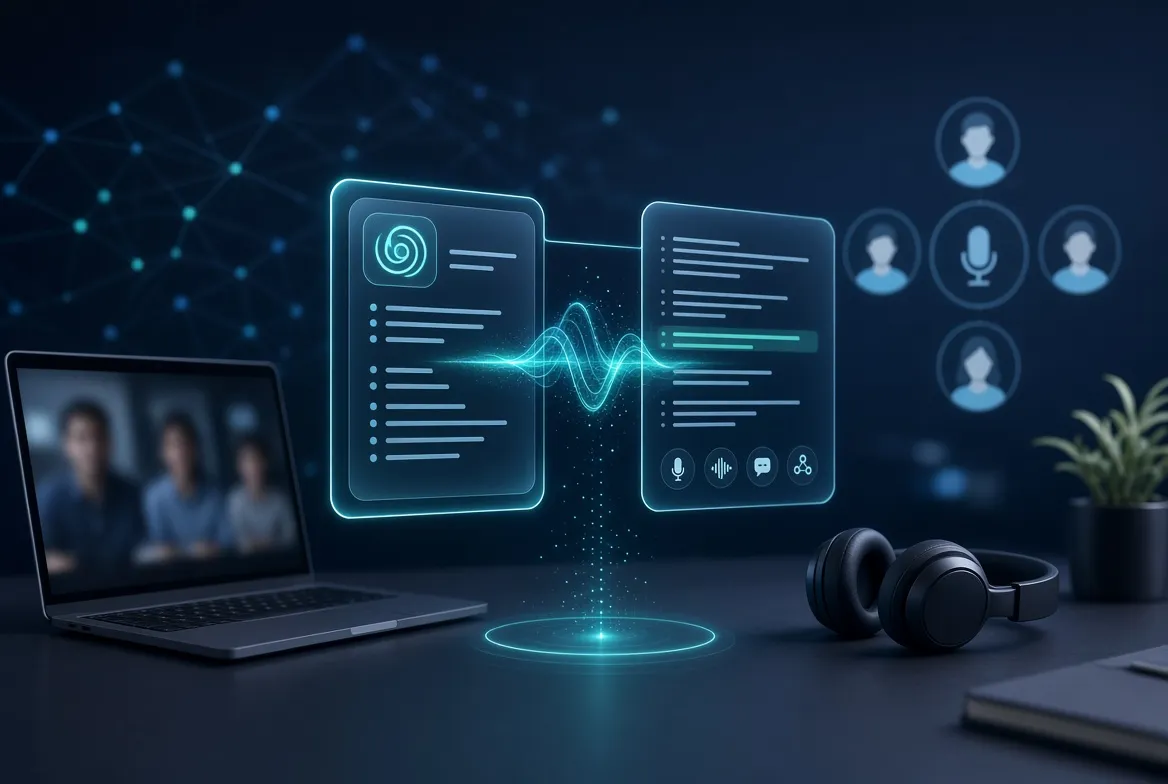
Meetings are where decisions happen, but they are also where details quietly slip away. If you have ever walked out of a video call and realized you forgot who promised what, you already understand the problem that free AI meeting note takers were built to solve. These tools join your calls, turn speech into an accurate written record, and then use AI to distill the conversation into summaries, action items, and searchable highlights — so you can stay present in the discussion instead of frantically typing.
The good news is that you do not need a paid subscription to get meaningful value. Many of the most capable meeting assistants now ship with genuinely useful free tiers: live transcription, AI-generated summaries, keyword search across past meetings, and integrations with the tools you already use. The catch is that free plans differ wildly in what they include, how accurate they are, and which platforms they support. A tool that shines for a solo freelancer on Google Meet might be a poor fit for a sales team living inside Microsoft Teams.
In this guide we have rounded up the seven strongest free options available in 2026, based on transcription quality, summary usefulness, ease of setup, platform coverage, and how generous the free tier really is. For each one you will find what it does best, what its free plan actually covers in qualitative terms, and who it suits most. After the reviews you will find a side-by-side comparison table, practical tips for getting cleaner transcripts, the mistakes most people make with AI notetakers, and a real-world workflow you can copy. Whether you are a student, a freelancer, or part of a growing team, you will leave knowing exactly which tool to try first.
The 7 Best Free AI Meeting Note Takers in 2026
Every tool below offers a real free plan — not a short trial that expires after a week. They are ordered by a blend of accuracy, feature depth, and free-tier generosity, but the “best” choice depends on your meeting stack. Someone running daily client calls on Zoom has different needs than a Mac user who takes internal standups on Google Meet. Read the “Best for” line under each review to shortcut the decision.
1. Otter.ai
Otter.ai is the name most people hear first when they ask about AI transcription, and it earned that reputation. Its OtterPilot assistant can automatically join your scheduled Zoom, Google Meet, or Microsoft Teams calls, capture the audio, and produce a live transcript with speaker labels in real time. After the meeting, Otter generates a concise AI summary, extracts action items, and lets you search across your entire meeting history the way you would search your email.
You can click any sentence in the summary and jump straight to that moment in the recording, which makes verifying details effortless. Otter also plays well with the rest of your stack through integrations with tools like Slack, Salesforce, and HubSpot, so notes and follow-ups can flow into your CRM or team chat automatically.
- Key features: real-time transcription with speaker identification, OtterPilot auto-join for scheduled meetings, AI summaries and action-item extraction, full-text search across all transcripts, playback synced to highlighted text, and integrations with popular sales and collaboration tools.
- Free plan: a no-cost tier that includes live transcription, meeting summaries, and a limited monthly transcription allowance — plenty for someone with a light meeting load who wants to test whether AI notes fit their workflow.
- Best for: professionals and students who want a polished, reliable all-rounder with strong search and sharing features.
2. Fireflies.ai
Fireflies.ai takes a “set it and forget it” approach: its AI assistant, Fred, joins your meetings automatically based on your calendar, records and transcribes the conversation, and then organizes everything into a searchable knowledge base. Where Fireflies stands out is the depth of its analysis.
Beyond summaries, it tracks topics, detects sentiment, measures talk time per participant, and creates shareable soundbites — short audio clips of key moments you can send to colleagues who missed the call. It supports a wide range of platforms including Zoom, Google Meet, Microsoft Teams, Webex, and Dialpad, and connects with CRMs, project management apps, and collaboration tools so insights do not stay trapped in a transcript. For sales and recruiting teams, its conversation intelligence features are especially valuable.
- Key features: automatic meeting join via calendar, transcription across all major video platforms, AI summaries with topic and sentiment tracking, talk-time analytics, shareable soundbites, and deep CRM and workflow integrations.
- Free plan: a free tier that covers core transcription and summarization for a limited amount of meeting audio each month — enough to evaluate the workflow on real calls before deciding whether to upgrade.
- Best for: sales teams, recruiters, and managers who want conversation intelligence, not just a transcript.
3. Fathom
Fathom built its reputation on a simple promise: the core recording, transcription, and summarization experience is free for individual users, without the meter anxiety that comes with minute-counted plans. It works with Zoom, Google Meet, and Microsoft Teams, and after each call it delivers an AI-generated summary, a full transcript, and action items. One of its most loved features is one-click highlight reels: during a call you can mark important moments, and Fathom compiles them into a shareable clip summary. It also syncs notes and summaries directly into CRMs like HubSpot and Salesforce, which makes it a favorite among customer-facing teams. Setup takes minutes, and the interface is clean enough that non-technical colleagues will actually use it.
- Key features: automatic recording and transcription, AI summaries and action items, one-click highlight clips from key moments, CRM sync for HubSpot and Salesforce, and a simple, beginner-friendly interface.
- Free plan: a genuinely generous free tier for individuals that covers the core note-taking experience without forcing an upgrade — ideal if you want a tool you can rely on long term at no cost.
- Best for: individuals and small teams who want a dependable free notetaker they will not outgrow quickly.
4. tl;dv
tl;dv (pronounced “too long; didn’t view”) is designed for people who are drowning in meetings and need to extract the signal fast. Its bot joins your Zoom, Google Meet, or Microsoft Teams calls, records and transcribes them, and then lets you navigate the conversation through AI-generated timestamps and topic tags. Instead of rewatching an hour-long recording, you can skim timestamped highlights or share a two-minute clip of the exact moment a decision was made. tl;dv’s summaries cover key points, decisions, and next steps, and it integrates with Notion, Slack, HubSpot, and other workflow tools so notes land where your team already works. Multilingual transcription support also makes it a solid pick for international teams.
- Key features: meeting recording with AI transcription, timestamped highlights and topic tagging, short shareable clips, AI summaries with decisions and next steps, and integrations with Notion, Slack, and HubSpot.
- Free plan: a free tier that includes recording, transcription, and summaries for a limited number of meetings — a good fit for trying the highlight-and-clip workflow on real calls.
- Best for: busy managers and async-first teams who want to skim meetings instead of attending every one.
5. Notta
Notta earns its place on this list with exceptional language coverage and flexibility beyond live meetings. It transcribes in dozens of languages, offers bilingual live captions, and can also transcribe uploaded audio and video files — handy for interviews, lectures, and podcasts, not just meetings. Its AI summaries pull out chapters, highlights, and action items, and calendar integration means it can auto-join scheduled calls on Zoom, Google Meet, Microsoft Teams, and Webex. The interface is straightforward, and sharing is simple: you can export transcripts or share them via link. If your work spans languages or you regularly need to transcribe files you already have, Notta is one of the most versatile free options.
- Key features: transcription in dozens of languages with bilingual captions, audio and video file transcription, AI summaries with chapters and action items, calendar-based auto-join, and easy link sharing and export.
- Free plan: a free tier with a modest monthly transcription allowance across live meetings and file uploads — enough to handle occasional multilingual calls or interview transcripts.
- Best for: multilingual teams, researchers, journalists, and anyone who also needs to transcribe uploaded files.
6. Granola
Granola takes a different philosophy from the bot-based tools above: instead of sending an AI participant into your meeting, it runs quietly on your own device and enhances the notes you take yourself. You jot down rough notes during the call as you normally would, and Granola combines them with its own transcription of the audio to produce a polished, structured summary afterward.
Because there is no bot joining the call, it feels more private and less intrusive — colleagues just see you taking notes. It is particularly popular with founders, investors, and consultants who take lots of one-on-one conversations and want clean write-ups without announcing an AI attendee. Granola also syncs with CRMs so meeting outcomes can update your pipeline automatically.
- Key features: bot-free transcription that runs on your device, merges your own notes with AI transcription, polished post-meeting summaries, CRM sync, and a minimal, distraction-free interface.
- Free plan: a free tier that covers the core note-enhancement experience for individual users — a great way to test the “no bot” approach before committing.
- Best for: Mac users, founders, and consultants who prefer a discreet notetaker that does not join the call as a participant.
7. Tactiq
Tactiq is the lightweight option for people who want transcripts without installing anything heavy. It runs as a browser extension and displays a live, real-time transcript panel alongside your Google Meet, Zoom, Webex, or Microsoft Teams calls, complete with speaker labels. After the meeting, its AI can turn the transcript into summaries, action items, and even custom outputs based on prompts you define — meeting notes in your exact template, follow-up emails, or project updates.
Because it lives in the browser, setup is nearly instant, and past transcripts are saved and searchable. It is less of a “meeting platform” and more of a smart layer on top of the calls you already take, which makes it perfect for individual contributors who just want reliable notes.
- Key features: real-time transcript sidebar via browser extension, AI summaries and action items, custom AI prompts for tailored outputs, saved and searchable transcript history, and near-instant setup with no bot to configure.
- Free plan: a free tier that includes live transcription and a limited number of AI-generated summaries — ideal for individuals with a moderate meeting schedule.
- Best for: individual contributors and freelancers who want fast, no-fuss transcription inside the browser.
Honorable mentions: if none of the seven above clicks, two more names are worth knowing. Otter.ai‘s style of automation is rivaled by Read AI, which leans heavily into post-meeting reports, coaching insights, and playback summaries, while Fellow focuses on the human side of meetings — collaborative agendas, assigned action items, and feedback — with AI notes layered on top. Both offer free tiers, and they are worth a look if your priority is meeting culture rather than raw transcription.
Free AI Meeting Note Takers Compared
Specs and feature lists only tell you so much. This table boils each tool down to what actually matters when you are choosing: what it is best known for, which platforms it covers, and the one standout AI capability that separates it from the rest.
| Tool | Best known for | Works with | Standout AI feature |
|---|---|---|---|
| Otter.ai | Reliable all-round transcription | Zoom, Google Meet, Microsoft Teams | Searchable transcript archive with instant audio jump-back |
| Fireflies.ai | Conversation intelligence | Zoom, Meet, Teams, Webex, Dialpad | Sentiment and talk-time analytics with shareable soundbites |
| Fathom | Generous free tier | Zoom, Google Meet, Microsoft Teams | One-click highlight reels from key moments |
| tl;dv | Skimmable meeting highlights | Zoom, Google Meet, Microsoft Teams | Timestamped topic tags and short shareable clips |
| Notta | Multilingual transcription | Zoom, Meet, Teams, Webex, plus file uploads | Bilingual live captions and chaptered summaries |
| Granola | Discreet, bot-free notes | Runs on your device during any call | Merges your rough notes with AI transcription |
| Tactiq | Lightweight browser transcripts | Google Meet, Zoom, Webex, Teams | Custom AI prompts for tailored meeting outputs |
Pro Tips for Getting Better AI Meeting Notes
An AI notetaker is only as good as the audio you feed it. These practical tips will noticeably improve transcription accuracy and make the summaries you get back far more useful.
- Use a decent microphone and a quiet room. Transcription engines struggle most with echo, background chatter, and laptop fans. A basic headset mic in a quiet space can cut errors dramatically compared to a laptop microphone in an open office.
- Ask speakers to identify themselves and avoid talking over each other. Most tools label speakers automatically, but overlapping speech is still the number one cause of garbled transcripts. A simple “let’s go one at a time” at the start of a call pays off.
- Teach the tool your vocabulary. Several notetakers let you add custom words — product names, client names, industry jargon. Spending five minutes on this prevents the classic problem of your product name being transcribed as three wrong words for eternity.
- Review the summary before you share it. AI summaries are impressively good but not infallible; they occasionally misattribute a decision or miss a caveat. A two-minute skim before forwarding notes to a client or your team prevents embarrassing mistakes.
- Connect the tool to where work happens. The real power of these assistants is not the transcript — it is action items flowing into your task manager, summaries landing in Slack, and notes syncing to your CRM automatically. Wire up at least one integration on day one.
- Use timestamps and highlights during the call. If your tool supports bookmarking moments live, use it. Marking the three key decisions as they happen turns a 45-minute transcript into a two-minute review later.
- Set a naming convention for meetings. When transcripts pile up, “Weekly Sync” repeated forty times is useless for search. Include the date and topic — “Weekly Sync – Pricing Discussion – Sep 2026” — so future you can find anything in seconds.
Common Mistakes to Avoid
Most disappointment with AI meeting note takers comes from avoidable missteps rather than bad tools. Watch out for these.
- Recording without telling participants. In many jurisdictions you need consent from at least one — and sometimes all — parties to record a conversation. Beyond the law, an undisclosed bot joining a call erodes trust. Announce the notetaker at the start, or enable the tool’s automatic disclosure notice.
- Trusting the raw transcript blindly. Transcripts capture words, not intent. Sarcasm, tentative suggestions, and “let’s explore this” brainstorming can all read as firm commitments in text. Always interpret the transcript with the meeting’s context in mind.
- Choosing on price alone. A free tier that does not support your meeting platform, or that caps you below your actual meeting volume, is not a bargain — it is a future migration headache. Match the tool to your platform and cadence first, then look at cost.
- Ignoring language and accent support. If your team speaks multiple languages or has diverse accents, test the tool on a real call with your actual participants before rolling it out. Accuracy varies significantly across languages.
- Collecting notes nobody reads. A transcript archive is only valuable if it feeds decisions. If summaries are not being reviewed and action items are not assigned owners with deadlines, you have built a very expensive filing cabinet. Close the loop every time.
- Skipping the privacy check. Meeting transcripts often contain sensitive commercial or personal information. Check where recordings are stored, who can access them, and whether the vendor uses your data to train models — then set retention and sharing policies accordingly.
A Real-World Workflow: From Call to Done
Here is a simple end-to-end workflow that turns any of these tools from a novelty into a genuine productivity system. It works for a freelancer juggling clients or a team running dozens of meetings a week.
- Before the meeting: connect your calendar so the notetaker auto-joins, and add any custom vocabulary for names and terms that will come up. Drop a one-line agenda into the meeting invite so the AI has context for a sharper summary.
- At the start: announce that an AI notetaker is recording and will share notes afterward. This takes ten seconds, keeps you compliant, and usually makes participants speak more clearly.
- During the meeting: stay fully present — that is the whole point. Bookmark or highlight key moments as they happen: decisions, numbers, deadlines, and disagreements. Jot nothing else; let the tool handle capture.
- Right after: open the AI summary and spend two minutes verifying decisions and action items against your memory. Fix anything the AI misheard while the conversation is fresh.
- Within the hour: share the summary with attendees and absentees, with action items assigned to named owners and deadlines. Push the notes to your task manager or CRM via integration so nothing lives only in the transcript.
- Weekly: use search across your meeting archive to prep for follow-ups. Searching “pricing” across last month’s calls before a negotiation is the kind of superpower that justifies the entire setup.
Follow this loop for a month and you will notice the shift: fewer “wait, what did we decide?” messages, faster onboarding for anyone who missed a call, and meetings that feel shorter because nobody is half-listening while taking notes.
Frequently Asked Questions
Are free AI meeting note takers accurate enough to rely on?
For clear audio with one speaker at a time, modern transcription is remarkably accurate — good enough that most users stop taking manual notes entirely. Accuracy drops with heavy accents, overlapping speech, background noise, and specialized jargon, which is why a decent microphone and the custom-vocabulary feature matter. Treat the AI summary as a strong first draft: skim it before sharing, and you will catch the occasional misattribution.
Can these tools join my meetings automatically?
Yes — most of them can. Tools like Otter.ai, Fireflies.ai, Fathom, and tl;dv connect to your calendar and send a bot participant into scheduled Zoom, Google Meet, or Teams calls without you lifting a finger. Granola and Tactiq take the opposite approach and run on your own device or browser instead, so nothing joins the call. Both approaches work; pick based on whether you prefer full automation or a more discreet setup.
Is it legal to record meetings with an AI notetaker?
It depends on where you and the participants are located. Some places require only one party’s consent, while others require everyone on the call to agree. The safe practice is simple: announce the recording at the start of every meeting and note it in the invite. Most tools can display an automatic disclosure message when the bot joins, which helps with compliance and basic courtesy alike.
Do free AI meeting note takers work with Zoom, Google Meet, and Microsoft Teams?
All seven tools in this guide support the big three platforms in some form — either through an auto-joining bot, a browser extension, or on-device capture. If your organization uses Webex, Dialpad, or another platform, double-check the specific tool: Fireflies.ai, Notta, and Tactiq cover the widest range of conferencing apps beyond the big three.
Are my meeting transcripts private and secure?
Reputable vendors encrypt recordings in transit and at rest and offer controls over sharing, retention, and deletion. The details that matter: check whether your data is used to train AI models, who in your workspace can view transcripts by default, and whether the vendor complies with standards your organization requires, such as SOC 2 or GDPR. For highly sensitive discussions, a bot-free tool like Granola or a self-reviewed workflow adds an extra layer of comfort.
Will a free plan be enough, or will I need to upgrade?
It depends on your meeting volume. If you attend a handful of meetings a week, a free tier is often genuinely sufficient — especially with tools known for generous free plans. Heavy users, such as sales reps on calls all day, will usually hit the qualitative limits of free tiers and benefit from upgrading. The smart move is to start free, track how much you actually use in a month, and only upgrade when the free tier clearly constrains you.
Conclusion: free AI meeting note takers
There has never been a better time to stop taking meeting notes by hand. The free AI meeting note takers in this guide prove that you can get accurate transcription, intelligent summaries, and searchable meeting archives without spending anything — whether you want the polished all-rounder in Otter.ai, the conversation intelligence of Fireflies.ai, the generous free experience of Fathom, or the discreet approach of Granola.
Start with the one whose “Best for” line matches your situation, run it on real calls for two weeks, and pay attention to which summaries you actually revisit. The right tool is the one that quietly disappears into your workflow while making every meeting more useful. Pick one today, connect your calendar, and let AI handle the notes while you handle the conversation.
These ai video tools keep improving every month, so test two or three ai video tools on the same footage and compare results. Most ai video tools have free tiers generous enough for regular use, letting you build a full workflow with free ai video tools. When choosing ai video tools, prioritize output quality and render speed over feature lists.

Modern AI note takers have freed professionals from frantic scribbling. The best note takers transcribe, summarize, and extract action items automatically. When comparing note takers, test them on a real call — the top note takers handle crosstalk and accents.
Free tiers from leading note takers are perfect for individuals and small teams. Record meetings, generate summaries, and share decisions. As needs grow, paid plans from premium note takers unlock unlimited transcription and integrations. Always announce the recording — even the best note takers need consent to join legally.
Pair your AI note takers with good audio. Users who use a decent mic get better results from note takers than those relying on a laptop in a noisy room.
Related guides: