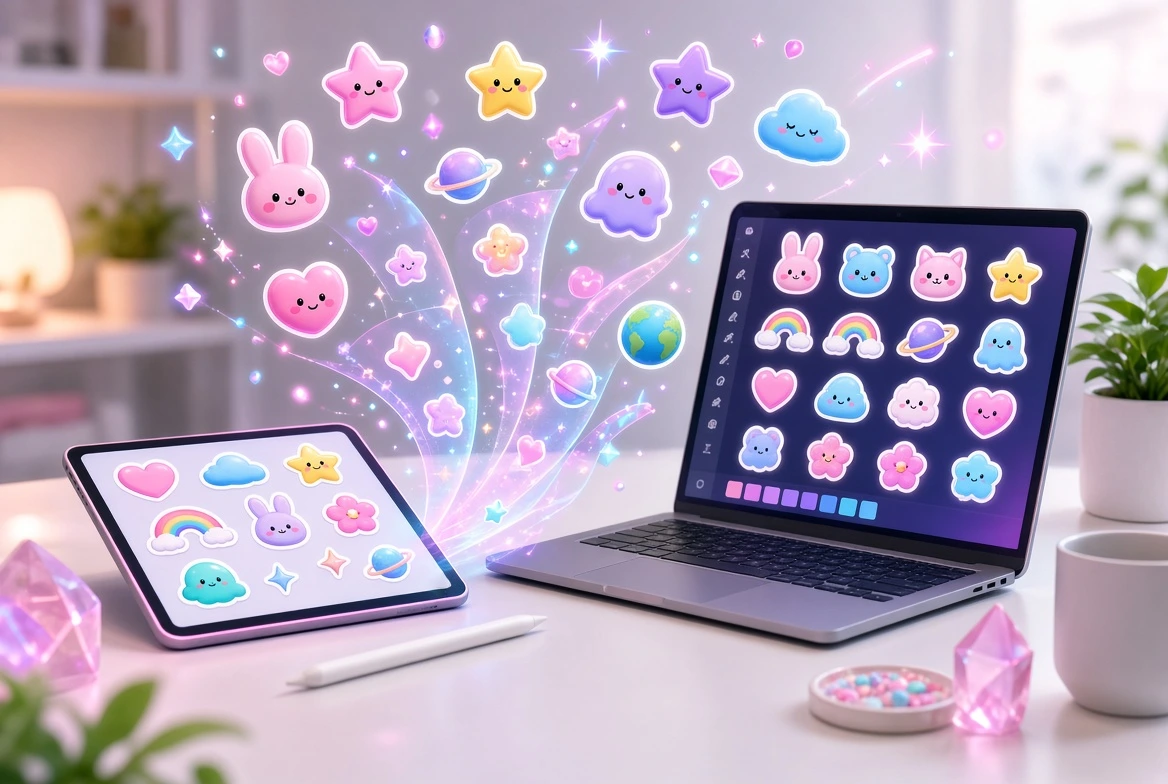
Stickers have quietly become one of the most expressive formats on the internet. They live in your WhatsApp chats, Telegram groups, laptop lids, water bottles, and product packaging, and they carry more personality per square inch than almost any other kind of graphic. Until recently, making a good sticker required design software, a steady hand, and a lot of patience. Today, the best AI sticker generators let you go from a text prompt to a cutout-ready, die-cut style sticker in under a minute, with no design background at all. Whether you want funny reaction stickers for your group chat or a professional set for your brand, there is a free tool in this guide that fits your workflow.
This article reviews eight genuinely free AI sticker generators you can try right now. Each one was chosen because it exists, is widely used, and offers a real free tier — not a trial that expires after three generations. We will cover what each tool does best, who it is for, and the quirks you should know before you commit. By the end, you will have a clear pick for chat stickers, merch stickers, and marketing stickers, plus a comparison table, a step-by-step workflow, and answers to the questions people ask most.
The Best AI Sticker Generators for WhatsApp and Telegram Stickers
Chat stickers are the most popular use case for AI sticker tools by far. WhatsApp and Telegram sticker packs are simple image sets — usually PNGs with transparent backgrounds — and AI generators are excellent at producing exactly this kind of asset. The tools in this section specialize in prompt-to-sticker creation, background removal, and pack organization, so you can go from an idea in your head to a sticker pack on your phone in minutes. They are also the easiest starting point if you have never used an AI image tool before, because the interfaces are designed around play rather than precision.
1. Sticker.ly
Sticker.ly is one of the most established sticker apps in the world, and its AI sticker generation feature has made it a natural first choice for chat stickers. The app is available on iOS and Android, and its AI generator lets you type a prompt — something like “a grumpy cat drinking coffee, die-cut sticker style” — and get a set of sticker-ready images with transparent backgrounds within seconds. The results are automatically sized and optimized for sticker packs, which removes the most tedious part of the process.
What makes Sticker.ly stand out is the ecosystem around the generator. You can add your creations directly to a personal sticker pack, organize them into themed sets, and share packs with friends through WhatsApp, Telegram, or iMessage with a single tap. The app also has a huge community library of user-created packs, which is useful for inspiration and for seeing what styles work well at small sizes. The free tier is generous enough for regular use, and the interface is simple enough that a teenager or a grandparent could figure it out in minutes.
The trade-offs are worth knowing. The app is mobile-first, so if you prefer working on a desktop, you will find the experience more limited. Output quality can be inconsistent for complex prompts — simple, bold subjects with clear outlines work best, and you may need to regenerate a few times to get a result you love. For pure chat-sticker purposes, though, Sticker.ly remains one of the most practical and fun options available.
2. Picsart
Picsart has been a mobile editing powerhouse for over a decade, and its AI image generator integrates beautifully with its sticker-making workflow. You can generate an AI image from a text prompt, then use Picsart’s built-in cutout and background-removal tools to turn it into a sticker with a white border — the classic sticker look — all inside one app. This makes it ideal for people who want more control than a one-tap generator offers without switching between multiple apps.
The strength of Picsart is its editing depth. Once you generate your base image, you can add text captions, apply effects, layer multiple elements, and fine-tune colors before exporting. This is especially useful for reaction stickers and memes, where the caption is half the joke. The AI generator supports multiple art styles, from cartoon and anime to photorealistic and watercolor, so you can match the aesthetic of your existing sticker collection or create something entirely new.
Picsart operates on a freemium model: the core sticker tools and a solid amount of AI generation are available for free, with premium features behind a subscription. If you are creating stickers regularly for a business or content channel, the paid tier may eventually be worth it, but casual users will find the free tier more than sufficient for building a respectable sticker collection.
3. Fotor
Fotor is a browser-based design platform that includes a capable AI sticker generator among its many tools. Its approach is straightforward: enter a prompt, choose a style, and Fotor produces sticker-style images with clean cutouts and transparent backgrounds. Because it runs in the browser, there is nothing to install, and it works equally well on Windows, Mac, and Chromebook — a real advantage for students and anyone on a shared or low-spec computer.
Beyond generation, Fotor’s editing suite lets you refine your stickers with filters, text overlays, and background effects. The platform also offers templates for related projects, so if your sticker idea grows into a full poster, social post, or flyer, you can keep working in the same environment. For users who bounce between school projects, content creation, and casual fun, that versatility is genuinely useful.
The free plan covers sticker generation and core editing, though some advanced filters and higher-resolution exports are reserved for paid users. Output quality is strong for common prompts, particularly cartoon, kawaii, and flat-illustration styles, which happen to be exactly the aesthetics that look best as stickers. If you want a no-install, no-fuss option, Fotor deserves a spot on your shortlist.
The Best AI Sticker Generators for Merch and Brand Stickers
Not all stickers are destined for a chat app. Die-cut stickers on laptops, water bottles, shop windows, and product packaging need sharper artwork, consistent branding, and print-ready resolution. The tools in this section pair AI image generation with real design environments — so you can generate a mascot or logo, place it on a proper canvas, add your brand name, and export a file that a print shop can actually use. If you sell stickers on Etsy, Redbubble, or at craft fairs, this is your section.
4. Canva
Canva is arguably the most versatile design tool on this list, and its AI image generator — built on Magic Studio — makes it a serious sticker creation platform. You can generate sticker-style artwork from a prompt, then drop it into Canva’s enormous template library, add text in hundreds of fonts, and arrange everything on a print-sized canvas. For brand stickers, the ability to keep your logo, colors, and fonts consistent across a whole set is a huge advantage that pure sticker apps cannot match.
Canva’s workflow for stickers is simple and powerful. Generate or upload your artwork, use the background remover to isolate the subject, add a white outline or border for the classic die-cut look, and export as a PNG with a transparent background. You can then take that file straight to a sticker printing service, or — notably — use Canva’s own printing service to order printed stickers delivered to your door. That end-to-end path from prompt to physical sticker in one platform is rare and genuinely convenient.
The free plan is remarkably capable: it includes AI image generation, the background remover (with some usage limits), and thousands of templates. Canva is the best pick in this guide for anyone creating stickers for a business, classroom, event, or product line. Canva’s official site is the place to start if you have never used it.
5. Microsoft Designer
Microsoft Designer is Microsoft’s AI-powered design tool, and it is a strong free option for sticker-style graphics. Powered by generative image models, Designer turns text prompts into artwork you can place on templates for stickers, social posts, and more. If you already live in the Microsoft ecosystem — Windows, Edge, OneDrive — the integration is seamless, and the tool is free to use with a Microsoft account.
For stickers specifically, Designer’s templates and layout suggestions help non-designers arrange generated artwork with text and graphic elements into something that looks professional. The AI image quality is solid, particularly for bold, colorful, illustrative styles that reproduce well at small sizes. Export options include transparent-background PNGs, which is the format you want for both digital sticker packs and print preparation.
Designer is still maturing compared to Canva, so the template library and fine-grained editing controls are more limited. But for a completely free tool with no watermark on exports, it is an excellent choice for students, hobbyists, and small businesses making their first branded stickers. You can find it at Microsoft Designer’s official site.
6. Ideogram
Ideogram has earned a reputation as one of the best AI image generators for handling text inside images — a notorious weakness of most models — and that makes it surprisingly great for stickers. Stickers often include words: a slogan, a name, a funny caption. Where other generators garble lettering into nonsense, Ideogram frequently renders short text correctly, which opens up sticker concepts that are simply not practical elsewhere.
The workflow is pure generation: you write a detailed prompt, Ideogram produces several options, and you download your favorite as a PNG. There is no built-in sticker pack manager or background remover, so you will typically pair Ideogram with a free editor — Canva, Picsart, or Fotor all work — to cut out the background and add the white sticker border. The free tier provides a daily allowance of generations, which is plenty for experimenting and building a small collection.
Ideogram shines for typography-driven stickers: laptop decals with witty phrases, brand stickers with taglines, and event stickers with dates and names. If your sticker idea lives or dies on readable text, start here. Just remember to keep the wording short — two to five words render most reliably — and generate a few variations to pick the cleanest one.
More Free AI Sticker Generators Worth Trying
Two more tools round out the list, each with a distinct strength. One is built for playful, social creation; the other is a general-purpose AI art generator that happens to be excellent at sticker-style output when prompted correctly. Between the eight tools in this guide, every major sticker use case is covered.
7. Sticker Maker-style AI generators (WhatsApp Sticker Maker apps)
The app stores are full of dedicated “sticker maker” apps — WhatsApp Sticker Maker and its many cousins — that have added AI generation to their traditional cutout tools. These apps typically let you either draw, cut out from photos, or generate from a prompt, then assemble the results into packs for WhatsApp and Telegram. They are single-purpose and extremely easy to use, which makes them perfect for kids, casual users, and anyone who finds full design platforms intimidating.
The AI quality in these niche apps varies more than in the bigger platforms, so expectations should be modest: simple prompts and cartoon styles work best. The advantage is the laser focus on the sticker-pack workflow — sizing, transparency, and pack export are all handled automatically. If your only goal is “funny stickers for the family group chat,” one of these apps will get you there faster than anything else on this list.
8. NightCafe
NightCafe is a long-running AI art platform with a large community and a genuinely usable free tier based on daily credits. It is not a sticker tool per se, but its models are excellent at the bold, high-contrast, illustrative styles that make great stickers — and its community feed is a goldmine of prompt ideas you can adapt. Many users generate artwork in NightCafe and finish it into stickers in Canva or Picsart.
What sets NightCafe apart is the creative community: you can browse thousands of public creations, see the exact prompts and settings used, and remix them for your own stickers. For beginners, studying successful prompts is the fastest way to learn what works. The free daily credits reset regularly, so you can generate a steady stream of sticker art without paying anything. If you enjoy the experimental side of AI art and want sticker ideas on tap, NightCafe is a fun and productive playground.
Comparison Table: The 8 Best AI Sticker Generators at a Glance
Here is a quick side-by-side comparison to help you choose. Free-plan details change over time, so treat these as qualitative snapshots rather than exact specifications.
| Tool | Best For | Platform | Free Plan Notes |
|---|---|---|---|
| Sticker.ly | WhatsApp/Telegram sticker packs | iOS, Android | Generous free use; community packs |
| Picsart | Edited reaction stickers and memes | iOS, Android, Web | Free core tools; premium extras optional |
| Fotor | No-install browser sticker creation | Web | Free generation and editing; some filters paid |
| Canva | Brand and merch stickers, print-ready | Web, iOS, Android | Strong free plan incl. AI generation |
| Microsoft Designer | Free branded sticker graphics | Web | Free with Microsoft account; no watermark |
| Ideogram | Stickers with readable text | Web | Free daily generation allowance |
| Sticker maker apps | Fast casual chat stickers | iOS, Android | Typically free with ads |
| NightCafe | Experimental art + prompt ideas | Web | Free daily credits that reset |
Pro Tips for Better AI Sticker Results
The difference between a mediocre AI sticker and a great one usually comes down to the prompt and a few finishing touches. These tips apply across all eight tools.
- Prompt for the sticker look explicitly. Add phrases like “die-cut sticker,” “white border,” “sticker style,” or “kawaii sticker” to your prompt. This steers the model toward bold outlines, simple shapes, and flat colors — the visual language of stickers.
- Keep subjects simple and bold. Stickers are viewed at tiny sizes. One clear subject with strong contrast beats a detailed scene every time. If your generation looks busy, simplify the prompt and try again.
- Always check the background. True stickers need transparent backgrounds. Use the tool’s background remover or cutout feature, and zoom in to check edges for halos or leftover background fringes before you export.
- Test at real size. A sticker that looks great full-screen can be unreadable at chat size. Shrink your preview down to thumbnail size — if the subject and any text are still clear, you have a winner.
- Mind the text. Short words and big, bold fonts survive shrinking. If a generator mangles your caption, try Ideogram, shorten the wording, or add the text manually in an editor instead.
- Generate in batches. AI output varies between runs. Generate four to six versions of each idea and keep only the best one or two — curation is part of the craft.
- Stay consistent for packs. When building a themed pack, reuse the same style keywords (“flat vector,” “pastel,” “thick black outline”) across prompts so the set feels like it belongs together.
Real-World Workflow: From Idea to Sticker Pack in 15 Minutes
Here is a complete walkthrough showing how the tools in this guide fit together. Imagine you want a set of ten motivational gym stickers for your fitness group chat — bold, funny, and readable at small sizes.
Start in Ideogram, because your stickers need short text captions like “ONE MORE REP” and “NO EXCUSES.” Write prompts such as: “die-cut sticker of a flexing cartoon dumbbell character, bold flat vector style, thick white border, text ‘ONE MORE REP’ in bold letters.” Generate several variations for each of your ten ideas and download the strongest ones — this takes about five minutes.
Next, open Canva and create a square canvas. Upload your Ideogram downloads, run the background remover on each to guarantee clean transparency, and add the thick white outline that gives stickers their classic look. If any caption came out slightly off, retype it in a bold font right in Canva. Arrange nothing else — each sticker stays its own file. Export every design as a PNG with a transparent background. That is another five minutes.
Finally, open Sticker.ly on your phone, create a new pack called “Gym Motivation,” and import your ten PNGs. The app handles sizing and formatting automatically. Publish the pack and share the link in your group chat — done. Total time: roughly fifteen minutes for a professional-looking, fully original sticker pack.
The lesson is that you rarely need just one tool. Ideogram handles the tricky text, Canva handles cleanup and borders, and Sticker.ly handles pack assembly and sharing. Mixing the best AI sticker generators by their strengths is how you get results that look like a designer made them.
Common Mistakes to Avoid When Making AI Stickers
Most disappointing sticker results come from a handful of avoidable errors. Watch out for these.
- Skipping the transparent background. A sticker with a white square behind it is not a sticker — it is a photo. Always export as PNG with transparency and verify it on a dark background.
- Overly detailed prompts. Long, complex prompts produce cluttered images that turn to mush at sticker size. Describe one subject, one style, one mood — then stop.
- Tiny or thin text. Delicate serif fonts and long sentences disappear when shrunk. Use short phrases in heavy, bold typefaces.
- Ignoring licensing. Free tiers often grant personal use; commercial use (selling stickers on merch) may need a paid plan or a commercial license. Check each tool’s terms before you sell anything — this is the most expensive mistake on the list.
- Inconsistent pack styles. A pack where every sticker is a different art style looks amateur. Lock in two or three style keywords and reuse them across every prompt in the set.
- Forgetting print resolution. Chat stickers can be low resolution, but printed stickers need high-resolution exports (300 DPI at final size). Generate or upscale at the largest size your tool allows before sending files to a printer.
- Using copyrighted characters. AI tools will happily generate a famous cartoon character, but selling or distributing that sticker can get you into legal trouble. Stick to original creations for anything public or commercial.
Frequently Asked Questions
What is the best free AI sticker generator for WhatsApp?
Sticker.ly is the most direct answer: it generates AI stickers with transparent backgrounds and publishes them straight into WhatsApp-ready packs. Picsart is a close second if you want to add captions and edits. Both are free to start and take only minutes to learn.
Can AI sticker generators make stickers with text on them?
Yes, but quality varies. Most generators struggle with lettering, so keep text short and bold. Ideogram is currently the strongest option for readable in-image text, and you can always add captions manually in Canva or Picsart for perfect results.
Do I need a transparent background for stickers?
For chat stickers and die-cut style designs, yes — transparency is what separates a sticker from a regular image. All the tools in this guide can produce transparent-background PNGs, either directly or via a built-in background remover.
Can I sell stickers made with AI generators?
Sometimes. It depends on the tool’s terms of service and your plan tier — many free tiers allow personal use only, while paid tiers or specific licenses permit commercial use. Always check the current terms of the tool you used before selling stickers on Etsy, Redbubble, or anywhere else.
What image format should I export stickers in?
PNG with a transparent background is the standard for digital sticker packs on WhatsApp and Telegram. For printing, export at the highest resolution available — ideally 300 DPI at your final print size — and your print shop will usually accept PNG or PDF.
Why do my AI stickers look blurry or messy?
The usual causes are overly complex prompts, low generation resolution, and viewing the sticker larger than intended. Simplify your prompt to one bold subject, generate at the highest available size, and always preview at the actual size the sticker will be displayed.
Are AI sticker generators really free?
The eight tools in this guide all offer genuinely usable free tiers — you can create real sticker collections without paying. Some limit daily generations or reserve premium styles and higher resolutions for paid plans, but none of them require a credit card just to try.
Which tool is best for printed merch stickers?
Canva is the best all-rounder for merch: AI generation, background removal, print-sized canvases, and even its own sticker printing service in one place. Pair it with Ideogram when your design needs crisp, readable text.
Conclusion: Picking the Best AI Sticker Generators for Your Needs
The best AI sticker generators in 2026 are not one-size-fits-all — the right choice depends on what kind of stickers you want to make. For quick WhatsApp and Telegram packs, Sticker.ly and the dedicated sticker maker apps are unbeatable for speed. For reaction stickers with captions and creative edits, Picsart and Fotor give you room to play. For brand and merch stickers that need to look professional in print, Canva leads the pack, with Microsoft Designer as a strong free alternative and Ideogram solving the hard problem of readable text. And when you want inspiration or experimental art styles, NightCafe’s community is worth an evening of browsing.
Start with one tool that matches your primary goal, follow the workflow above, and remember the golden rules: transparent backgrounds, bold simple subjects, and short readable text. Do that, and your first sticker pack will look like it came from a design studio — created in minutes, for free, from a single sentence. For more on the platforms mentioned, see Canva, Microsoft Designer, Sticker.ly, and Picsart to begin experimenting today.

Modern sticker generators have made custom stickers accessible to everyone. The best sticker generators turn a text prompt into cutout-ready designs in seconds. When comparing sticker generators, test them with your own ideas — the top sticker generators nail the die-cut look.
Free tiers from leading sticker generators are perfect for chat apps and personal projects. Generate packs, test styles, and export transparent PNGs. As needs grow, paid plans from premium sticker generators unlock higher resolution and print-ready files. Always export with transparency — even the best sticker generators need a manual background check.
Pair your sticker generators with simple prompts. Users who describe one bold subject get better results from sticker generators than those requesting complex scenes.
Related guides: