The demand for high-quality video content has never been higher. Whether you are launching a YouTube channel, scaling a small business, or producing viral short-form clips for TikTok and Instagram Reels, production value matters. Fortunately, you no longer need to shell out hundreds of dollars for a premium software subscription to get professional results.
Finding the best free video editing software 2026 offers can feel like navigating a minefield of hidden watermarks, aggressive paywalls, and heavy system requirements. Many applications promise a world of features for free, only to lock your final export behind a premium tier or ruin your footage with a massive logo overlay.
This comprehensive guide breaks down the top completely free choices available this year. These platforms provide robust editing timelines, advanced visual assets, and clean exports without unexpected premium catches. Let’s look at the options to help you choose the ideal tool for your specific creative workflow and machine setup.
Table of Contents
What to Look for in a Free Video Editor
Before downloading any application, you need to understand what makes a free video tool worth your time. The landscape has evolved significantly, with artificial intelligence (AI) automation and advanced color pipelines now standard across non-linear editors (NLEs).
When evaluating your options, keep these key technical pillars in mind:
- Watermark-Free Exports: A clean, professional export is non-negotiable. Look for tools that grant unrestricted rendering profiles on their free tiers.
- Resolution and Framerate Caps: High-definition video is standard. Ensure your platform supports at least 1080p resolution at 60 frames per second (fps), though several top-tier free tools now offer full 4K or even 8K export profiles.
- Hardware Optimization: Video processing requires significant computer resources. Your software must leverage your computer’s CPU and GPU efficiently to prevent timeline stuttering and long rendering delays.
- Format Flexibility: Your tool should handle a wide variety of native file formats, including common wrappers like MP4 and MOV, as well as highly efficient codecs like H.264, HEVC (H.265), and AV1.
Deep Dive: The Best Free Video Editing Software of 2026
The following platforms have been thoroughly vetted based on their interface design, performance metrics, feature sets, and overall stability.
1. DaVinci Resolve: The Professional Post-Production Standard
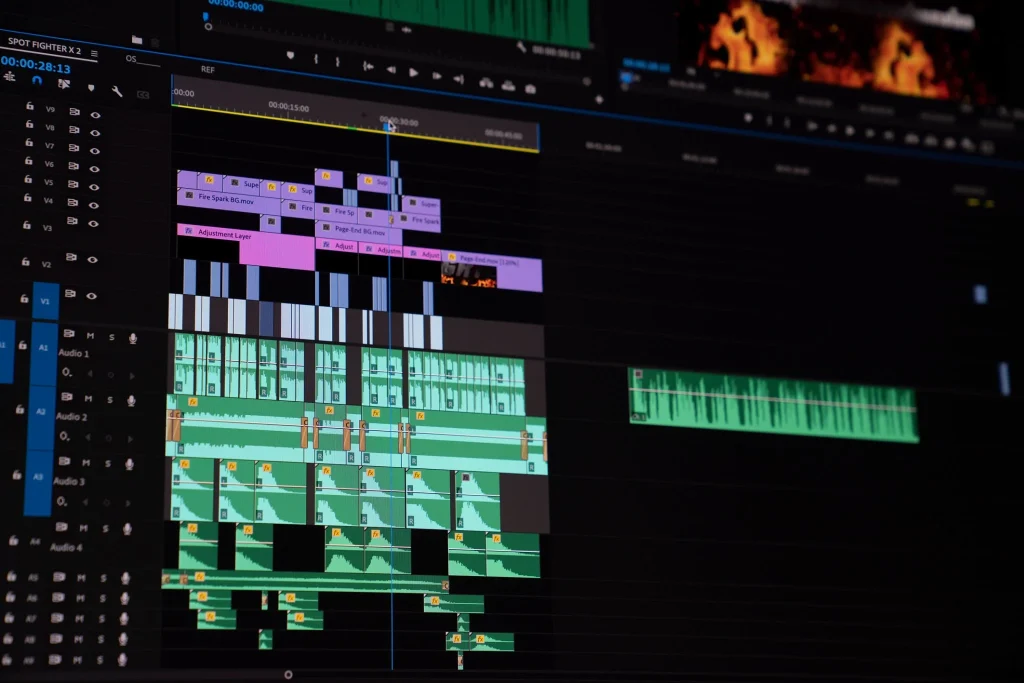
For creators demanding cinema-grade control over their footage, DaVinci Resolve remains the absolute king of free video applications. Developed by Blackmagic Design, this software is unique because it isn’t a stripped-down trial version designed to force an upgrade. Instead, it is a fully realized, world-class post-production suite used heavily by Hollywood studios and professional indie filmmakers alike.
The software combines traditional non-linear editing, advanced color grading, visual effects composting (via the integrated Fusion page), and professional audio mastering (via the Fairlight audio workstation) into a single desktop ecosystem. The software features an intuitive split-timeline system that lets you jump between rapid structural cuts and micro-level timing adjustments.
Key Performance Metrics
- Supported Platforms: Windows, macOS, Linux
- Maximum Free Export: Up to 4K Ultra HD (3840×2160) at 60fps
- Standout Feature: Node-based color grading and Fairlight audio mixing tools
- System Friendliness: Heavy; requires a dedicated GPU and a minimum of 16GB of system RAM for smooth multi-layer timelines
Why It Dominates
The node-based workspace allows you to layer color corrections, tracking masks, and secondary adjustments with surgical precision. The free tier includes robust media management, allowing you to generate multi-cam synchronized timelines and export chapters, metadata, and custom thumbnails directly to video platforms like YouTube.
2. CapCut Desktop: The Speed King for Short-Form Social Media
If your primary goal is to produce rapid, highly engaging vertical content for TikTok, YouTube Shorts, or Instagram Reels, CapCut Desktop is an incredibly efficient solution. Owned by ByteDance, CapCut has transitioned from a basic mobile app into a dominant desktop video utility that prioritizes workflow velocity over cinematic grading structures.
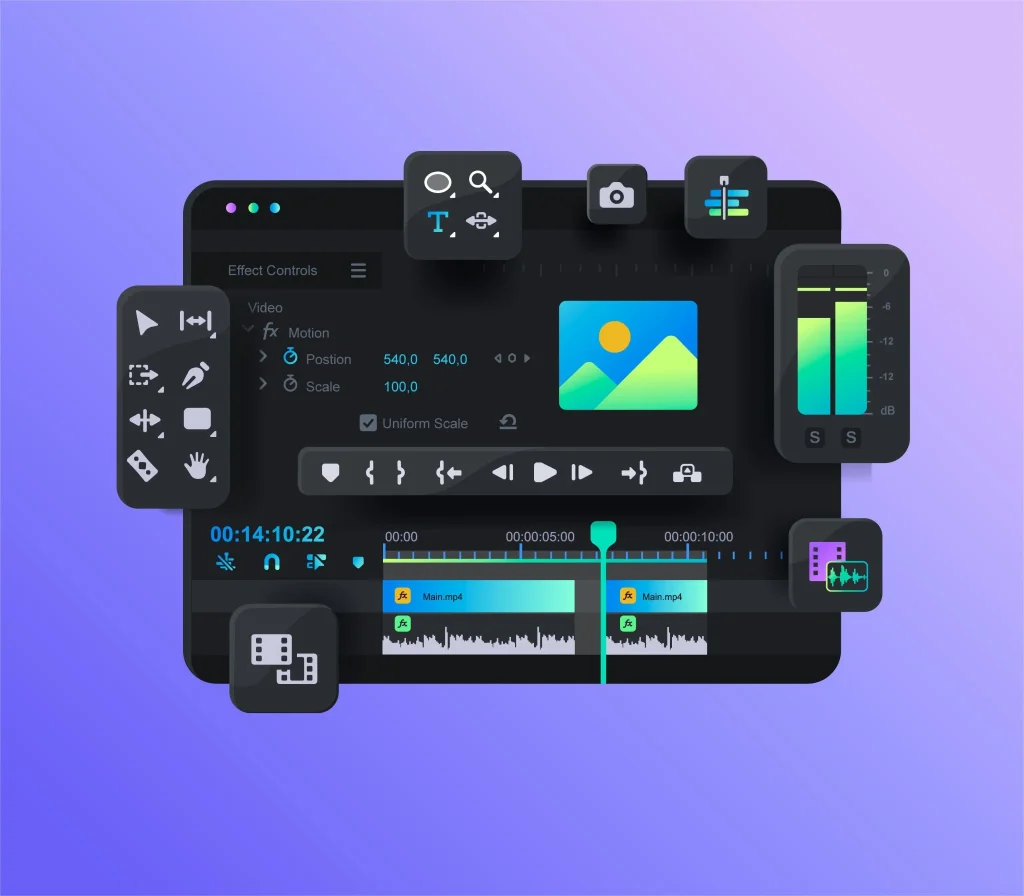
CapCut Desktop eliminates the friction of manual asset generation. The interface centers around a magnetic timeline where assets automatically snap together, preventing accidental gaps or out-of-sync overlays. It is packed with thousands of trending text templates, transitions, sound effects, stickers, and automated filters designed to capture immediate viewer attention.
Key Performance Metrics
- Supported Platforms: Windows, macOS, Web Browser
- Maximum Free Export: Up to 8K resolution at 60fps (supporting H.264, HEVC, and Apple ProRes 422)
- Standout Feature: AI-driven auto-captions and one-click smart background removal
- System Friendliness: Excellent; highly optimized for modest laptops and integrated graphics configurations
Why It Dominates
The true power of CapCut lies in its AI capabilities. The auto-captioning engine converts spoken dialogue into stylized, animated screen text in seconds with high transcription accuracy. While select premium templates carry a paid upgrade path, standard exports are clean, watermark-free, and incredibly fast to render.
3. Microsoft Clipchamp: The Ultimate Browser and Windows Beginner Pick
Microsoft Clipchamp serves as the perfect spiritual successor to the classic Windows Movie Maker. Deeply integrated into Windows 11 but completely accessible via modern web browsers on any operating system, Clipchamp addresses creators who want a clean layout without dealing with intimidating video tracks or complex audio mixers.
The design utilizes a straightforward drag-and-drop hierarchy. You can bring in your raw clips, trim them down on an intuitive horizontal timeline, and apply clean text cards and transitions. Clipchamp also provides direct access to a generous database of stock footage, graphic design elements, and background music tracks, saving you from hunting for copyright-free media across the web.
Key Performance Metrics
- Supported Platforms: Windows app, Web Browser (Cross-platform)
- Maximum Free Export: 1080p Full HD at 60fps
- Standout Feature: Built-in screen and webcam recording with realistic AI text-to-speech engines
- System Friendlining: Very Light; handles processing in-browser or via lightweight desktop apps without needing discrete hardware acceleration
Why It Dominates
Clipchamp is highly effective for business presentations, software tutorials, and basic YouTube edits. Its integrated screen-capture utility allows you to record your desktop and webcam simultaneously onto separate tracks, making it simple to scale, reposition, and edit training content in a matter of minutes.
4. Apple iMovie: Polished and Fast for Ecosystem Devotees
For Mac, iPad, and iPhone owners, Apple iMovie remains an exceptional starting point that punches well above its weight. Built directly into the Apple hardware ecosystem, iMovie is incredibly stable and optimized to squeeze maximum performance out of both legacy Intel Macs and modern Apple Silicon processors.
The application uses a unique magnetic timeline that prevents accidental track overlaps and preserves clip relationships during macro adjustments. While it lacks advanced multi-cam or complex color-space mapping, it features robust image stabilization, basic chroma-keying (green screen), and high-quality title templates that instantly match the clean design aesthetic associated with Apple software.
Key Performance Metrics
- Supported Platforms: macOS, iOS, iPadOS
- Maximum Free Export: 4K Ultra HD at 60fps
- Standout Feature: Direct cross-device project sharing and native cinematic mode depth control
- System Friendliness: Native optimization; runs flawlessly on base-model hardware with minimal battery drain
Why It Dominates
The seamless integration across devices is unmatched. You can begin a rough assembly cut on your iPhone while filming in the field, AirDrop the project directly to your MacBook Pro, and finish the final color adjustments and export on a larger monitor. Furthermore, if you outgrow the application’s capabilities, your entire iMovie project can be imported directly into Apple Final Cut Pro with all edit points intact.
5. Shotcut and Kdenlive: The Open-Source Powerhouses
If you are a proponent of open-source software, value total data privacy, or operate inside a Linux distribution, the duo of Shotcut and Kdenlive offer fantastic, restriction-free environments. Both platforms are maintained by passionate developer communities, meaning you will never encounter a feature paywall, a forced login, or an upsell banner.
Shotcut: The Lightweight Workhorse
Shotcut stands out for its wide native format support. Thanks to its implementation of the FFmpeg media framework, you can drop virtually any video, audio, or image format directly onto the timeline without waiting for proxy files or transcoding.
- Best For: Users operating older computers or modest laptops who still require multi-track editing capabilities.
- Key Advantage: Excellent custom audio filters, frame-accurate seeking, and very low background system footprint.
Kdenlive: The Feature-Rich Competitor
Kdenlive is a highly sophisticated, multi-track non-linear editor that provides a visual interface reminiscent of commercial editors like Adobe Premiere Pro. It features an advanced dual-video monitor layout, a configurable workspace architecture, and powerful toolsets for color analysis, multi-track audio mixing, and complex masking.
- Best For: Intermediate creators who want an advanced layout with deep asset control but reject subscription-based software.
- Key Advantage: Built-in 2D title editors, automatic clip synchronization via audio waveforms, and advanced proxy editing workflows.
You can also our Online Average Calculator.
Technical Side-by-Side Comparison
To help you visualize how these free video tools stack up against one another regarding resolution support, layout styles, and target audiences, review the comparison matrix below:
| Video Software | Primary Target Audience | Core Platform Support | Maximum Free Resolution | Timeline Style |
| DaVinci Resolve | Filmmakers, YouTubers, Editors | Windows, Mac, Linux | 4K UHD (60fps) | Traditional / Dual Track |
| CapCut Desktop | Social Creators, Short-Form | Windows, Mac, Web | 8K Ultra (60fps) | Magnetic Track |
| Clipchamp | Beginners, Business Demos | Windows, Web Browser | 1080p Full HD | Simple Linear Track |
| Apple iMovie | Apple Users, Vlog Beginners | macOS, iOS, iPadOS | 4K UHD (60fps) | Magnetic Track |
| Shotcut | Open-Source Fans, Older PCs | Windows, Mac, Linux | No Cap (Hardware Limited) | Traditional Track |
| Kdenlive | Intermediate Editors, Linux | Windows, Mac, Linux | No Cap (Hardware Limited) | Multi-Track NLE |
Step-by-Step: Setting Up Your Video Project for Success
Choosing the right application is only half the battle. To ensure your computer handles editing smoothly and your final output looks pristine, follow this procedural roadmap whenever initializing a new project file.
1.Organize Your Media Assets:Prerequisite Step.
Before launching your editing program, create a dedicated project folder on your fastest hard drive (preferably an internal or external SSD). Sub-divide this root directory into clear folders: Raw Footage, Audio Tracks, B-Roll, and Graphics. This prevents broken file links later on.
2.Match Timeline Settings to Source Video:Project Initialization.
Open your chosen software and initialize your timeline profile. Always match your project frame rate (e.g., 23.976 fps, 24fps, 30fps, or 60fps) to the native framerate your camera recorded. Changing timeline framerates halfway through an edit can cause micro-stutters and out-of-sync audio.
3.Generate Proxies for Smooth Playback:Performance Optimization.
If your computer lags while scrubbing through high-resolution 4K or 8K files, enable Proxy Media or Timeline Resolution Downscaling (available in DaVinci Resolve, Kdenlive, and CapCut). This creates lightweight, lower-resolution temporary duplicates for editing, while still utilizing your pristine original files during final rendering.
4.Execute Structural Assembly Cuts:The Creative Phase.
Perform your rough cuts first. Lay down your primary narrative track (often called the A-roll or dialogue track) onto the timeline. Trim out mistakes, extended pauses, and dead air before spending time adding background music tracks, visual effects, text overlays, or color grades.
5.Configure High-Quality Export Presets:Final Render Phase.
When your edit is ready, jump to the delivery tab. For general web platforms like YouTube and social networks, select an MP4 container utilizing the H.264 or HEVC codec. Set your bitrate between 15-20 Mbps for 1080p content and 45-68 Mbps for 4K video files to maintain sharp visual clarity.
Frequently Asked Questions (FAQs)
What is the best free video editing software 2026 for beginners?
For absolute beginners, Microsoft Clipchamp (on Windows) and Apple iMovie (on Mac) are the top recommendations. They offer intuitive, clutter-free layouts, straightforward drag-and-drop mechanics, and pre-built transitions and text styles that require zero prior technical knowledge.
Do any of these free video editors leave a watermark on my exports?
None of the core recommendations in this guide apply a forced watermark to your standard projects. DaVinci Resolve, iMovie, Shotcut, Kdenlive, and Clipchamp offer completely clean exports. CapCut provides free watermark-free exports, though a few premium effects or complex stock asset templates within the interface may require a paid tier.
Can I edit high-resolution 4K footage on a lower-end laptop?
Yes, but you must select software that supports proxy workflows, such as Shotcut or CapCut. Proxies reduce the performance burden on your laptop during the active editing process, switching back to full 4K data only when creating the final export file.
Why is my video lagging during timeline playback?
Timeline lag occurs when your computer’s CPU or GPU cannot decode your video files in real-time. This is common with highly compressed formats like raw phone footage. You can fix this by enabling proxy editing, lowering your timeline preview resolution to 1/2 or 1/4 quality, or ensuring hardware rendering acceleration is enabled in your software’s preferences tab.
Final Thoughts: Choosing Your Perfect Editing Companion
Finding the best free video editing software 2026 provides comes down to evaluating your personal creative objectives against the technical capabilities of your PC or Mac.
If you want to master the craft of professional storytelling, invest your time into learning DaVinci Resolve. If your goal is to feed the social media algorithms with highly engaging, rapid vertical clips, adopt CapCut Desktop. For those needing quick, simple, and functional edits without a steep learning curve, Clipchamp or iMovie will serve you perfectly.
Editorial Note: This comprehensive analysis was researched, tested, and compiled by the editorial team at Techupdatelab.com. Our mission is to provide creators with transparent, hyper-accurate software reviews to maximize digital output without unnecessary capital expenditure. If you found this breakdown valuable, consider sharing it with fellow creators and drop a comment below sharing your favorite software choice for this year!
Recommended