Black Lines on Laptop Screen Lenovo: What Those Lines Mean
You open your Lenovo laptop and there they are. Thin black lines running across the display. Maybe one, maybe several. Maybe vertical, maybe horizontal. Your stomach drops because a damaged screen sounds expensive. Before you assume the worst, take a breath. Black lines on laptop screen Lenovo machines are a well-documented issue with several possible causes, and some of them are fixable without replacing anything.
This guide walks through every likely cause of black lines on laptop screen Lenovo devices, from the trivial to the serious, with practical fixes for each. We will start with the quick checks that take two minutes and work up to the hardware diagnoses that tell you exactly what needs repair.
Black Lines on Laptop Screen Lenovo: First: Identify What Kind of Lines You Have
Not all screen lines are the same, and the pattern tells you a lot about the cause. Look closely at your Lenovo screen and note these details.
Black Lines on Laptop Screen Lenovo: Vertical vs Horizontal Lines
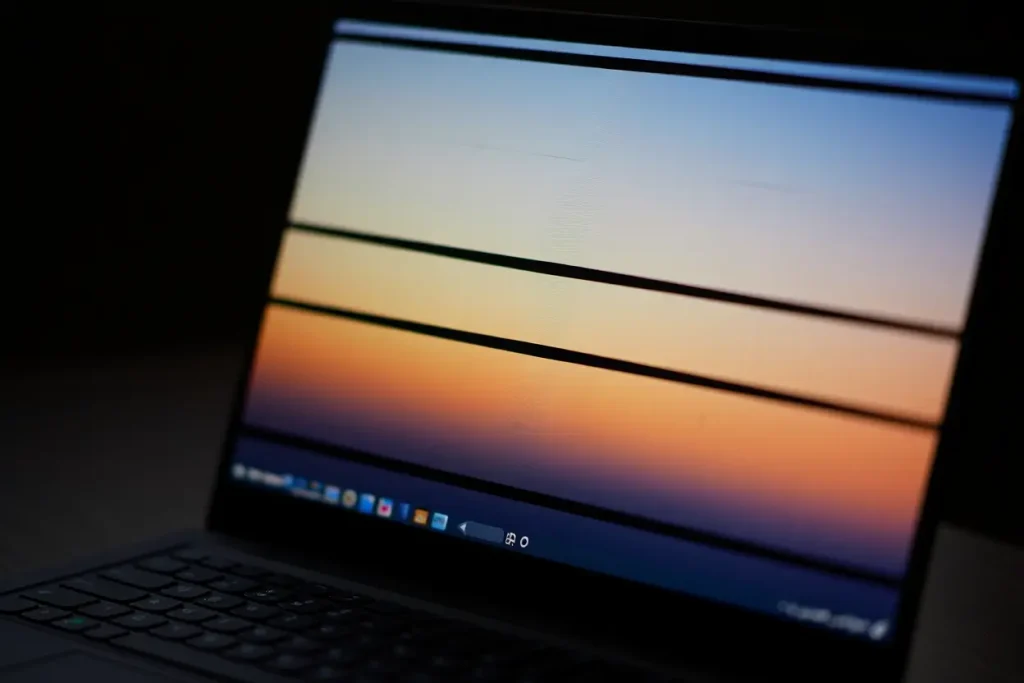
Vertical lines running top to bottom usually point to a problem with the display panel itself or the cable connecting it. Horizontal lines running side to side can indicate the same, but they are also more commonly associated with graphics driver issues. The orientation alone does not diagnose the problem, but it is a useful clue combined with the tests below.
Black Lines on Laptop Screen Lenovo: Single Line vs Multiple Lines
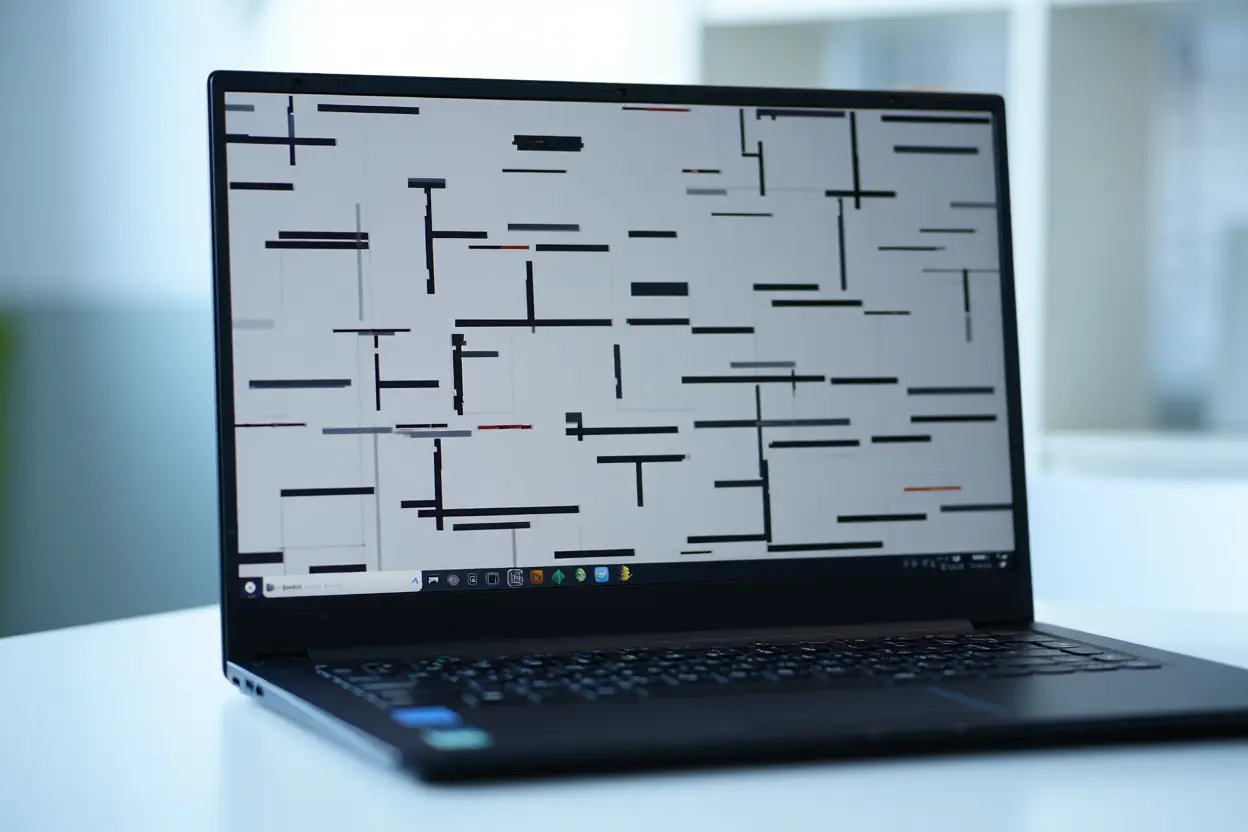
A single thin line is often a row or column of dead pixels, which is a panel defect. Multiple lines, especially colored or flickering ones, suggest a connection or graphics problem. Lines that come and go are almost always connection-related, because a loose cable makes intermittent contact.
Do the Lines Move?
Open a window and drag it across the screen. If the lines stay fixed in place while content moves behind them, the problem is in the display hardware. If the lines move with the window or change when you scroll, the issue is more likely software or graphics-related. This simple test saves a lot of guessing.
Quick Software Checks for Black Lines on Laptop Screen Lenovo
Always rule out software before assuming hardware failure. These checks take minutes and cost nothing.
Restart and Check the BIOS Screen
Restart your Lenovo and press F2 or the Novo button to enter the BIOS setup screen. Look at the BIOS display carefully. If the black lines appear in the BIOS too, the problem is hardware, because the BIOS runs before Windows and its drivers load. If the BIOS screen is clean, your issue is likely a driver or software problem in Windows.
This single test is the most important diagnostic step. It immediately splits the problem into two categories and tells you where to focus.
Update or Roll Back Graphics Drivers
Corrupt or buggy graphics drivers cause display artifacts including black lines. Open Device Manager, expand Display adapters, right-click your graphics device, and choose Update driver. If the lines appeared right after a driver update, do the opposite: roll back to the previous driver version from the same menu.
For Lenovo laptops, also check Lenovo Vantage or the Lenovo support site for display driver updates specific to your model. Generic drivers sometimes behave differently than the manufacturer-tuned versions.
Test With an External Monitor
Connect your Lenovo to an external monitor or TV via HDMI. If the external display is clean while the laptop screen shows lines, the laptop’s panel or its cable is at fault. If the external monitor shows the same lines, the graphics chip or driver is the problem. This test isolates the fault precisely.
Physical Causes: Pressure, Drops, and Hinge Damage
Lenovo laptops are sturdy, but screens are fragile. Physical stress is a leading cause of black lines on laptop screen Lenovo devices.
Pressure Damage
Closing the lid on a pen, carrying the laptop in an overstuffed bag, or pressing hard on the screen can damage the delicate panel layers. Pressure damage often shows as lines radiating from a point, or lines that appeared suddenly after the laptop was squeezed. Unfortunately, pressure damage to the panel itself cannot be repaired. The panel needs replacement.
Drop or Impact Damage
Even a short drop can crack the internal layers of an LCD without cracking the outer glass. If lines appeared after the laptop was dropped or bumped, internal panel damage is likely. The screen may continue to worsen over time as the damaged area spreads.
Hinge and Cable Wear
The display cable runs from the motherboard through the hinge to the back of the screen. Every time you open and close the lid, that cable flexes. After thousands of cycles, it can loosen or develop breaks. If your lines change when you adjust the screen angle, the cable is the prime suspect. This is actually good news, because reseating or replacing a cable is cheaper than replacing a panel.
How to Reseat the Display Cable on a Lenovo Laptop
If the hinge test suggests a cable issue, reseating the connector sometimes fixes black lines on laptop screen Lenovo problems. This is intermediate-level work, so read through completely before starting.
What You Need
Gather a small Phillips screwdriver, a plastic prying tool, and a clean workspace. Power off the laptop completely, unplug the charger, and if the battery is removable, take it out. For internal batteries, disconnecting it after opening the case is the safe approach.
Accessing the Cable
On most Lenovo models, the display cable connects to the motherboard under the bottom panel, then routes through the hinge. Remove the bottom cover screws, keeping track of their positions, and gently pry the cover off. Locate the display cable connector on the motherboard. It is usually a flat ribbon cable with a locking tab.
Carefully unlock the connector, remove the cable, inspect it for visible damage or corrosion, then firmly reseat it and lock the tab. While you are in there, check that the cable is not pinched or frayed where it passes through the hinge area.
Reassemble and Test
Replace the bottom cover and screws, reconnect power, and boot up. Check whether the lines are gone or changed. If reseating fixed it, the lines should be completely gone. If they changed pattern but remain, the cable itself may be damaged and need replacement rather than just reseating.
When the Screen Panel Itself Is the Problem
If the BIOS test showed lines, the external monitor was clean, and the cable looks fine, the LCD panel is likely failing. Here is what to know.
Dead Pixels vs Panel Failure
A single line of dead pixels is a manufacturing defect or age-related failure of that pixel row. It will not spread, but it will not heal either. Multiple spreading lines indicate broader panel failure, which tends to worsen over time. Take a photo of the lines now so you can compare later and see if they are spreading.
Getting the Right Replacement Panel
Lenovo uses specific panel models for each laptop. Find your exact model number, usually on a sticker on the bottom, and search for the compatible replacement screen. The panel model number is also printed on the back of the existing screen if you open it up. Match the resolution, size, connector type, and mounting points exactly.
Replacement panels for common Lenovo models are widely available and often cost far less than professional repair service charges. If you are comfortable with careful disassembly, screen replacement is one of the more straightforward laptop repairs.
DIY Screen Replacement Overview
The general process is: remove the bezel around the screen, unscrew the panel from the lid, disconnect the display cable from the back of the panel, connect the new panel, and reassemble. Take photos at each step so you remember screw positions and cable routing. Work slowly. The plastic bezel clips break easily if forced.
Lenovo-Specific Tips and Warranty Considerations
Before spending money on parts, check these Lenovo-specific options for black lines on laptop screen Lenovo issues.
Check Your Warranty Status
Enter your serial number on Lenovo’s support website to check warranty coverage. Display defects are often covered under the standard warranty, especially if there is no sign of physical damage. If covered, let Lenovo handle it. Do not open the laptop yourself, as that can void the warranty.
Use Lenovo Vantage Diagnostics
Lenovo Vantage includes hardware diagnostic tools. Run the display and LCD tests from within Vantage. These built-in diagnostics can confirm hardware faults and generate a report useful if you contact support. It takes the guesswork out of the diagnosis.
Known Issues by Model
Some Lenovo model lines have known display quirks. Search your exact model number plus “black lines” to see if other owners report the same issue. Manufacturer forums and Reddit often have model-specific threads with solutions that worked for others. Community knowledge is valuable for pattern issues.
Temporary Workarounds While You Decide on Repair
If you need the laptop working now and cannot repair immediately, these workarounds help.
- Use an external monitor: The most practical workaround. Your Lenovo works perfectly as a desktop with an external display while you arrange the screen repair.
- Adjust screen position: If lines change with hinge angle, find the angle where they disappear and avoid moving the screen.
- Lower the resolution: Sometimes running at a non-native resolution shifts how lines render, making them less noticeable. Not a fix, but it can help temporarily.
- Dark mode: Black lines are less visible against dark backgrounds. Switching to dark mode across your apps reduces how distracting they are.
Preventing Screen Line Problems in the Future
Once you fix the current issue, these habits protect your Lenovo screen going forward.
Handle the Lid Properly
Always open and close the lid from the center, not the corner. Corner pressure twists the panel and stresses the cable unevenly. Use two hands when adjusting the screen angle. These small habits significantly extend display life.
Transport With Care
Use a padded laptop sleeve or bag with a dedicated compartment. Never stack heavy items on top of the laptop. When carrying it in a backpack, position it so nothing presses against the lid. Most pressure damage happens during transport, not during use.
Keep Hinges Clean and Smooth
Stiff hinges put extra stress on the display cable with every open and close. If the hinge feels stiff, have it checked. Do not force a stiff hinge, as that is exactly how cables get damaged. A tiny drop of appropriate lubricant on accessible hinge mechanisms can help, but do not let it drip inside.
Frequently Asked Questions
Can black lines on laptop screen Lenovo fix themselves?
Rarely. Lines caused by a temporarily loose cable might disappear and reappear, which can look like self-healing. True panel damage never heals. If lines vanished on their own, the cable is likely loose and will probably act up again.
How much does it cost to fix black lines on a Lenovo screen?
A replacement cable costs little, often under twenty dollars. A replacement panel ranges widely by model, from budget-friendly to expensive for high-resolution or touchscreen panels. Professional repair adds labor costs. DIY cable reseating costs nothing but your time.
Will the lines spread if I ignore them?
Panel damage often spreads slowly over weeks or months. Cable issues stay intermittent but do not heal. Driver issues stay constant. Monitor the lines with dated photos to track changes.
Is it worth repairing an old Lenovo with screen lines?
Compare the repair cost to the laptop’s value and your needs. A cable fix on any working laptop is worth it. A panel replacement makes sense if the laptop otherwise meets your needs and the panel cost is reasonable. For very old machines, putting the repair budget toward a replacement may be smarter.
Final Thoughts on Black Lines on Laptop Screen Lenovo
Black lines on laptop screen Lenovo devices are frustrating but diagnosable. The BIOS test tells you whether it is hardware or software. The external monitor test tells you whether it is the panel or the graphics system. The hinge test points to the cable. Work through these steps methodically and you will know exactly what you are dealing with.
Many cases end with good news: a driver fix, a reseated cable, or a warranty claim. Even when the panel needs replacement, knowing the exact cause means you spend money on the right fix instead of guessing. Take your time with the diagnosis, and the solution usually becomes clear.
What NOT to Do When You See Black Lines on Laptop Screen Lenovo
Panic leads to bad decisions. Avoid these common mistakes that make the situation worse.
Do Not Press on the Screen
It is tempting to press or rub the area where lines appear, hoping they will go away. This almost never helps and often makes things worse. LCD panels are made of delicate layers, and pressure can spread existing damage or create new dead pixels. Hands off the screen surface.
Do Not Ignore a Swelling Battery Nearby
Sometimes what looks like a screen issue coincides with a swelling battery pushing against internal components. If your trackpad is lifting, the keyboard feels raised, or the case does not sit flat, stop using the laptop. A swelling battery is a safety hazard that needs immediate attention, and it can cause display problems as a side effect.
Do Not Keep Reinstalling Drivers Blindly
If the BIOS test showed lines, no amount of driver reinstallation will help, because the problem exists below the software level. One driver update attempt is reasonable. Five is not. Trust your diagnostic results and move to the hardware steps instead of repeating software fixes.
Professional Repair: What to Expect
If DIY is not for you, here is how to get the best outcome from professional repair for black lines on laptop screen Lenovo problems.
Choosing a Repair Shop
Look for shops with experience on Lenovo models specifically. Ask whether they will diagnose before quoting, and whether the diagnostic fee applies toward the repair. A reputable shop explains what they found and gives you options rather than pushing the most expensive fix immediately.
Questions to Ask
Ask whether the issue is the cable, the panel, or the graphics system, and how they determined that. Ask about parts: new, refurbished, or original manufacturer parts all have different prices and warranties. Ask how long the repair takes and what warranty covers the work. Clear answers to these questions separate good shops from bad ones.
Data Safety During Repair
Back up your data before handing over the laptop. Screen repairs should not touch your storage, but accidents happen. A full backup takes the risk to zero. If the shop needs your password for testing, change it to a temporary one and change it back afterward.
When you’re getting started with Black Lines on Laptop Screen Lenovo, the biggest mistake is trying to do everything at once. The people who get the best results from Black Lines on Laptop Screen Lenovo start small, focus on one specific goal, and build from there. Think of Black Lines on Laptop Screen Lenovo as a skill you develop over time, not a switch you flip. Each week you spend working with Black Lines on Laptop Screen Lenovo, you’ll notice patterns in what works and what doesn’t.
Not every approach to Black Lines on Laptop Screen Lenovo is right for every person. Your budget, your experience level, and your end goal all shape which Black Lines on Laptop Screen Lenovo strategy makes sense for you. Someone exploring Black Lines on Laptop Screen Lenovo for the first time needs different guidance than someone who’s been using Black Lines on Laptop Screen Lenovo for months. The advice below assumes you’re past the absolute basics but still figuring out the details.
The real payoff from Black Lines on Laptop Screen Lenovo comes from consistency, not perfection. You don’t need the most expensive tools or the most advanced setup to benefit from Black Lines on Laptop Screen Lenovo. What matters is showing up regularly, paying attention to results, and adjusting as you learn. Most people overthink Black Lines on Laptop Screen Lenovo at the start and underthink it later.
Understanding LCD Technology: Why Lines Happen
A brief look at how laptop screens work explains why these black lines appear the way they do on Lenovo devices.
Your LCD panel contains millions of pixels arranged in rows and columns, controlled by tiny circuits along the edges. Thin lines often mean one row or column driver has failed, leaving that entire line dark. This is why lines are perfectly straight and span the full width or height of the display. It is not random damage, it is a circuit failure at a specific point.
The display cable carries signals for all those rows and columns. A damaged wire in the cable can knock out specific lines, which is why cable problems also produce straight lines rather than blotches. Understanding this helps you see why the diagnostic tests work: each test isolates a different part of this signal chain.
Modern panels are remarkably reliable, which is why lines usually trace back to physical stress, manufacturing defects that appear early, or age-related wear after many years. Knowing the mechanism will not fix your screen, but it helps you have informed conversations with repair technicians and avoid being sold unnecessary repairs.