What a Laptop Looping Startup Actually Looks Like
You press the power button. The manufacturer logo appears. Then the screen goes black, and the logo appears again. And again. Your laptop looping startup like this is one of the most frustrating things that can happen to a computer, because the machine never gets far enough for you to actually do anything about it.
A laptop looping startup means your computer keeps restarting itself during the boot process without ever reaching the login screen or desktop. Sometimes you’ll see the Windows logo with spinning dots that never stop. Other times the machine powers off completely and turns itself back on. Either way, you’re stuck in a cycle with no obvious way out.
The good news is that a laptop looping startup is almost always fixable. The bad news is that the cause could be anything from a simple settings glitch to a failing hard drive. This guide walks you through every practical fix, starting with the easiest ones that solve the problem most of the time.
Why Your Laptop Keeps Restarting During Boot
Before jumping into fixes, it helps to understand what’s going wrong. When your laptop powers on, it runs through a sequence: hardware check, bootloader, operating system loading, then your desktop. A laptop looping startup happens when something in that chain fails and the system reboots instead of showing you an error.
Windows is actually designed to restart automatically when it hits a critical error during startup. That’s why you see a loop instead of a helpful message. The underlying causes usually fall into a few categories.
Corrupted System Files or a Bad Update
This is the most common reason for a laptop looping startup. A Windows update that didn’t install cleanly, a driver that conflicts with your hardware, or system files damaged by an improper shutdown can all prevent the OS from loading. The system tries to boot, hits the corrupted file, crashes, and restarts.
If your laptop looping startup began right after a Windows update or after installing new software, this is almost certainly the cause. The timing is the biggest clue.
Failing Storage Drive
Your operating system lives on your hard drive or SSD. If that drive is developing bad sectors or starting to fail, the boot files may become unreadable. The laptop tries to load them, fails, and restarts. A laptop looping startup caused by drive failure tends to get worse over time rather than appearing suddenly.
Listen for clicking or grinding sounds from a traditional hard drive. SSDs fail silently, but you might notice the laptop was getting slower in the days before the loop started.
RAM Problems
Faulty memory can cause a laptop looping startup because the system can’t reliably hold the data it needs during boot. This sometimes happens after a RAM upgrade, or it can develop over time. If your laptop has two RAM sticks, one of them going bad is enough to cause the loop.
Overheating
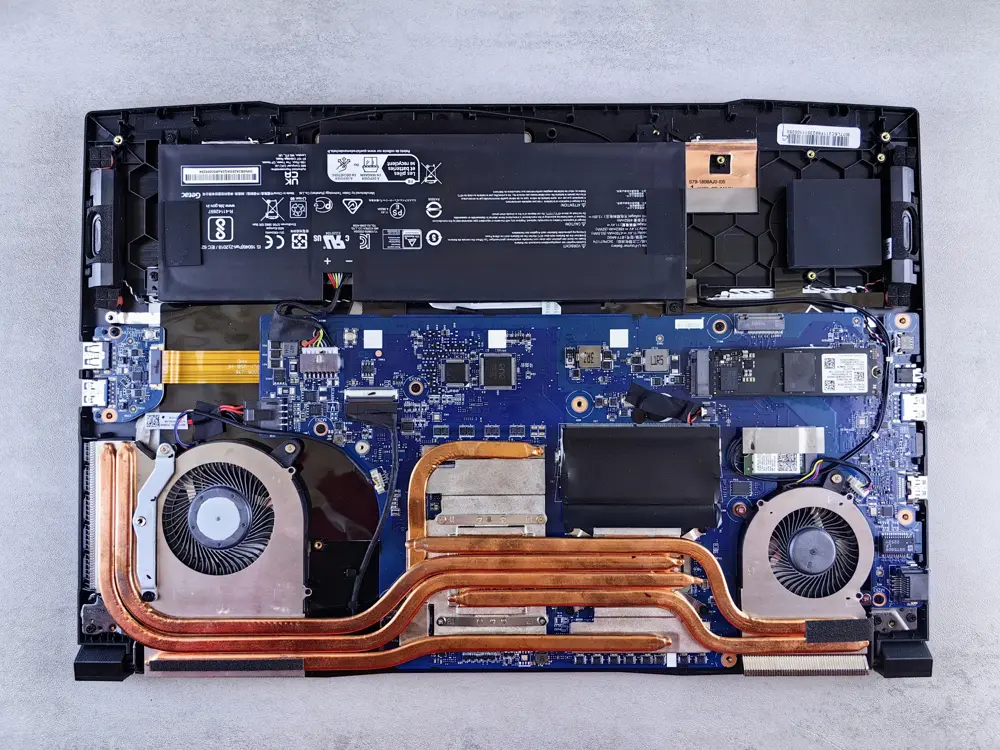
A laptop that overheats will shut itself down to protect the components. If the cooling system is clogged with dust or the thermal paste has dried out, the machine might overheat within seconds of powering on, creating a laptop looping startup pattern. This is more common in older laptops or ones used on soft surfaces like beds.
BIOS or Firmware Issues
Rare, but a corrupted BIOS setting or a failed firmware update can cause a laptop looping startup. This usually happens after a BIOS update or after changing settings in the BIOS menu. The fix is typically resetting the BIOS to defaults.
Quick Fixes to Try First
Start here. These take a few minutes each and resolve a laptop looping startup surprisingly often.
Force a Full Power Drain
This sounds too simple to work, but it fixes a laptop looping startup more often than you’d expect. Residual electrical charge can cause strange boot behavior.
- Unplug the power adapter from the laptop.
- If the battery is removable, take it out. If it’s built in, skip this step.
- Press and hold the power button for a full 30 seconds. This drains residual power from the capacitors.
- Reconnect the power adapter (leave the battery out for now if you removed it).
- Press the power button and see if the laptop looping startup is gone.
If the loop stops, shut down normally, reinsert the battery if you removed it, and boot again to confirm. A stuck power state was the culprit.
Disconnect Everything
USB drives, external hard drives, printers, docks, even a phone charging cable can interfere with booting. A laptop looping startup is sometimes caused by the system trying to boot from an external device or a peripheral sending bad signals.
Unplug every single USB device, remove any SD cards, disconnect external monitors, and unplug the laptop from any docking station. Then try booting with nothing attached except the power adapter. If the laptop looping startup stops, reconnect devices one at a time to find the troublemaker.
Boot Into Safe Mode
Safe Mode loads Windows with only the essential drivers and services. If your laptop can boot into Safe Mode, the hardware is fine and the problem is software-related, which narrows things down considerably.
To get there during a laptop looping startup, you’ll need to interrupt the boot process three times in a row. Power on the laptop, and as soon as you see the manufacturer logo, hold the power button to force it off. Do this three times. On the fourth boot, Windows should enter Automatic Repair mode, where you can select Troubleshoot, then Advanced Options, then Startup Settings, then Restart, and finally press 4 for Safe Mode.
If Safe Mode works, you can uninstall recent updates, remove problematic drivers, or run system repair tools from a working environment.
Using Windows Recovery to Break the Loop
If the quick fixes didn’t stop the laptop looping startup, the built-in recovery tools are your next step. You don’t need any extra software for these.
Startup Repair
From the Automatic Repair screen (reached by interrupting boot three times as described above), select Troubleshoot, then Advanced Options, then Startup Repair. Windows will attempt to diagnose and fix whatever is preventing a normal boot.
This works well for a laptop looping startup caused by corrupted boot files. It can take 10 to 20 minutes. Let it finish completely even if it looks stuck.
System Restore
If Startup Repair doesn’t help, try System Restore from the same Advanced Options menu. This rolls your system files and settings back to an earlier point in time without touching your personal files.
Pick a restore point from before the laptop looping startup began. If you see one from just before a Windows update, that’s your best bet. The process takes 15 to 30 minutes and the laptop will restart when done.
Uninstall the Latest Quality Update
Windows updates are a leading cause of a laptop looping startup. From Advanced Options, select Uninstall Updates, then Uninstall Latest Quality Update. This removes the most recent monthly update while keeping feature updates intact.
If the loop started within a day or two of Patch Tuesday (the second Tuesday of each month), this fix has a high success rate. After the laptop boots normally, you can pause updates for a week or two to avoid reinstalling the problematic one immediately.
Run System File Checker From Recovery
From Advanced Options, open Command Prompt and type sfc /scannow, then press Enter. This scans all protected system files and replaces corrupted ones with clean copies. For a laptop looping startup caused by file corruption, this is one of the most reliable fixes.
The scan takes 15 to 30 minutes. When it finishes, type exit and try booting normally. If SFC found and fixed problems, the loop should be gone.
Deeper Fixes for a Stubborn Laptop Looping Startup
If recovery tools didn’t resolve it, the problem is deeper. These fixes take more time but address the remaining common causes.
Check the Hard Drive Health
From the recovery Command Prompt, type chkdsk C: /f /r and press Enter. This checks your drive for errors and attempts to recover data from bad sectors. On a large drive it can take over an hour, so be patient.
If chkdsk reports many bad sectors or can’t complete, your drive is likely failing. A laptop looping startup caused by a dying drive won’t be permanently fixed by software. Back up your data if you can access it, and plan to replace the drive.
Test the RAM
From Advanced Options, select Windows Memory Diagnostic, or from Command Prompt in recovery you can run mdsched.exe. The tool will restart the laptop and test your memory for errors.
If you have two RAM sticks and the test finds errors, try removing one stick and booting with just the other. Swap them to identify the bad one. A laptop looping startup caused by faulty RAM stops immediately once the bad stick is removed. Replacement RAM is inexpensive and easy to install on most laptops.
Reset the BIOS to Defaults
Restart the laptop and press the BIOS key during the manufacturer logo screen. This is usually F2, Delete, F10, or Esc depending on the brand. Once in the BIOS menu, look for an option like Load Optimized Defaults or Reset to Default, save, and exit.
This fixes a laptop looping startup caused by incorrect BIOS settings, such as a wrong boot order or a disabled storage controller. Don’t change other BIOS settings unless you know what they do.
Rebuild the Boot Configuration Data
From the recovery Command Prompt, run these commands one at a time, pressing Enter after each:
- bootrec /fixmbr
- bootrec /fixboot
- bootrec /rebuildbcd
These repair the master boot record and rebuild the boot configuration. For a laptop looping startup where the system can’t find the operating system at all, this often resolves it. If the fixboot command gives an access denied error, that’s a separate issue usually fixed by assigning a drive letter to the EFI partition first.
When Nothing Else Works: Reinstalling Windows
If every fix so far has failed to stop the laptop looping startup, a clean Windows installation will. This is the nuclear option because it erases everything, but it definitively separates software problems from hardware problems.
You’ll need another computer to create a Windows installation USB drive using Microsoft’s Media Creation Tool. Boot the looping laptop from the USB (you may need to change the boot order in BIOS), and follow the prompts to install Windows.
Choose the Custom install option and delete the old partitions if you want a truly clean start. If the laptop looping startup persists even with a fresh Windows installation, you have a hardware problem, most likely the storage drive or motherboard, and it’s time for professional repair.
Before reinstalling, consider whether you need to recover files. If the drive is readable, you can boot from a Linux live USB to copy important files to an external drive before wiping the system.
Preventing a Laptop Looping Startup in the Future
Once your laptop is booting normally again, a few habits will reduce the chances of dealing with a laptop looping startup again.
- Don’t force-shutdown during Windows updates. Let them finish, even if they take a long time. Interrupting an update is the top cause of boot corruption.
- Keep at least 15 to 20 percent of your drive free. A full drive can’t write temporary files properly and is more prone to corruption.
- Install updates regularly but consider waiting a few days after Patch Tuesday to let early problems surface.
- Clean the cooling vents every few months with compressed air. Overheating causes sudden shutdowns that corrupt files.
- Use a surge protector. Power fluctuations during disk writes can damage the file system.
- Back up important files regularly. If a laptop looping startup turns out to be drive failure, backups are the difference between an inconvenience and a disaster.
How to Tell If It’s Hardware or Software
This distinction matters because it determines whether you can fix a laptop looping startup yourself or need a repair shop.
It’s probably software if the loop started suddenly after an update, software install, or improper shutdown. Software causes are also likely if Safe Mode works, if recovery tools can access the drive, or if the problem is intermittent.
It’s probably hardware if the loop started gradually and got worse, if you hear clicking from the drive, if the laptop is very hot, if memory tests fail, or if a clean Windows install doesn’t fix it. Hardware problems also tend to cause the loop at the same point every time, very early in the boot process.
When in doubt, the clean install test is definitive. Software problems disappear with a fresh OS. If the laptop looping startup survives a clean install, something physical is broken.
Getting Professional Help
There’s no shame in taking the laptop to a repair shop if the DIY fixes haven’t worked. A technician can swap in known-good RAM and drives to isolate the problem quickly, which is hard to do at home without spare parts.
Before you go, note down exactly when the laptop looping startup started, what you were doing before it began, and which fixes you’ve already tried. This saves diagnostic time. Also ask for a quote before authorizing any work, and specifically ask them to check the drive health first, since that’s the most common hardware cause.
If the laptop is still under warranty, contact the manufacturer before opening anything. Many warranties are voided by removing certain panels, and the manufacturer may fix a laptop looping startup for free.
Wrapping Up
A laptop looping startup feels catastrophic when it happens, but the vast majority of cases are fixed with the steps in this guide. Start with the power drain and disconnected peripherals, move through the recovery tools, and work down to the deeper fixes only if needed.
The single most effective step for most people is uninstalling the latest Windows update from the recovery menu, since bad updates cause more boot loops than anything else. The second most effective is the full power drain, which costs nothing and takes two minutes.
Keep your system updated carefully, maintain free drive space, keep the laptop cool, and back up your files. Do that, and you’ll likely never see a laptop looping startup again.
Brand-Specific Tips for a Laptop Looping Startup
Different manufacturers have slightly different recovery procedures, and knowing yours can save time when dealing with a laptop looping startup. Dell laptops typically use F12 for the boot menu and F2 for BIOS setup. Dell also includes built-in hardware diagnostics accessible by pressing F12 and selecting Diagnostics, which can test your drive, RAM, and other components without needing Windows to boot.
HP laptops generally use Esc for the startup menu, then F2 for diagnostics or F10 for BIOS. HP’s built-in diagnostics are quite thorough and can identify failing hardware that might be causing the laptop looping startup. Lenovo ThinkPads use Enter for the startup interrupt menu, then F1 for BIOS. Lenovo’s diagnostics are accessible through the same menu.
Asus laptops typically use F2 for BIOS and Esc for the boot menu. Acer uses F2 for BIOS and F12 for boot options. MSI gaming laptops often use Delete for BIOS. Knowing these keys in advance means you won’t waste time guessing during the stressful moment of a laptop looping startup. Write down your model’s keys and keep them somewhere accessible.
Creating a Recovery Drive Before You Need It
The best time to prepare for a laptop looping startup is before it happens. While your laptop is healthy, create a Windows recovery USB drive. Go to Control Panel, then Recovery, then Create a Recovery Drive. You’ll need a USB stick with at least 16GB capacity. This drive gives you access to all the recovery tools even if the built-in recovery partition is damaged.
Store the recovery drive somewhere safe and label it clearly. If a laptop looping startup ever strikes, you can boot from this USB instead of relying on the interrupt-boot method to reach recovery. It’s faster, more reliable, and works even when the internal recovery environment is corrupted. This ten-minute preparation can save hours of frustration later.