If you work on a laptop for more than a couple of hours a day, your neck already knows the problem: the screen sits too low, so you hunch. A laptop stand fixes this by raising the screen to eye level, and a multi-angle one lets you dial in the exact height and tilt that feels right. This guide covers everything about choosing and using a laptop stand — types, materials, ergonomics, and what to look for so you buy once and buy right.
Why Your Neck Needs a Laptop Stand
Laptops are ergonomically terrible by design. The screen and keyboard are attached, so you can’t have both at the right height simultaneously. With the laptop flat on a desk, the screen sits 6 to 8 inches below eye level, which forces your head forward and down. Hold that posture for hours daily and you get the classic laptop hunch: neck pain, shoulder tension, and headaches.
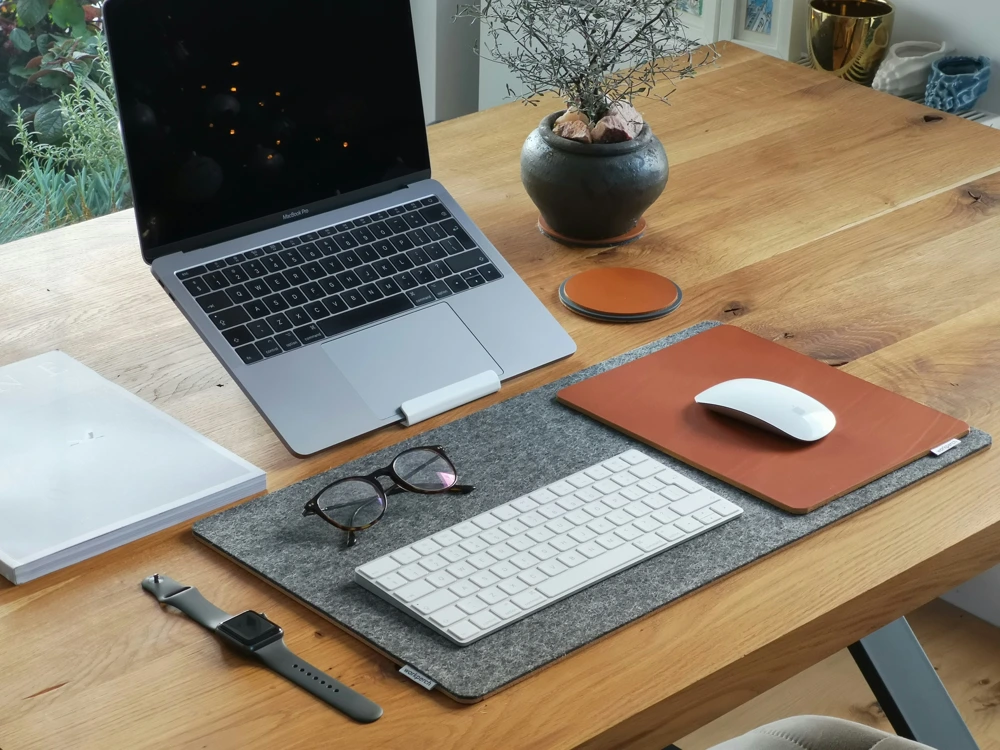
A laptop stand breaks this compromise by elevating the screen. Raise it to eye level, add an external keyboard and mouse (or at least a keyboard), and suddenly your posture transforms. Your head stays upright, your shoulders relax, and your wrists sit at a neutral angle. It’s one of the highest-impact, lowest-cost ergonomic upgrades you can make.
The research backs this up. Studies on workstation ergonomics consistently show that screen height is the single biggest factor in neck strain. You don’t need a standing desk or an expensive chair to see major improvement — a laptop stand that puts the top of your screen at or slightly below eye level does most of the work.
How a Multi-Angle Laptop Stand Works
A multi-angle laptop stand doesn’t just lift your laptop to one fixed height — it adjusts across a range of angles and elevations. This matters because the “right” height depends on your body, your chair, your desk, and even the task. Typing wants a different angle than watching a video or joining a Zoom call.
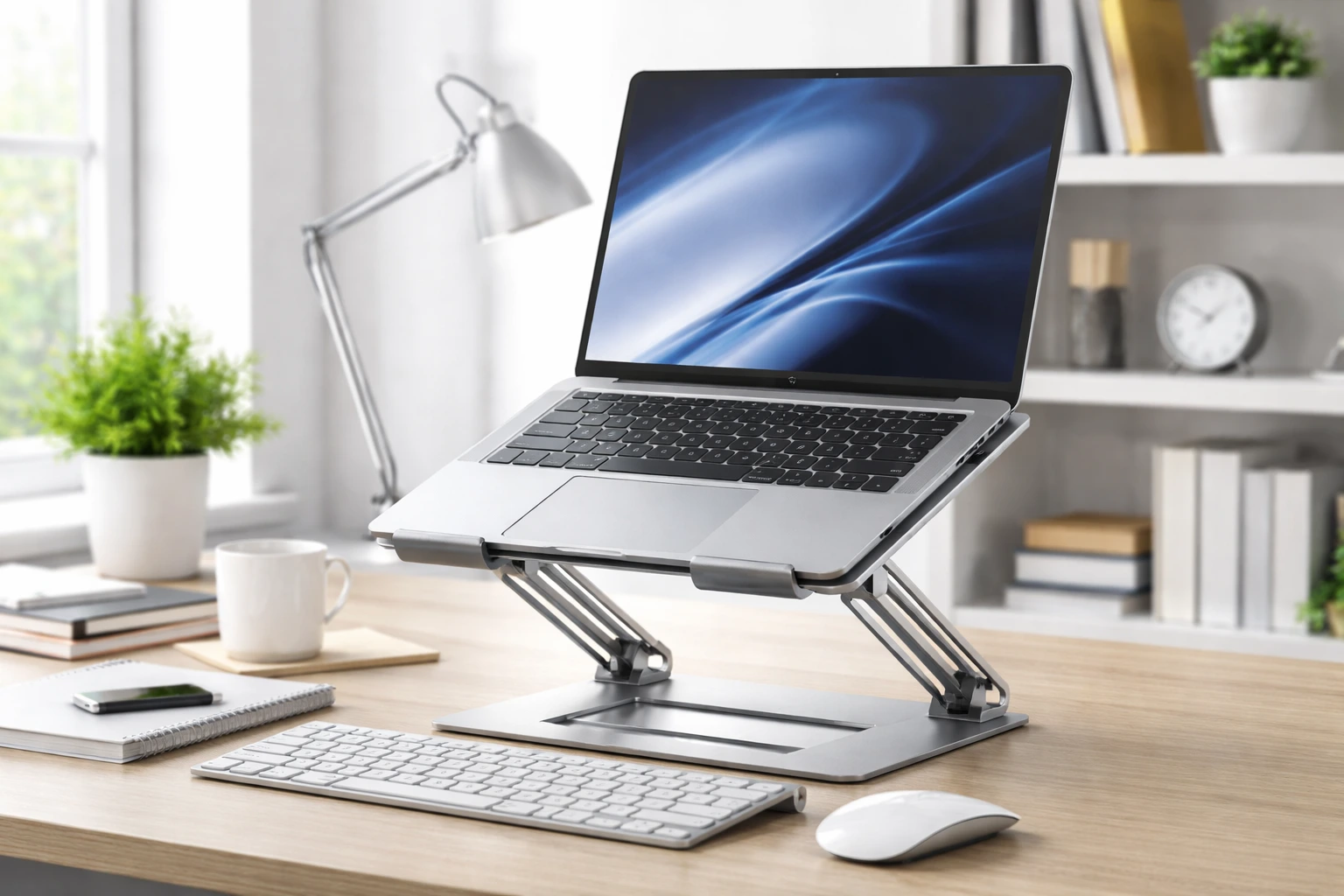
Most multi-angle stands use a hinged or scissor mechanism with preset notches or continuous adjustment. You set the height (typically 2 to 8 inches of lift) and the tilt angle (usually 15 to 45 degrees). The best ones adjust with one hand and lock firmly — no wobbling when you type.
Why does angle matter, not just height? Because tilt affects both viewing and typing. A steeper tilt brings the screen closer to perpendicular with your line of sight (reducing glare and neck bending) while also creating a more comfortable keyboard slope if you’re still typing on the laptop itself. A shallower angle works better when the stand is just a screen riser and you’re using an external keyboard.
Types of Laptop Stands
Adjustable Aluminum Stands
The most popular category. These are typically made from aluminum alloy with silicone pads, fold flat for travel, and adjust across multiple heights. They’re sturdy, look good, and work with most laptop sizes. The open design promotes airflow, which helps with cooling. If you’re buying your first laptop stand, start here — an adjustable aluminum model covers 90% of use cases.
Fixed-Height Risers
Simple platforms or docks that hold the laptop at one height. Less versatile than multi-angle, but rock-solid stable and often cheaper. Good for a permanent desk setup where you’ve already dialed in your ergonomics and don’t need to change anything. Some double as docking stations with built-in USB hubs.
Portable/Foldable Stands
Ultra-compact stands designed for travel — some fold down to the size of a candy bar. They typically offer fewer height options (often just two or three angles) and less stability than desk models, but they turn any café table or hotel desk into an ergonomic workstation. If you work from different locations, a portable laptop stand is worth its weight.
Cooling Stands with Fans
Stands with built-in USB-powered fans that blow air onto the laptop’s underside. The ergonomic benefit is the same as any stand, plus active cooling. These help most with gaming laptops or intensive workloads that push thermals. The fans add noise and bulk, so they’re a tradeoff — great for hot-running machines, unnecessary for ultrabooks.
Sit-Stand and Lap Desks
Larger platforms that hold the laptop at standing height or on your lap in bed/on the couch. These solve different problems (standing work, couch computing) but follow the same principle: get the screen up. A laptop stand designed for desk use won’t work on your lap — different tool for a different job.
Ergonomics: Setting Up Your Laptop Stand Correctly
Buying the stand is step one. Setting it up right is step two, and it’s where most people leave benefits on the table.
The golden rule: the top of your screen should be at or slightly below eye level, about an arm’s length away. When you sit upright and look straight ahead, your eyes should land near the top third of the display. If you’re looking down at the screen, raise the stand. If you’re craning up, lower it.
Once the screen is elevated, you need an external keyboard — typing on a raised laptop keyboard forces your wrists into an awkward upward bend. Any basic wireless keyboard works; you don’t need anything fancy. Add a mouse (or at least use the keyboard comfortably) and you’ve got a proper ergonomic setup.
Your chair and desk matter too. Feet flat on the floor, knees at roughly 90 degrees, elbows at 90 degrees with wrists straight. The laptop stand fixes the screen height, but if your chair is wrong, you’ll still hunch. Ergonomics is a system, not a single product.
Take breaks. No setup, however perfect, eliminates the need to move. Stand up, roll your shoulders, look at something far away for 20 seconds every 20 minutes. The best laptop stand in the world can’t compensate for eight motionless hours.
Cooling Benefits: It’s Not Just About Posture
Here’s a bonus most people don’t expect: a laptop stand significantly improves cooling. Laptops breathe through vents on the bottom and sides. Sitting flat on a desk, the bottom vents are smothered — especially on soft surfaces like beds or couches, where the laptop literally sinks in and seals them shut.
Elevating the laptop on a stand exposes those vents to airflow. The open design of most stands (especially aluminum ones with cutouts) lets heat dissipate instead of pooling underneath. This isn’t a small effect — under sustained load, a raised laptop can run several degrees cooler, which means less thermal throttling, quieter fans, and longer component life.
If your laptop sounds like a jet engine during video calls or gets uncomfortably hot on your lap, a stand is the first fix to try before considering repasting or cooling pads. Better airflow is free performance.
What to Look for When Buying a Laptop Stand
Stability
This is non-negotiable. A wobbly stand is worse than no stand — it makes typing miserable and risks dumping your laptop. Look for a wide base, non-slip silicone pads, and a locking mechanism that holds firm. Check reviews specifically for stability complaints. Heavier stands are generally more stable, which is a tradeoff with portability.
Weight Capacity and Size Compatibility
Make sure the stand supports your laptop’s weight and size. Most handle 10 to 15-inch laptops fine, but 16-17 inch workstations and gaming laptops are heavier and need a beefier stand. Check the manufacturer’s specs — “fits up to 17 inches” should mean both the dimensions and the weight.
Adjustment Range
For a multi-angle laptop stand, more adjustment is better — but only if it’s easy to change. Look for at least 4-6 height settings covering 2 to 7+ inches of lift. One-handed adjustment is a huge quality-of-life feature; if you need two hands and a manual every time, you won’t bother changing it.
Material and Build Quality
Aluminum alloy is the sweet spot: light, strong, good-looking, and heat-dissipating. Plastic stands are cheaper but flex more and degrade faster. Wood stands look beautiful on a desk but are usually fixed-height and less portable. Avoid anything that feels flimsy in reviews — your expensive laptop sits on this thing.
Portability
If the stand lives on your desk, portability doesn’t matter. If you move between home, office, and cafés, it matters a lot. Foldable stands that collapse flat and weigh under a pound are ideal for bags. Some even come with carrying sleeves. Decide based on your actual routine, not an idealized one.
Cable Management
A nice-to-have that you’ll appreciate daily. Some stands have cutouts or clips for routing charging and peripheral cables. It keeps your desk tidy and prevents cables from snagging when you adjust the height. Not a dealbreaker, but a sign of thoughtful design.
Laptop Stand for Different Use Cases
Home Office
Go for a sturdy, highly adjustable aluminum stand. You’re setting it once and using it for hours daily, so stability and adjustment range matter most. Pair it with an external monitor if you can — laptop screen on the stand as a secondary display, monitor as primary. That’s the home office endgame.
Hot-Desking and Co-Working
Portability wins. A foldable stand that sets up in seconds and fits in your bag turns any shared desk into your desk. Quick adjustment matters too — you won’t have time to fiddle with complex mechanisms when you’re grabbing a spot for the day.
Video Calls and Presentations
Raising the laptop to eye level transforms your on-camera appearance. No more looming forehead or ceiling-fan background — just a natural, flattering angle. A laptop stand is the cheapest video call upgrade there is, more impactful than a better webcam. Your colleagues will notice the difference even if they can’t name it.
Gaming
Gaming laptops run hot and have aggressive fan curves. A stand with good airflow (or active cooling fans) helps maintain boost clocks longer. The ergonomic benefit matters too — gaming sessions run long, and neck strain accumulates. Just make sure the stand is rated for your machine’s weight; gaming laptops are hefty.
Students and Library Use
A lightweight portable stand is perfect for lecture halls and libraries. It also signals “I’m here to work” in a way that hunching over a flat laptop doesn’t. The cooling benefit helps during long study sessions, and the improved posture keeps you comfortable through back-to-back classes.
Common Mistakes with Laptop Stands
Buying a stand but skipping the external keyboard. We covered this, but it bears repeating: a raised laptop with no external keyboard trades neck pain for wrist pain. The keyboard is not optional — it’s half the solution.
Setting it too high. Eye level means the top of the screen, not the center. If the center of your screen is at eye level, you’re craning your neck up. Start with the top bezel at eye level and adjust from there.
Ignoring the viewing distance. Raising the screen often pushes it farther away. If you find yourself leaning forward to read text, increase your system scaling or font size instead of hunching. Accessibility settings exist for exactly this reason.
Using a stand on an unstable surface. A great stand on a wobbly card table is still wobbly. And never use a desk stand on your lap — it’s not designed for it and your laptop will slide off. Lap use needs a lap desk, not a stand.
Forgetting about the webcam angle. Raising the laptop changes where the built-in webcam points. After adjusting your stand, open your camera app and check the framing. You may need to tilt the screen slightly to get a good angle for calls.
Maintaining Your Laptop Stand
Good news: there’s almost nothing to maintain. Wipe aluminum stands with a damp cloth occasionally. Check silicone pads yearly — if they’re peeling or flattened, replace them (or the stand; pads are cheap but a failing stand isn’t worth the risk). For hinged models, a drop of silicone lubricant on stiff joints keeps adjustment smooth. That’s it. A quality laptop stand lasts for years with essentially zero upkeep.
Laptop Stand vs. The Alternatives
How does a dedicated laptop stand compare to the workarounds people try? Let’s be honest about the options.
A stack of books works — technically. It raises the screen, which is the main goal. But books are unstable, you can’t adjust the height without restacking, there’s no tilt, and it looks terrible on video calls. As a temporary fix it’s fine; as a permanent solution it’s not.
A monitor riser or shelf does the same job as a fixed-height stand. If you already have one, great. But most aren’t designed for laptops — they lack the lip or grip that keeps a tilted laptop from sliding off, and they don’t offer angle adjustment.
An external monitor sidesteps the problem entirely: the monitor goes at eye level, the laptop becomes a secondary screen or just a keyboard. This is the best setup if you have the desk space and budget. But it’s not portable, it costs significantly more, and it doesn’t help when you’re working from anywhere other than that desk. A laptop stand is the portable, affordable version of the same ergonomic principle.
A standing desk with the laptop on it doesn’t fix the screen height problem — the screen is still too low relative to your eyes whether you’re sitting or standing. You need the stand regardless of desk type. The two complement each other; neither replaces the other.
Laptop Stand FAQs
Will a laptop stand fit my 17-inch laptop? Check the specs. Many stands top out at 15.6 inches. Larger laptops need stands explicitly rated for 17 inches, with the weight capacity to match. When in doubt, size up.
Can I still use the laptop keyboard with a stand? You can, but you shouldn’t for extended periods. The raised angle is bad for your wrists. Get an external keyboard — even a basic one transforms the setup.
Do I need a cooling stand with fans? Only if your laptop runs hot under your typical workload. For office work and browsing, passive elevation provides plenty of cooling. For gaming, video editing, or 3D work, active cooling helps.
Will a stand damage my laptop? No, provided it’s stable and has soft contact pads. The laptop is designed to sit at various angles (think of how you use it on your lap). Just avoid stands with bare metal edges that could scratch the chassis.
Can I use a laptop stand with a docking station? Yes — many people do. Set the laptop on the stand, connect a single USB-C cable to the dock, and you’ve got a clean one-cable setup with full ergonomics. Some docks even integrate a stand.
How do I clean my laptop stand? Damp cloth for aluminum, mild soap for stubborn spots. Keep silicone pads free of dust so they grip properly. Hinges occasionally benefit from a tiny drop of silicone lubricant if they get stiff.
Is a Laptop Stand Worth It?
Unequivocally yes, if you use a laptop as your primary computer. It’s one of those rare products that delivers on its promise: less neck pain, better posture, cooler laptop, better video calls. The cost is modest, the setup takes minutes, and the benefits compound daily.
The key is getting a multi-angle model that you’ll actually adjust, pairing it with an external keyboard, and taking the time to set the height correctly. Do those three things and a laptop stand will be one of the best investments you make in your daily comfort. Your neck will thank you within the first week — and it’ll keep thanking you for years.