Keyboard on Laptop Not Working? Here Is How to Fix It
When your keyboard on laptop not working becomes your reality, everything stops. You cannot type a password, answer an email, or even search for a solution properly. It is one of those problems that feels catastrophic in the moment but usually has a straightforward fix. This guide walks through every solution, from the obvious to the obscure, so you can get typing again.
Before you panic or start shopping for a new laptop, work through these steps in order. Most keyboard issues are software-related and take less than ten minutes to resolve. Even hardware problems are often fixable without professional help.

Keyboard on Laptop Not Working: Start With the Basics: Quick Checks First
It sounds too simple, but the first step when your keyboard on laptop not working is to restart the computer. Not sleep, not hibernate, a full restart. This clears temporary glitches in the keyboard driver and the operating system input stack. You would be surprised how often this alone fixes the problem.
If you cannot type your password to log in after the restart, use the on-screen keyboard. On Windows, click the accessibility icon on the login screen. On Mac, go to accessibility options. This gets you in so you can troubleshoot properly.
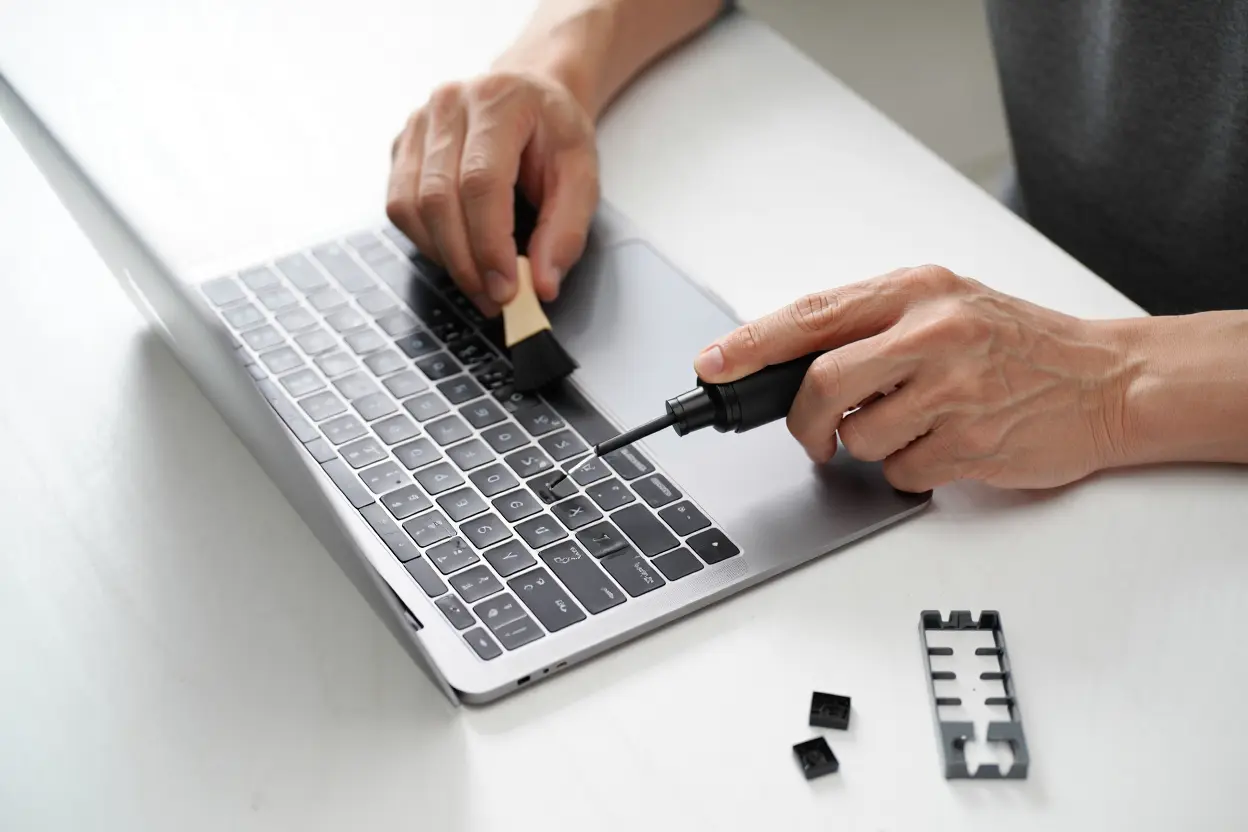
Next, check for physical obstructions. Crumbs, dust, and debris under keys can prevent them from registering. Turn the laptop upside down and give it a gentle shake. Use compressed air to blow out anything stuck under the keys. Do this with the laptop powered off.
Keyboard on Laptop Not Working: Check for Stuck Keys
Sometimes a single stuck key makes the whole keyboard seem broken. If one key is physically jammed in the pressed position, the system may ignore other input. Look for keys that sit lower than the others or feel different when pressed. Gently pry up the stuck key with a plastic tool and clean underneath it.
Software Fixes for Keyboard on Laptop Not Working
If the basics did not help and your keyboard on laptop not working persists, the problem is likely software. These fixes address the most common causes.
Keyboard on Laptop Not Working: Update or Reinstall the Keyboard Driver
Corrupted or outdated drivers are a leading cause of keyboard failure. On Windows, open Device Manager, find Keyboards, right-click your keyboard, and select Update Driver. If that does not work, choose Uninstall Device, then restart. Windows will reinstall the driver automatically.
On Mac, keyboard drivers are part of the operating system. Make sure macOS is fully updated. Go to System Settings, then General, then Software Update. Install anything available and restart.
Keyboard on Laptop Not Working: Check Filter Keys and Sticky Keys
Windows has accessibility features that change how the keyboard behaves. Filter Keys ignores brief or repeated keystrokes. Sticky Keys modifies how modifier keys work. If either is enabled accidentally, your keyboard will seem broken.
Go to Settings, then Accessibility, then Keyboard. Make sure Sticky Keys, Filter Keys, and Toggle Keys are all turned off. On Mac, check System Settings, then Accessibility, then Keyboard for similar options.
Keyboard on Laptop Not Working: Boot Into Safe Mode
Safe Mode loads only essential drivers and software. If your keyboard works in Safe Mode but not normally, a third-party program or driver is causing the conflict. This narrows the problem significantly.
On Windows, hold Shift while clicking Restart, then navigate to Troubleshoot, Advanced Options, Startup Settings. On Mac, restart and hold Shift until the login screen appears. Test the keyboard in Safe Mode, then restart normally.
Keyboard on Laptop Not Working: Run the Keyboard Troubleshooter
Windows includes a built-in troubleshooter that can detect and fix common keyboard problems automatically. Go to Settings, then System, then Troubleshoot, then Other Troubleshooters. Run the Keyboard troubleshooter and follow its recommendations.
It is not perfect, but it catches simple issues quickly. Worth trying before moving to more involved fixes.
Hardware Checks: Is It Physical Damage?
If software fixes did not resolve your keyboard on laptop not working issue, it is time to consider hardware. These checks help you determine whether the keyboard itself is damaged.
Test With an External Keyboard
Plug in a USB keyboard or connect a Bluetooth one. If the external keyboard works fine, your laptop keyboard hardware is likely the problem. If the external keyboard also fails, the issue is deeper, possibly the motherboard or operating system.
This single test tells you more than almost anything else. Do it early in your troubleshooting.
Check the Ribbon Cable
Laptop keyboards connect to the motherboard via a thin ribbon cable. If this cable is loose or damaged, keys stop working. This is more common after drops, spills, or DIY repairs where the laptop was opened.
Reseating the cable requires opening the laptop, which voids warranties on some models. If you are comfortable with it, look up a teardown guide for your specific model. The keyboard connector is usually accessible after removing the bottom panel. Gently release the locking tab, reseat the cable firmly, and lock it back.
If you are not comfortable opening the laptop, this is a good point to visit a repair shop. Reseating a cable is a quick job for a technician and should not cost much.
Look for Liquid Damage
Spilled coffee, water, or soda is a common keyboard killer. Even a small spill can short circuits under the keys. If your keyboard on laptop not working started right after a spill, liquid is the likely culprit.
Immediately power off the laptop, unplug it, and remove the battery if possible. Turn it upside down to drain liquid. Do not try to turn it on for at least 48 hours. Rice does not help as much as people think. Silica gel packets work better for absorbing moisture.
After thorough drying, try the keyboard again. If some keys work and others do not, the liquid likely damaged specific circuits. A keyboard replacement may be necessary.
Specific Key Problems and Fixes
Sometimes the issue is not the entire keyboard. Specific keys or groups of keys fail while others work fine. These partial failures have their own causes and solutions.
Number Keys Not Working
If the number row works but the numpad does not, check Num Lock. It is easy to toggle accidentally. If the number row itself fails, it could be a driver issue or a hardware problem with that section of the keyboard matrix.
Function Keys Misbehaving
On many laptops, function keys double as media controls. If pressing F5 refreshes but also changes brightness, check the Fn Lock setting. There is usually a key combination like Fn plus Esc that toggles this. Your BIOS or UEFI settings may also have an option for function key behavior.
Spacebar, Enter, or Shift Not Working
Large keys like Spacebar and Enter have stabilizer bars underneath. If these bars pop out of place, the key feels mushy or stops registering. Carefully remove the keycap, check the stabilizer, and reseat it. This is fiddly but doable with patience.
Keys Typing Wrong Characters
If pressing one key types a different character, check your keyboard layout and language settings. It is easy to accidentally switch to a different layout. On Windows, press Windows plus Space to cycle layouts. On Mac, check System Settings, then Keyboard, then Text Input.
Keyboard on Laptop Not Working After Windows Update
A frustratingly common scenario: your keyboard on laptop not working starts immediately after a Windows update. Updates sometimes install incompatible drivers or change settings.
First, check Device Manager for the keyboard driver. If it shows a warning icon, roll back the driver. Right-click the keyboard, choose Properties, go to the Driver tab, and click Roll Back Driver if available.
If rollback is not available, uninstall the keyboard device and restart. Windows will install a generic driver that usually works. You can then manually install the correct driver from your laptop manufacturer website.
As a last resort, you can uninstall the problematic Windows update. Go to Settings, then Windows Update, then Update History, then Uninstall Updates. Remove the most recent update and see if the keyboard recovers.
Preventing Update Breakage
To reduce the chance of this happening again, consider pausing Windows updates for a week after major releases. This gives Microsoft time to fix driver issues before they reach your machine. Go to Windows Update settings and use the Pause Updates option.
BIOS and Firmware Solutions
Sometimes the keyboard fails before the operating system even loads. If you cannot use the keyboard to enter BIOS or select boot options, the problem is at the firmware level.

Try resetting the BIOS to defaults. The exact method varies by manufacturer, but it usually involves pressing a specific key during boot (Del, F2, F10, or Esc). If your keyboard does not work at all, you may need an external keyboard for this step.
Check your manufacturer website for BIOS updates. A BIOS update can fix keyboard compatibility issues, especially on newer laptop models. Follow the update instructions carefully. Interrupting a BIOS update can brick the laptop.
EC Reset
The Embedded Controller manages keyboard input on many laptops. An EC reset can resolve stubborn keyboard issues. The procedure varies, but it often involves powering off, unplugging, holding the power button for 30 seconds, then reconnecting power. Check your manufacturer documentation for the exact steps.
When to Replace the Keyboard
If you have tried everything and your laptop keyboard failure remains unresolved, replacement is the next step. Laptop keyboard replacements are more accessible than most people think.
Replacement keyboards for popular models cost between 20 and 60 dollars online. The repair itself takes 30 minutes to an hour for most models. YouTube has teardown videos for nearly every laptop ever made. Watch one for your specific model before deciding whether to DIY.
Some laptops have keyboards that are easy to replace, held in by a few screws under the bottom panel. Others require removing the entire top case, which is more involved. Ultrabooks with glued components are the hardest. Know what you are getting into before ordering parts.
Professional Repair Costs
If DIY is not for you, professional keyboard replacement typically costs 100 to 200 dollars including parts and labor. That is often worth it compared to buying a new laptop. Get a quote from a local shop before deciding.
Check your warranty first. If the laptop is still under warranty, the manufacturer should fix or replace the keyboard for free. Do not open the laptop yourself if it might void an active warranty.
Preventing Future Keyboard Problems
Once your the keyboard issue is fixed, take steps to prevent recurrence. Keep food and drinks away from the laptop. This single habit prevents a huge percentage of keyboard failures.
Clean the keyboard regularly with compressed air. Dust buildup under keys causes gradual degradation. A quick blast every few weeks keeps things working smoothly.
Consider a silicone keyboard cover if you work in dusty environments or eat near your laptop often. They are cheap, washable, and do not significantly affect typing feel once you adjust.
Keep your drivers and operating system updated, but not recklessly. Wait a few days after major updates to let early issues surface. Back up important data regularly so a hardware failure does not become a data disaster.
Ergonomic Considerations
How you type affects keyboard longevity. Pounding keys harder than necessary wears out the mechanisms faster. If you are a heavy typist, consider using an external keyboard for extended typing sessions. This preserves the built-in keyboard and is often more comfortable anyway.
Quick Reference: Troubleshooting Order
When your this keyboard problem, follow this sequence for fastest resolution. Restart the computer. Try the on-screen keyboard to log in. Check for stuck keys and debris. Test with an external keyboard. Update or reinstall drivers. Disable Filter Keys and Sticky Keys. Boot into Safe Mode. Run the troubleshooter. Check for Windows update issues. Inspect the ribbon cable if comfortable. Consider professional repair or replacement.
Most people find the fix within the first five steps. The later steps are for stubborn cases. Work through them methodically rather than jumping around. Each test gives you information that narrows down the cause.
Final Thoughts
A unresponsive laptop keyboard feels like a disaster, but it is one of the most fixable laptop problems. The vast majority of cases resolve with a restart, a driver reinstall, or toggling an accessibility setting. Even hardware failures are usually repairable at reasonable cost.
The key is systematic troubleshooting. Do not assume the worst. Start simple, test as you go, and you will likely have the problem solved before you finish your coffee. And once it is working, take those preventive steps. Your keyboard will thank you.
keyboard trouble: Brand-Specific Tips
Different manufacturers have quirks that affect keyboard troubleshooting. Knowing your brand specifics can save time when your laptop keyboard failure.

On Dell laptops, the BIOS has a built-in diagnostic. Restart and press F12, then select Diagnostics. This runs a hardware test that includes the keyboard. If the diagnostic reports a keyboard failure, you know it is hardware. Dell support website also has excellent driver pages organized by service tag.
On HP laptops, try the HP PC Hardware Diagnostics. Press Esc during boot, then F2. The component tests include keyboard checks. HP also has a useful Support Assistant app that can update drivers automatically.
On Lenovo ThinkPads, the TrackPoint and keyboard share circuitry. If both fail simultaneously, it points to a motherboard or cable issue rather than the keyboard itself. Lenovo Vantage software handles driver updates well.
On Asus laptops, the Armoury Crate or MyAsus app manages drivers and firmware. Check these before manually hunting for drivers. Asus also uses Fn key combinations extensively, so verify Fn Lock status early.
On Acer laptops, the PredatorSense or Acer Care Center apps include driver management. Acer keyboards on gaming models sometimes have per-key RGB that can interfere if the control software crashes. Try closing the RGB software as a test.
On Apple MacBooks, keyboard issues sometimes relate to the SMC or NVRAM. Resetting these can resolve input problems. For Apple Silicon Macs, the process is different from Intel models, so check Apple support for your specific chip. Butterfly keyboard models had well-known reliability issues, and Apple ran a free repair program for affected units.
Where to Find Your Exact Model Number
Brand-specific advice only helps if you know your exact model. On Windows, press Windows plus R, type msinfo32, and look for System Model. On Mac, click the Apple menu, then About This Mac. Write this down before searching for drivers or teardown guides. Using the wrong model guide wastes time and can lead to mistakes.
Dealing With Intermittent Keyboard Failures
Some of the most frustrating cases involve a the keyboard issue only sometimes. Keys work in the morning but fail in the afternoon. Or the keyboard cuts out randomly for a few seconds. Intermittent problems are harder to diagnose but not impossible.
Heat is a common cause. As the laptop warms up, components expand slightly. A marginal ribbon cable connection that works when cold may fail when hot. If your keyboard fails after extended use but works after cooling down, suspect a connection issue. Monitor whether the problem correlates with fan noise or warm palm rests.
Software conflicts can also be intermittent. A background program that periodically polls the keyboard or hooks input events might cause brief dropouts. Check Task Manager for unusual CPU spikes that coincide with keyboard failures. Antivirus software, macro tools, and remote desktop applications are frequent culprits.
Power management settings sometimes cause intermittent issues. USB selective suspend can affect external keyboards. For built-in keyboards, aggressive power saving on the chipset can cause brief input lag or dropouts. Try setting your power plan to High Performance temporarily as a test.
Logging the Pattern
For intermittent failures, keep a simple log for a few days. Note when the keyboard fails, what you were doing, how long the laptop had been running, and whether a restart fixed it. Patterns emerge quickly. If failures always happen after two hours of use, it is likely heat. If they happen when a specific program is open, it is likely software. This log is also valuable if you end up at a repair shop.
When you’re getting started with Keyboard on Laptop Not Working, the biggest mistake is trying to do everything at once. The people who get the best results from Keyboard on Laptop Not Working start small, focus on one specific goal, and build from there. Think of Keyboard on Laptop Not Working as a skill you develop over time, not a switch you flip. Each week you spend working with Keyboard on Laptop Not Working, you’ll notice patterns in what works and what doesn’t.
Not every approach to Keyboard on Laptop Not Working is right for every person. Your budget, your experience level, and your end goal all shape which Keyboard on Laptop Not Working strategy makes sense for you. Someone exploring Keyboard on Laptop Not Working for the first time needs different guidance than someone who’s been using Keyboard on Laptop Not Working for months. The advice below assumes you’re past the absolute basics but still figuring out the details.
When you’re getting started with Keyboard on Laptop Not Working, the biggest mistake is trying to do everything at once. The people who get the best results from Keyboard on Laptop Not Working start small, focus on one specific goal, and build from there. Think of Keyboard on Laptop Not Working as a skill you develop over time, not a switch you flip. Each week you spend working with Keyboard on Laptop Not Working, you’ll notice patterns in what works and what doesn’t.
Not every approach to Keyboard on Laptop Not Working is right for every person. Your budget, your experience level, and your end goal all shape which Keyboard on Laptop Not Working strategy makes sense for you. Someone exploring Keyboard on Laptop Not Working for the first time needs different guidance than someone who’s been using Keyboard on Laptop Not Working for months. The advice below assumes you’re past the absolute basics but still figuring out the details.
Accessibility Workarounds While You Troubleshoot
While working through fixes for a this keyboard problem, you still need to use the computer. These workarounds keep you productive.
The on-screen keyboard is the most obvious. On Windows, search for On-Screen Keyboard in the Start menu. It supports all standard keys including function keys and modifiers. Pin it to the taskbar for easy access during troubleshooting.
Voice dictation has improved dramatically. Windows key plus H activates voice typing in most applications. Mac has Dictation under System Settings, then Keyboard. For short troubleshooting sessions, dictation is faster than hunting and pecking on an on-screen keyboard.
If you have a smartphone, several apps turn it into a wireless keyboard and trackpad for your laptop. These work over WiFi and take two minutes to set up. They are not ideal for extended use but work fine as a temporary bridge.
An external USB keyboard remains the most reliable workaround. Even a cheap ten-dollar keyboard gets you through troubleshooting comfortably. If you do not own one, borrow from a friend or buy one. It is useful to have around anyway for the external keyboard diagnostic test.