Laptop Touchpad Not Working? Here’s What’s Probably Going On
There’s nothing quite as annoying as opening your laptop, settling in to get something done, and realizing your laptop touchpad is not working at all. The cursor just sits there, mocking you, while your finger slides across a perfectly smooth surface that suddenly feels like a piece of glass with no purpose. Before you panic or start shopping for a replacement laptop, take a breath — most touchpad problems are fixable at home in under fifteen minutes.
I’ve seen this issue more times than I can count, and honestly, nine times out of ten it comes down to something simple. Maybe you accidentally disabled it with a function key. Maybe a Windows update shuffled your drivers around. Or maybe the settings just got flipped somehow. The good news is that each of these has a straightforward fix, and I’ll walk you through all of them step by step.
In this guide, I’ll cover every common reason your laptop touchpad stopped responding and show you exactly how to fix each one. We’ll start with the quickest checks — the ones that take ten seconds — and work our way up to the slightly more involved solutions like driver reinstalls. By the end, your touchpad should be gliding again. Let’s get into it.
Quick Check: Did You Accidentally Turn the Touchpad Off with Laptop Touchpad Not Working?
This sounds almost too simple to be true, but it’s the number one cause of a “broken” touchpad. Almost every laptop has a function key combination that toggles the touchpad on and off, and it’s incredibly easy to hit it by accident — especially if you’re the kind of person whose fingers wander across the keyboard.
Look at your keyboard’s top row of function keys (F1 through F12). One of them will have a small icon that looks like a touchpad — usually a rectangle with a finger on it, or sometimes a rectangle with a line through it. On many laptops, it’s F6, F7, or F9, but it varies by brand. To toggle it, hold down the Fn key and press that function key.
Some laptops have a dedicated touchpad on/off button too. HP laptops sometimes have a small dot or LED in the corner of the touchpad itself — double-tap it and the touchpad turns off (you’ll usually see an orange light). Double-tap again to turn it back on. Dell, Lenovo, and Asus models each have their own variations, so it’s worth checking your manual if you’re not sure.
If your laptop touchpad is not working right now, try this first. Seriously. Press Fn plus that function key and see if anything changes. You’d be surprised how many “dead” touchpads come back to life with a single keystroke.
Laptop Touchpad Not Working: Check Windows Settings Too
Sometimes the touchpad gets disabled in Windows itself. Maybe a software update flipped a toggle, or a misbehaving app changed your settings. It’s worth a quick look.
On Windows 11, go to Settings > Bluetooth & devices > Touchpad. Make sure the Touchpad toggle at the top is switched on. While you’re there, check the cursor speed and sensitivity settings — if the sensitivity is cranked too high or the speed is set to minimum, the touchpad might feel unresponsive even though it’s technically on.
On Windows 10, the path is Settings > Devices > Touchpad. Same deal — make sure it’s enabled. There’s also a checkbox that says “Leave touchpad on when a mouse is connected.” If you ever plug in a USB mouse, Windows might be helpfully (and annoyingly) disabling your touchpad. Unchecking that box keeps the touchpad active no matter what.
Also worth checking: some laptops have a BIOS/UEFI setting that can disable the internal pointing device. If nothing else works, restarting into BIOS and looking for a “Touchpad” or “Internal Pointing Device” option is a reasonable next step. But let’s hold off on that for now — the driver fixes usually sort things out first.
Laptop Touchpad Not Working: Fix Your Touchpad Drivers
When your laptop touchpad is not working and the quick toggles didn’t help, drivers are the next most likely culprit. Drivers are the little pieces of software that let Windows talk to your hardware, and they break more often than you’d think — especially after Windows updates.
Update the Touchpad Driver
First, let’s see if there’s a newer driver available. Press Windows key + X and select Device Manager. Expand the “Mice and other pointing devices” section (some touchpads also appear under “Human Interface Devices” — check both). Right-click your touchpad entry — it might be called something like “Synaptics TouchPad,” “ELAN Input Device,” or “HID-compliant mouse” — and select Update driver, then “Search automatically for drivers.”
If Windows finds an update, let it install and restart your laptop. That alone fixes a huge number of touchpad issues. If it says you already have the best driver, don’t take that at face value — Windows is sometimes wrong about this. Head to your laptop manufacturer’s website (Dell, HP, Lenovo, Asus, Acer — whoever made your machine), find your exact model, and download the touchpad driver from there. Manufacturer drivers are almost always more current and more reliable than the generic ones Windows installs.
Roll Back a Bad Driver
Here’s a scenario that happens a lot: your touchpad was working fine yesterday, then Windows installed an update overnight, and now it’s dead. In that case, the new driver is the problem, and you want the old one back.
In Device Manager, right-click the touchpad, select Properties, go to the Driver tab, and click Roll Back Driver. If the button is grayed out, Windows doesn’t have a previous driver saved, and you’ll need to download one from the manufacturer’s site instead. After rolling back, restart your laptop and test the touchpad.
Uninstall and Reinstall the Driver
If updating and rolling back both fail, the nuclear option for drivers is to uninstall completely and let Windows reinstall from scratch. Right-click the touchpad in Device Manager and select Uninstall device. If you see a checkbox that says “Delete the driver software for this device,” check it — this ensures the corrupted driver is fully removed. Then restart your laptop.
When Windows boots back up, it will detect the touchpad and install a fresh driver automatically. Give it a minute after the desktop loads. In most cases, the touchpad will be working again by the time you’re reading this paragraph. If Windows doesn’t install a driver on its own, go back to the manufacturer’s website and install their version manually.
What If Only Part of the Touchpad Isn’t Working?
Sometimes the laptop touchpad is not working in a partial way — the cursor moves, but taps don’t register, or two-finger scrolling suddenly stopped. These are usually settings issues rather than hardware failures.
Tap-to-Click Stopped Working
If you can move the cursor but tapping doesn’t click, the tap gestures probably got turned off. Go to your Touchpad settings (Settings > Bluetooth & devices > Touchpad) and look for the “Taps” section. Make sure “Tap with a single finger to single-click” is checked. You can also configure two-finger, three-finger, and four-finger taps here. While you’re at it, check the “Scroll and zoom” section — if two-finger scrolling stopped working, the toggle for “Drag two fingers to scroll” may have been switched off.
Touchpad Feels Laggy or Jumpy
A touchpad that technically works but feels terrible — laggy, jumpy, or imprecise — is often a sensitivity or palm-rejection issue. In Touchpad settings, try adjusting the cursor speed slider. If the touchpad sensitivity is set too high, it picks up accidental palm contact and the cursor jumps around. Setting it to “Medium sensitivity” usually gives the best balance.
Also check for a setting called “Touchpad sensitivity” or “Palm rejection” in your manufacturer’s touchpad software (Synaptics, ELAN, and Precision Touchpad each have their own control panels). Increasing palm rejection helps if the cursor jumps while you’re typing. And make sure your fingers are reasonably dry — a damp fingertip on a capacitive touchpad can cause erratic behavior that looks like a hardware problem but isn’t.
Gestures Not Working
Windows Precision Touchpad gestures — three-finger swipe to switch apps, four-finger tap to open the notification center, pinch to zoom — depend on your touchpad supporting the Precision driver standard. If your laptop uses an older Synaptics or ELAN driver, some gestures may not be available. Check the top of your Touchpad settings page: if it says “Your PC has a precision touchpad,” you’re good. If not, updating to the latest manufacturer driver sometimes enables Precision support, but on older hardware, some gestures simply won’t be available.
Hardware Checks: Is It Actually Broken?
By this point, if your laptop touchpad is not working even after the software fixes, we need to consider the possibility of a hardware problem. But before you assume the worst, let’s rule out a few things.
Try an External Mouse
Plug in a USB mouse (or connect a Bluetooth one). If the external mouse works fine but the touchpad doesn’t, the problem is isolated to the touchpad itself — which actually narrows things down nicely. If the external mouse doesn’t work either, you might have a broader USB or system issue, and that’s a different troubleshooting path.
Boot Into Safe Mode
Safe Mode loads Windows with a minimal set of drivers and startup programs. If your touchpad works in Safe Mode but not in normal mode, some third-party software is interfering. To get there, hold Shift while clicking Restart, then go to Troubleshoot > Advanced options > Startup Settings > Restart, and press 4 for Safe Mode. Test the touchpad. If it works, the culprit is likely a startup program — try disabling recently installed software or doing a clean boot to identify it.
Check for Physical Damage
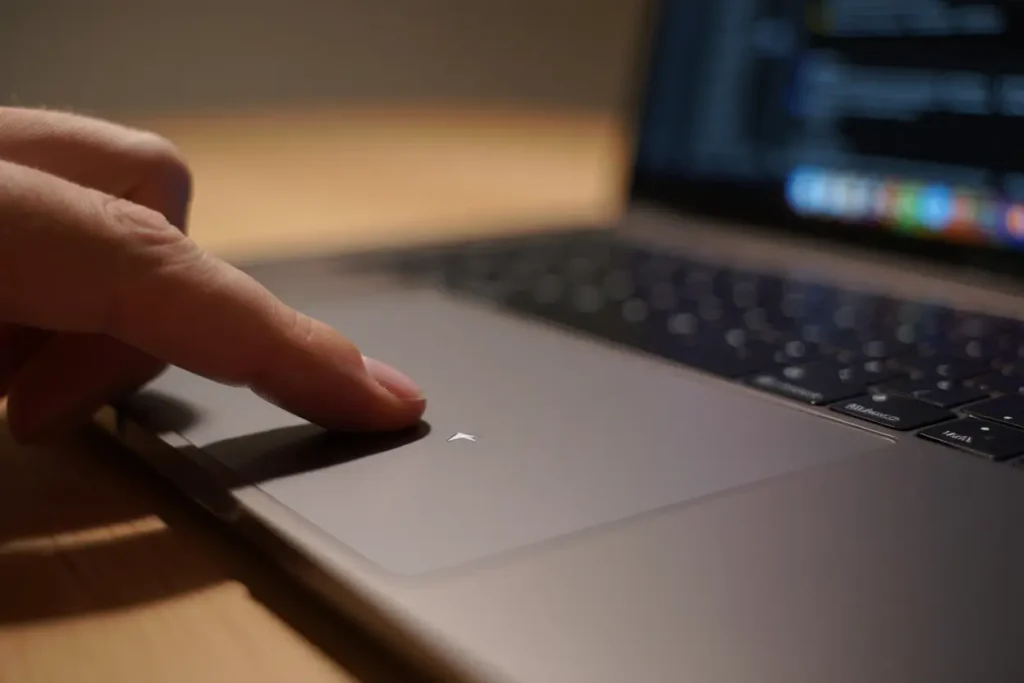
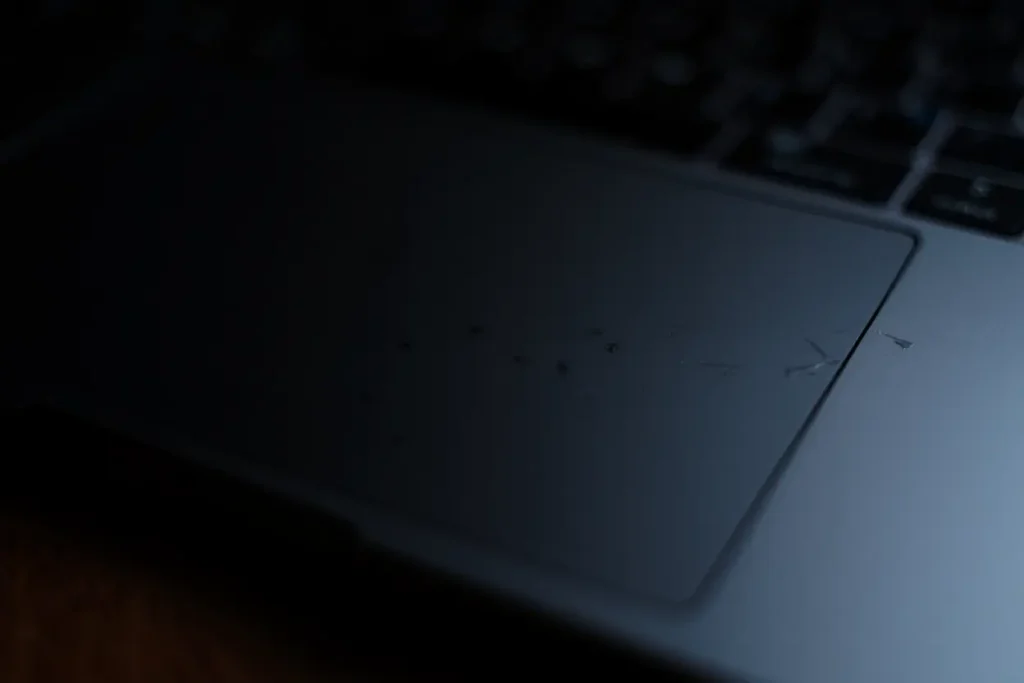
Take a close look at the touchpad surface. Are there cracks, deep scratches, or areas where the coating has worn off? Liquid damage is another common cause — even a small spill that you wiped up quickly can seep under the touchpad and corrode the connector. If the laptop was recently dropped or bumped, the ribbon cable connecting the touchpad to the motherboard may have come loose. That’s actually a fairly easy fix if you’re comfortable opening the laptop, but if you’re not, this is the point where a repair shop earns its money.
The Ribbon Cable Reseat
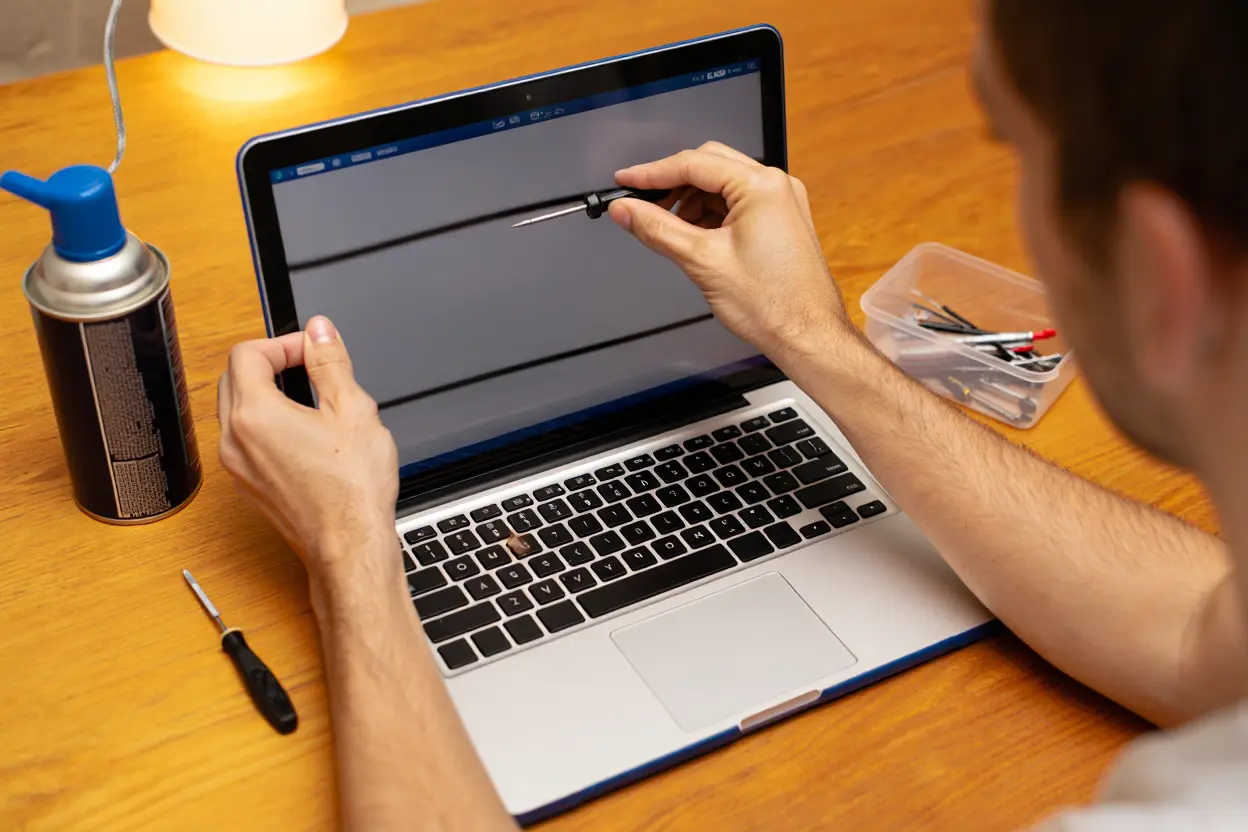
For the DIY-inclined: the touchpad connects to the motherboard via a thin ribbon cable with a flip-lock connector. Power off the laptop completely, remove the battery if it’s removable, and take off the bottom panel (usually a handful of Phillips screws). Find the touchpad cable — it’s the wide, flat one running from the touchpad area to the motherboard. Gently flip up the locking tab, slide the cable out, slide it back in making sure it’s straight and fully seated, then flip the lock back down. Reassemble and test. This fixes a surprising number of cases where a laptop touchpad is not working, especially on laptops that have been opened before or taken a knock.
Brand-Specific Touchpad Fixes
Different manufacturers have their own quirks when the laptop touchpad is not working. Here are the ones I see most often.
HP Laptops
HP loves that double-tap-to-disable feature I mentioned earlier. If your HP touchpad suddenly stopped working, double-tap the top-left corner of the touchpad (where you might see a tiny LED). Also, HP’s “HP Support Assistant” software sometimes pushes driver updates that break the touchpad — check for a touchpad driver specifically in the HP support site for your model rather than relying on Windows Update.
Dell Laptops
Dell touchpads often use Dell’s own “Dell Touchpad” settings panel on top of the Windows settings. If the Windows toggle is on but the touchpad still doesn’t respond, open the Dell Touchpad application from the Start menu and check its enable switch separately. Dell also has a BIOS option under “System Setup > Touchpad” that can disable the device at the hardware level — worth checking if software fixes aren’t working.
Lenovo Laptops
Lenovo’s Vantage software manages a lot of hardware settings, including the touchpad. Open Lenovo Vantage, go to Device Settings, and verify the touchpad is enabled there. On ThinkPads, the TrackPoint (the little red nub) and the touchpad are managed somewhat independently — if one works and the other doesn’t, that’s a useful diagnostic clue pointing to a settings issue rather than hardware failure.
Asus Laptops
Asus uses the Fn + F9 combination on most models to toggle the touchpad. Their “MyASUS” app also has a touchpad toggle under device settings. One Asus-specific quirk: the “NumberPad” feature on some ZenBook models (where the touchpad doubles as a numeric keypad) can get stuck in NumberPad mode, making the touchpad unresponsive to cursor movement. Long-press the NumberPad icon to switch back to touchpad mode.
When to Call It Quits and Get Professional Help
If you’ve tried everything above — the function key toggle, Windows settings, driver updates, rollbacks, reinstalls, Safe Mode, and even reseating the cable — and the laptop touchpad is not working after all of that, it’s time to consider professional repair. Here’s how to think about it.
First, check your warranty. If the laptop is still under manufacturer’s warranty, contact the manufacturer before opening anything — DIY repairs can void the warranty. Most manufacturers will fix a dead touchpad under warranty without much hassle, since it’s clearly a hardware defect at that point.
If you’re out of warranty, a touchpad replacement at a reputable repair shop typically costs between $50 and $150 including labor, depending on the laptop model. Some ultrabooks have the touchpad integrated into the palm rest assembly, which makes the part more expensive. Get a quote before committing — on a very old laptop, it might make more sense to just use an external mouse or put the money toward a new machine.
As a stopgap, a decent wireless mouse costs under $20 and will keep you productive while you decide. There’s no shame in it — plenty of people prefer a mouse anyway.
Preventing Touchpad Problems in the Future
Once your touchpad is working again, a few habits will keep it that way. Keep your touchpad drivers updated, but do it deliberately — grab them from the manufacturer’s website every few months rather than letting Windows Update surprise you. If a Windows update breaks the touchpad, you’ll know exactly what changed and can roll it back.
Keep liquids away from the keyboard area. It sounds obvious, but coffee and laptops are a classic bad combination, and the touchpad is right in the splash zone. A silicone keyboard cover won’t protect the touchpad, but being mindful about where you put your mug will.
Finally, learn your laptop’s touchpad toggle key combination and check it first whenever you find your laptop touchpad is not working. The number of people who’ve spent an hour troubleshooting only to discover they’d bumped Fn + F7 is higher than anyone wants to admit. Now you know better.
When you’re getting started with Laptop Touchpad Not Working, the biggest mistake is trying to do everything at once. The people who get the best results from Laptop Touchpad Not Working start small, focus on one specific goal, and build from there. Think of Laptop Touchpad Not Working as a skill you develop over time, not a switch you flip. Each week you spend working with Laptop Touchpad Not Working, you’ll notice patterns in what works and what doesn’t.
Not every approach to Laptop Touchpad Not Working is right for every person. Your budget, your experience level, and your end goal all shape which Laptop Touchpad Not Working strategy makes sense for you. Someone exploring Laptop Touchpad Not Working for the first time needs different guidance than someone who’s been using Laptop Touchpad Not Working for months. The advice below assumes you’re past the absolute basics but still figuring out the details.
The real payoff from Laptop Touchpad Not Working comes from consistency, not perfection. You don’t need the most expensive tools or the most advanced setup to benefit from Laptop Touchpad Not Working. What matters is showing up regularly, paying attention to results, and adjusting as you learn. Most people overthink Laptop Touchpad Not Working at the start and underthink it later.
One thing that surprises newcomers to Laptop Touchpad Not Working is how much small details matter. Two people can follow the same Laptop Touchpad Not Working guide and get very different results because of tiny choices they make along the way. That’s why understanding the principles behind Laptop Touchpad Not Working matters more than memorizing steps. Once you grasp why Laptop Touchpad Not Working works the way it does, you can adapt to any situation.
If Laptop Touchpad Not Working feels overwhelming, you’re not alone. Almost everyone feels that way at first. The key is to remember that Laptop Touchpad Not Working is a tool to serve your goals, not a test you have to pass. Start with the simplest version of Laptop Touchpad Not Working that could possibly work, get comfortable, then expand. You’ll be surprised how quickly Laptop Touchpad Not Working starts feeling natural.
Frequently Asked Questions
Why did my laptop touchpad suddenly stop working?
A laptop touchpad is not working most often because of accidentally pressing the touchpad disable key (Fn + a function key), a Windows update breaking the driver, or the touchpad being turned off in Windows settings. Less commonly, it’s a loose ribbon cable or actual hardware failure. Work through the fixes in this guide from top to bottom — the simple ones solve it most of the time.
How do I unlock my laptop touchpad?
Press Fn plus the function key with the touchpad icon (often F6, F7, or F9). On some HP laptops, double-tap the top-left corner of the touchpad. In Windows, go to Settings > Bluetooth & devices > Touchpad and make sure the toggle is on. One of these almost always does the trick.
Can a virus cause the touchpad to stop working?
It’s extremely rare. Malware doesn’t typically target touchpad functionality. If your touchpad stopped working at the same time as other strange behavior, run a full antivirus scan to be safe, but the touchpad issue itself is almost certainly a driver or settings problem, not malware.
How much does it cost to fix a laptop touchpad?
Software fixes are free. If it’s a hardware problem and you’re out of warranty, professional touchpad replacement usually runs $50 to $150 including parts and labor. Touchpad replacement parts alone are often $15 to $40 online if you want to do it yourself.
Should I just use an external mouse instead?
That’s a perfectly valid workaround, and many people prefer a mouse for extended work anyway. But a non-working touchpad can also indicate deeper issues (like a failing ribbon cable that might affect other components), so it’s still worth diagnosing properly even if you end up using a mouse day to day.