There is a special kind of frustration that comes from watching a laptop take five minutes to open a browser. If you are searching for how to fix slow laptop performance, you are in the right place. You click an icon, and nothing happens. You click again. Then everything opens at once, the fan starts screaming, and you wonder whether this machine is ever going to work properly again. If that sounds familiar, you are not alone, and the good news is that you do not need to buy a new laptop to fix the problem.
Learning how to fix slow laptop performance is one of the most useful things you can do for your own sanity. Most sluggish laptops are not broken. They are just weighed down by years of accumulated programs, background processes, and settings that were never meant to run all at once. In this guide, I will walk you through seven practical fixes that actually work. These are the same steps I have used on dozens of laptops over the years, and they take anywhere from ten minutes to an hour depending on how far you want to go.
Why Does a Laptop Get Slow in the First Place with how to fix slow laptop?

Before we start fixing anything, it helps to understand what is actually going wrong. A laptop rarely slows down for just one reason. Usually it is a combination of small problems stacking up over time, and each one steals a little bit of speed until the whole machine feels unusable. Understanding these causes is the first step in learning how to fix slow laptop performance for good, rather than just treating symptoms.
The most common culprit is simply too many programs running at the same time. Every application you install wants a piece of your laptop. Chat apps, update services, printer utilities, cloud sync tools — they all start quietly in the background when you boot up. On their own, each one uses almost nothing. Together, they can eat half your memory before you even open your first window.
Storage is another big one. Traditional hard drives slow down dramatically as they fill up, and even modern solid-state drives lose performance when they get above about 85 percent capacity. If your drive is nearly full, the system has nowhere to put temporary files, and everything grinds to a halt.
Then there is the slow creep of software bloat. Operating system updates add features you never asked for. Browsers accumulate extensions. That photo editor you tried once in 2023 is still there, checking for updates every morning. None of this is malicious — it is just the natural result of using a computer for a few years without cleaning house.
Hardware matters too. A laptop with 4GB of RAM that felt fine five years ago will struggle with today’s websites and applications. Modern web pages are heavier, apps expect more memory, and the gap between what your hardware offers and what your software demands keeps growing. The fix might be a cheap upgrade rather than a new machine.
Finally, do not overlook malware and overheating. Malicious software running hidden in the background can drag performance into the ground. And if your laptop’s vents are clogged with dust, the processor throttles itself to avoid overheating, which looks exactly like a slow computer even though the real problem is airflow.
The seven fixes below address all of these causes. You do not need to do them all — even two or three will usually make a noticeable difference. But if you work through the full list, you will be surprised how close your old laptop feels to new again. Anyone wondering how to fix slow laptop problems without spending money should start here, because these software fixes cost nothing and solve the majority of cases.
how to fix slow laptop: Fix 1: Restart Properly and Manage Startup Programs
This sounds almost too simple, but a real restart fixes more slow laptops than any other single step. Many people never actually restart their computers. They close the lid, the laptop sleeps, and weeks go by. Sleep mode keeps everything in memory, including all the little glitches and memory leaks that accumulate over time. A proper restart clears all of that out.
When you do restart, pay attention to how long it takes before the laptop is actually usable. If you log in and then have to wait another three minutes while icons pop up one by one, your startup programs are the problem. Every one of those icons in your system tray represents a program that insisted on launching at boot.
On Windows, press Ctrl + Shift + Esc to open Task Manager, then click the Startup tab. You will see a list of every program that launches when your computer starts, along with a “Startup impact” rating. Anything marked High that you do not need immediately — Spotify, Discord, Adobe updaters, printer software — can be disabled safely. Right-click and choose Disable. This does not uninstall anything; it just stops the program from launching automatically. You can still open it whenever you want.
On a Mac, go to System Settings, then General, then Login Items. You will see apps that open at login and background items allowed to run. Remove anything you do not recognize or do not need running all the time. Be a little conservative here — some background items belong to things like cloud storage or security software that you actually want.
After trimming your startup list, restart and time it. Most people see their boot-to-usable time cut in half. This is the fastest win in the entire guide, and it takes about five minutes. When people ask how to fix slow laptop boot times specifically, this startup cleanup is always my first recommendation because the results are immediate and obvious.
how to fix slow laptop: Fix 2: Uninstall Programs You Never Use
Open your list of installed programs and scroll through it honestly. How many of those did you install on purpose? How many came pre-installed with the laptop and have been sitting there since day one? How many did you try once and forget about? Every one of them takes up disk space, and many run background services even when you never open them.
On Windows, go to Settings, then Apps, then Installed Apps. Sort by size to see the biggest space hogs, and sort by install date to find things you added long ago and forgot. Game launchers, old printer software, trial antivirus programs that came with the laptop, toolbars, “helper” utilities from hardware manufacturers — these are all fair game. If you have not opened a program in six months, you probably do not need it.
Be careful with a few categories. Do not remove drivers, anything from Microsoft or Apple that you are unsure about, or redistributable packages with names like “Visual C++” — other programs depend on those. When in doubt, search the program name online before removing it. But the trial software, the games you finished, the three different PDF readers? Those can go.
On a Mac, open the Applications folder and drag unused apps to the Trash. Some apps leave behind preference files and caches, so consider using a free uninstaller tool that cleans up leftovers. Check your Downloads folder too — it is often full of installers you no longer need, sometimes taking up tens of gigabytes.
Browser extensions deserve their own cleanup pass. Open your browser’s extension manager and look at what is installed. Each extension runs code on every page you visit. A dozen forgotten extensions can noticeably slow down browsing. Keep the ones you use daily, remove the rest. Your browser will thank you.
This step does more than free up space. Many uninstalled programs also remove their background services and scheduled tasks, which means less competition for your processor and memory every minute of the day. People who learn how to fix slow laptop issues through proper cleanup often report that their laptop feels snappier in ways they did not expect, because the machine is no longer fighting dozens of tiny background battles.
how to fix slow laptop: Fix 3: Free Up Disk Space the Smart Way
A nearly full drive is one of the most reliable ways to make a laptop slow. Windows and macOS both need free space for virtual memory, temporary files, and update staging. The general rule is to keep at least 15 to 20 percent of your drive free. If you are below that, freeing space is not optional — it is the fix.
Start with the built-in tools. On Windows, search for “Disk Cleanup” or go to Settings, then System, then Storage. Windows can show you exactly what is taking up space: temporary files, the recycle bin, old Windows update files, delivery optimization files. The “Previous Windows installations” entry alone can be 20GB or more after a major update. Let the tool remove what it safely can.
On a Mac, click the Apple menu, then About This Mac, then Storage, then Manage. macOS offers to optimize storage by moving rarely used files to iCloud, emptying the trash automatically, and reviewing large files. The built-in recommendations are genuinely useful and safe to accept.
After the automated cleanup, go manual. Your Downloads folder is the usual suspect — old installers, zip files, videos you watched once. The Documents folder often hides installers and duplicates. If you take photos or videos, check how much space your media library uses; moving older files to an external drive can free up enormous amounts of space in one move.
Cloud storage deserves a mention. If you use OneDrive, Google Drive, or iCloud Drive with files kept locally, those synced copies count against your disk. Most services let you switch to “online-only” for files you rarely open, which keeps them visible in your file browser but stored in the cloud until you need them. This can free gigabytes without you losing access to anything.
One more hidden space hog: the browser cache and old system restore points. Browsers can accumulate gigabytes of cached data. Clearing it occasionally is fine — you will just need to log into sites again. On Windows, old restore points can also eat space; you can reduce how much space System Protection is allowed to use without turning it off entirely.
how to fix slow laptop: Fix 4: Scan for Malware and Unwanted Software
Here is an uncomfortable truth: a significant number of slow laptops are slow because something malicious is running on them. Cryptocurrency miners, adware, browser hijackers, and spyware all consume processor time and memory while trying to stay invisible. You might never see a popup or a warning — the only symptom is a computer that keeps getting slower.
The built-in tools are better than most people think. Windows Security (formerly Windows Defender) is a genuinely competent antivirus these days, and it is already on your machine. Open it, go to Virus and Threat Protection, and run a full scan — not the quick scan, the full one. It takes a while, often an hour or more, but it checks everywhere. Do this while you are having lunch or doing something else.
On a Mac, the built-in protections (XProtect and Gatekeeper) handle most threats quietly in the background, but they are not perfect. If your Mac is unusually slow, it is worth running a scan with a reputable free tool. Malwarebytes offers a free scanner for both Windows and Mac that is excellent at finding the adware and potentially unwanted programs that built-in tools sometimes miss.
Potentially unwanted programs deserve special attention because they are technically not viruses. These are the “free” utilities, browser toolbars, and system optimizers that sneak in alongside other downloads. They slow your computer while claiming to speed it up. Malwarebytes Free is particularly good at identifying and removing this category. Run it, let it quarantine what it finds, and restart.
Also check your browser for hijackers. If your homepage or search engine changed without your permission, or new tabs open to strange sites, a browser extension or program has taken over. Remove suspicious extensions, reset your browser settings to default, and then run the malware scan described above. Browser hijackers are annoying but usually easy to remove once you know they are there.
Prevention matters more than cleanup. The most common infection vector is still the fake download button — those misleading ads on free software sites that trick you into downloading the wrong thing. Always download software from the official site, read installer screens carefully, and decline every “recommended” extra offer. Part of learning how to fix slow laptop performance is learning how to keep it fast, and safe downloading habits are a big piece of that.
how to fix slow laptop: Fix 5: Upgrade to an SSD and Add More RAM
Sometimes software fixes are not enough, and the honest answer is that the hardware needs help. The good news is that the two most impactful laptop upgrades are also among the cheapest. If your laptop still has a traditional spinning hard drive, replacing it with a solid-state drive is the single biggest performance upgrade you can make to any computer. It is not close.
The difference is hard to overstate. A laptop that takes three minutes to boot with a hard drive will often boot in under thirty seconds with an SSD. Programs launch instantly instead of bouncing in the dock. Files open immediately. Everything about the machine feels faster because the slowest component — the drive — is no longer the bottleneck. A decent 500GB SSD costs less than a dinner for two at a nice restaurant, and it can make a five-year-old laptop feel new.

Many laptops make this upgrade easy. Business laptops and most consumer models from the last decade have a removable drive bay or an accessible M.2 slot. Search for your exact model plus “SSD upgrade” and you will usually find a video walkthrough. The process is typically: clone your old drive to the new SSD with free cloning software, swap the drives, and boot up. Your files, programs, and settings come along for the ride.
RAM is the other upgrade worth considering. If your laptop has 4GB of RAM, doubling it to 8GB will make multitasking dramatically smoother. Modern browsers alone can use several gigabytes with a handful of tabs open. Check how much memory you have and whether your laptop allows upgrades — many thin-and-light models have soldered RAM that cannot be changed, but most traditional laptops have at least one accessible slot.
Before buying anything, check your current usage. Open Task Manager on Windows or Activity Monitor on Mac and look at memory pressure during your normal work. If memory is consistently above 80 percent, more RAM will help. If the disk is constantly at 100 percent active time in Task Manager, an SSD is the answer. These tools tell you exactly which upgrade your specific machine needs.
A word of caution: not every laptop is upgradeable, and opening some models voids the warranty. Check your manufacturer’s documentation first. If your laptop is still under warranty or uses soldered components, the software fixes in this guide are your best path. But for the many laptops that do allow upgrades, fifty to a hundred dollars in parts can extend the machine’s useful life by years — and knowing how to fix slow laptop hardware bottlenecks with a simple SSD swap is one of the best tech skills you can pick up.
how to fix slow laptop: Fix 6: Adjust Settings for Performance Over Appearance
Modern operating systems ship with visual effects that look nice but cost performance: transparent windows, animations, shadows, smooth scrolling effects. On a new machine you never notice the cost. On an older laptop, turning these off can free up meaningful resources and make the whole system feel more responsive.
On Windows, search for “Adjust the appearance and performance of Windows” and open the Performance Options panel. You will see a list of visual effects with checkboxes. Select “Adjust for best performance” to turn them all off, or choose Custom and disable the expensive ones individually — transparency, animations, and shadows are the biggest wins. The interface will look a bit plainer, but windows will snap open instantly instead of fading in.
Power settings matter too, especially on laptops. Windows defaults to “Balanced” power mode, which is fine, but check that you have not accidentally left it on “Power saver” — that mode deliberately slows the processor to extend battery life. On the flip side, “Best performance” mode keeps the processor running faster at the cost of battery. For desk work while plugged in, best performance is the right choice. Use balanced when you need battery life.
On a Mac, go to System Settings, then Accessibility, then Display, and enable “Reduce motion” and “Reduce transparency.” These cut the animation overhead across the whole system. Also check System Settings, then Battery, and make sure you are not in Low Power Mode when plugged in — that mode throttles performance to save energy, which is the opposite of what you want when trying to speed things up.
Browser settings deserve attention as well. Hardware acceleration in Chrome, Edge, and Firefox lets the browser use your graphics chip for rendering, which is usually faster — but on some older machines with weak graphics, it causes stuttering. If web pages feel laggy, try toggling hardware acceleration in your browser settings to see which way runs better on your hardware. There is no universal answer; it depends on the machine.
These tweaks will not transform a laptop on their own, but they stack with everything else. A machine with trimmed startup programs, free disk space, and reduced visual effects feels noticeably snappier than one with only the first two. Think of it as removing the last bits of friction.
how to fix slow laptop: Fix 7: Keep Your System Updated and Clean the Hardware
It sounds contradictory — updates sometimes feel like they slow things down — but staying current is important for performance. Operating system updates include performance improvements, bug fixes, and security patches. A laptop that has not been updated in a year is missing all of those. The key is to update deliberately rather than letting updates ambush you during work.
Set aside time once a month for maintenance. Install pending operating system updates, update your browser, and update the applications you actually use. Then restart. This monthly routine prevents the situation where fifty updates pile up and install all at once, which is when updates feel the most disruptive. Regular small updates are painless; neglected big ones are not.
Driver updates matter too, particularly graphics drivers. On Windows, outdated graphics drivers can cause stuttering in video playback and sluggish window rendering. Check your laptop manufacturer’s support page for driver updates a couple of times a year, or use the graphics chip maker’s own update tool. This is one of those invisible fixes that people never think about.
Now the physical part: clean your laptop. Dust is the enemy of laptop performance. When vents clog, heat builds up, and modern processors automatically slow down to protect themselves — a behavior called thermal throttling. A laptop that used to be fast and gradually got slower over two years is often just hot. The processor is fine; it is being held back by a blanket of dust.
You can do a basic cleaning yourself. Shut the laptop down, then use short bursts of compressed air to blow dust out of the vents. Hold the can upright and do not spin the fans with the air — just dislodge the dust. Do this outside or over a trash can; you will be surprised how much comes out. For a deeper clean, some laptops allow you to remove the bottom panel and clean the fans directly, but check your warranty terms first.
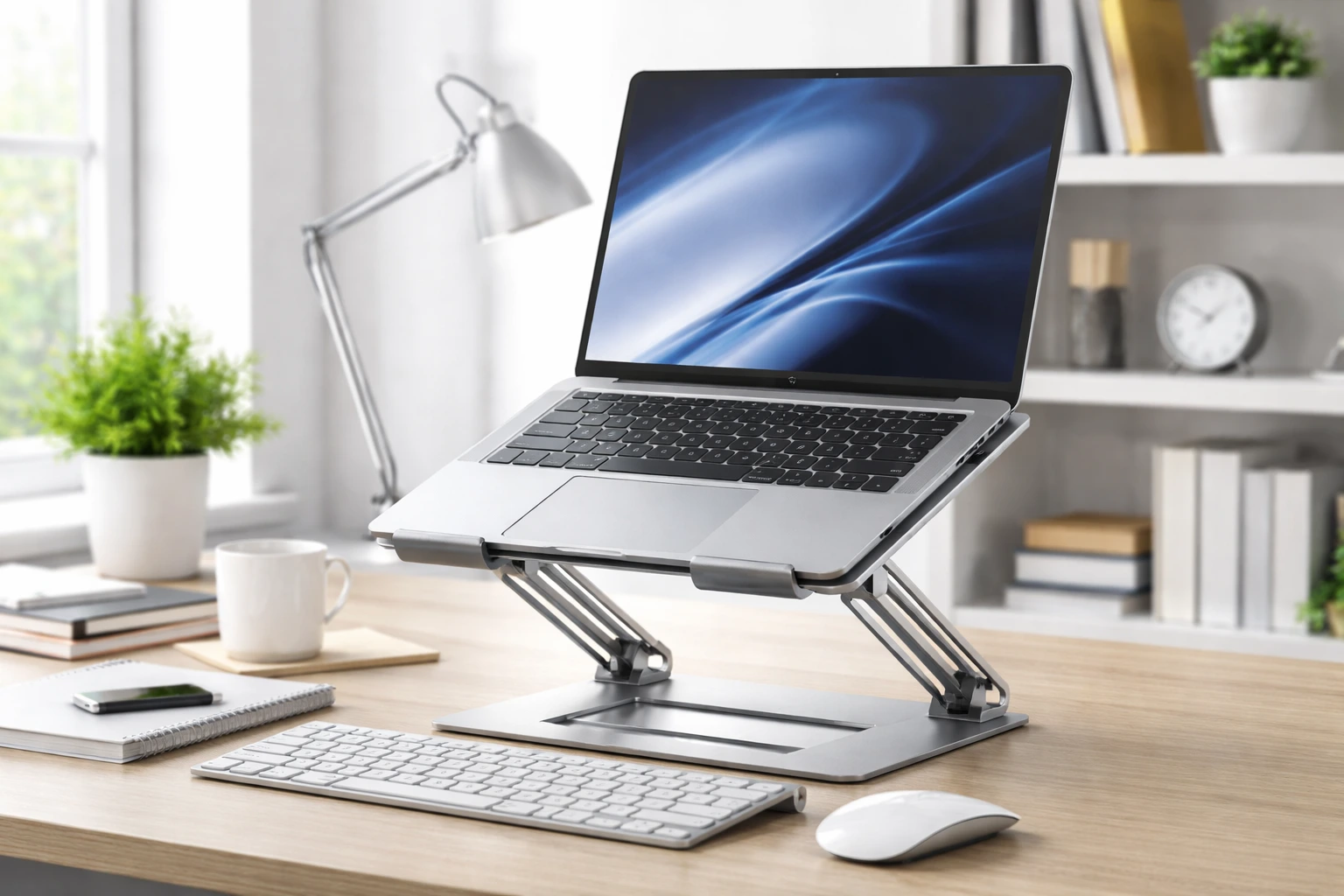
Also consider where and how you use the laptop. Using it on a bed or couch blocks the bottom vents. A hard flat surface — or better yet, a simple cooling stand — keeps airflow moving. If your laptop runs hot enough that the fan is always loud, a twenty-dollar cooling pad is a cheap way to reduce thermal throttling and get some speed back.
When to Stop Fixing and Start Shopping
Knowing how to fix slow laptop issues includes knowing when the answer is a replacement rather than another round of optimization. If you have worked through all seven fixes and the machine is still struggling with basic tasks, the hardware has reached its limit.
Watch for these warning signs. If the laptop is still painfully slow after a clean operating system reinstall, the hardware itself is the limit. If it cannot run a currently supported version of its operating system, it is a security risk no matter how well it runs. If the battery is swollen, the keyboard is failing, or the screen is dying, repair costs can quickly exceed the value of the machine.
That said, do not rush to replace a laptop that just needs the fixes above. I have seen eight-year-old machines run perfectly well for web browsing, office work, and video streaming after an SSD upgrade and a cleanup. The tech industry wants you to buy a new laptop every three years, but a well-maintained machine can easily last six to eight for everyday tasks.
If you do decide to upgrade, your old laptop still has value. Wipe it clean, install a lightweight operating system like a beginner-friendly Linux distribution, and it makes a fine second machine, a media server, or a computer for a family member with basic needs. Or donate it — many schools and nonprofits refurbish old laptops for students.
When you’re getting started with how to fix slow laptop, the biggest mistake is trying to do everything at once. The people who get the best results from how to fix slow laptop start small, focus on one specific goal, and build from there. Think of how to fix slow laptop as a skill you develop over time, not a switch you flip. Each week you spend working with how to fix slow laptop, you’ll notice patterns in what works and what doesn’t.
Not every approach to how to fix slow laptop is right for every person. Your budget, your experience level, and your end goal all shape which how to fix slow laptop strategy makes sense for you. Someone exploring how to fix slow laptop for the first time needs different guidance than someone who’s been using how to fix slow laptop for months. The advice below assumes you’re past the absolute basics but still figuring out the details.
When you’re getting started with how to fix slow laptop, the biggest mistake is trying to do everything at once. The people who get the best results from how to fix slow laptop start small, focus on one specific goal, and build from there. Think of how to fix slow laptop as a skill you develop over time, not a switch you flip. Each week you spend working with how to fix slow laptop, you’ll notice patterns in what works and what doesn’t.
Not every approach to how to fix slow laptop is right for every person. Your budget, your experience level, and your end goal all shape which how to fix slow laptop strategy makes sense for you. Someone exploring how to fix slow laptop for the first time needs different guidance than someone who’s been using how to fix slow laptop for months. The advice below assumes you’re past the absolute basics but still figuring out the details.
Quick Answers to Common Questions
Will resetting my laptop to factory settings make it faster?
Yes, almost always — a factory reset removes years of accumulated clutter in one shot. But it also removes your files and programs, so back everything up first. Try the seven fixes above before resorting to a reset. Most people find they do not need it once they have done a proper cleanup.
How often should I restart my laptop?
At least once a week. If you use your laptop heavily every day, restarting every few days keeps memory fresh and prevents the slow accumulation of background glitches. Shutting down fully at night instead of just closing the lid is even better.
Do those “PC cleaner” programs actually work?
Mostly no, and some are harmful. The reputable ones do things you can do yourself with built-in tools. The disreputable ones install adware or charge subscriptions for basic cleanup. Stick with the built-in disk cleanup tools and the manual steps in this guide. You do not need to pay for software to clean your computer.
Is it worth upgrading an old laptop or should I just buy new?
If the laptop is less than six years old and has an upgradeable drive or RAM, spending fifty to a hundred dollars on an SSD or memory is almost always worth it. You will get years of additional life for a fraction of replacement cost. Beyond eight years, or if the processor itself is the bottleneck, put the money toward a new machine instead.
Slow laptops are frustrating, but they are rarely hopeless. Work through these seven fixes at your own pace, starting with the quick wins — restart properly, trim startup programs, free up disk space — and you will likely see improvement within the hour. Now that you know how to fix slow laptop slowdowns step by step, your machine has plenty of life left. Give it an afternoon of maintenance and it will pay you back every day.