Is Using Your HP Laptop on Bed Actually Dangerous?
Putting your HP laptop on bed feels harmless. You are tired, the couch is far, and the mattress makes a perfect lap desk. Millions of people do it every night. But this comfortable habit creates a genuine overheating risk that can shorten your laptop’s life, and in rare cases, create a real safety hazard.
This is not fear-mongering. Laptop manufacturers, including HP, explicitly warn against blocking ventilation. Understanding why it matters, what the actual risks are, and how to use your laptop safely in bed will help you protect both your device and yourself.
Why an HP Laptop on Bed Overheats
Laptops stay cool through a simple system: intake vents pull in cool air, internal fans push it across hot components, and exhaust vents release the heated air. This design assumes the vents have clear access to open air, which is true on a desk or table.
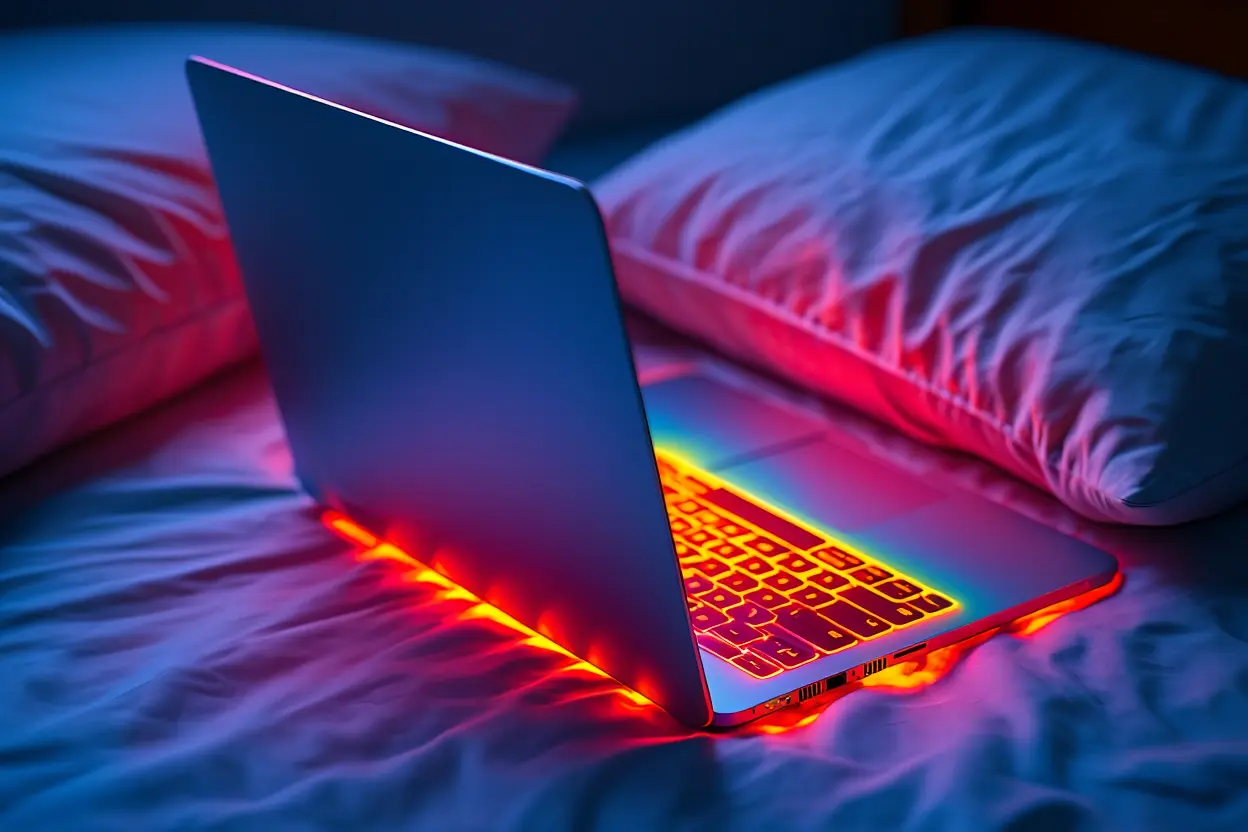
A bed destroys that assumption. Mattresses, blankets, and pillows are soft and insulating. When you set an HP laptop on bed, the base sinks slightly into the fabric, sealing off the intake vents underneath. The exhaust vents on the sides or rear may also end up pressed against bedding. With airflow blocked, heat builds up inside the chassis far faster than the cooling system was designed to handle.
The fabric itself makes things worse. Unlike a wooden desk that dissipates some heat, bedding traps warmth around the laptop, creating a pocket of hot air. The fans spin faster trying to compensate, which you hear as loud whirring, but they are just recirculating the same trapped hot air. Temperatures climb steadily.
HP laptops, like most modern notebooks, have thermal protection that throttles performance or shuts down before catastrophic damage. But repeatedly hitting those thermal limits stresses components, degrades the battery faster, and can cause the sudden shutdowns and sluggishness many bed-users complain about without connecting to the cause.
HP laptop on bed: The Real Risks, Ranked Honestly
Let us separate genuine concerns from exaggerated ones, because both exist online.
HP laptop on bed: Shortened Component Lifespan
This is the most common and certain consequence. Heat is the enemy of electronics. Processors, memory, and storage all degrade faster at sustained high temperatures. A laptop regularly used on soft bedding may develop problems months or years earlier than one used on hard surfaces: fans wearing out, thermal paste drying, batteries swelling. These are not dramatic failures, just a steady, invisible tax on your hardware.
HP laptop on bed: Battery Damage and Swelling
Lithium batteries are particularly sensitive to heat. Chronic overheating accelerates the chemical degradation that reduces battery capacity, meaning your laptop holds less charge over time. In more serious cases, damaged batteries can swell, warping the chassis or trackpad. Swollen batteries are a genuine safety concern and should be replaced promptly by qualified service.
HP laptop on bed: Performance Throttling
When internal temperatures climb, the processor deliberately slows down to protect itself. This thermal throttling turns a fast laptop into a sluggish one: videos stutter, applications freeze, games become unplayable. Many people blame software or age for this slowdown when the actual culprit is heat from blocked vents. Moving the laptop to a hard surface often restores full performance immediately.
Fire Risk: Rare but Real
This is the risk that generates alarming headlines, so it deserves careful treatment. Modern laptops from reputable manufacturers like HP include multiple thermal safeguards, making fires extremely unlikely under normal conditions. However, the risk is not zero, particularly with damaged batteries, blocked vents, and flammable bedding combined, especially if a laptop is left running unattended under blankets. Documented incidents, while rare, almost always involve these compounding factors. The takeaway is not panic but basic precaution.
Personal Discomfort and Burns
More immediately, an overheating laptop gets uncomfortably hot against your legs or torso. Prolonged contact with hot surfaces can cause low-grade skin irritation or mild burns, particularly for people who fall asleep with the laptop on them. This is the most personally felt consequence and the easiest to avoid.
Warning Signs Your Laptop Is Overheating
Your HP laptop gives clear signals when heat becomes a problem. Learning to recognize them lets you act before damage occurs.
Loud, constant fan noise is the first and most obvious sign. Fans spinning at maximum for extended periods mean the cooling system is struggling. Occasional fan bursts during heavy tasks are normal; a fan that never quiets down during light use is not.
Unexpected slowdowns during simple tasks point to thermal throttling. If web browsing or document editing suddenly feels laggy and the base feels hot, heat is the likely cause. This often resolves within minutes of improving airflow, which confirms the diagnosis.
Sudden shutdowns or restarts are the thermal protection system intervening. The laptop is protecting itself from damage by cutting power. If this happens more than rarely, treat it as an urgent warning rather than an annoyance.
Physical symptoms matter too. A base too hot to touch comfortably, a trackpad that feels warm, or visible distortion of the chassis all indicate excessive heat. Battery swelling shows as a trackpad that clicks differently, a bottom panel that no longer sits flat, or gaps appearing in the case seams.
How to Fix Overheating From Bed Use
If you have been using your HP laptop on bed regularly, some corrective steps help immediately and some protect you going forward.
Immediate Steps
Move the laptop to a hard, flat surface and let it cool with the lid open. Do not put it in a refrigerator or freezer; rapid temperature changes cause condensation inside the machine, which is worse than heat. Room-temperature air circulation is what it needs.
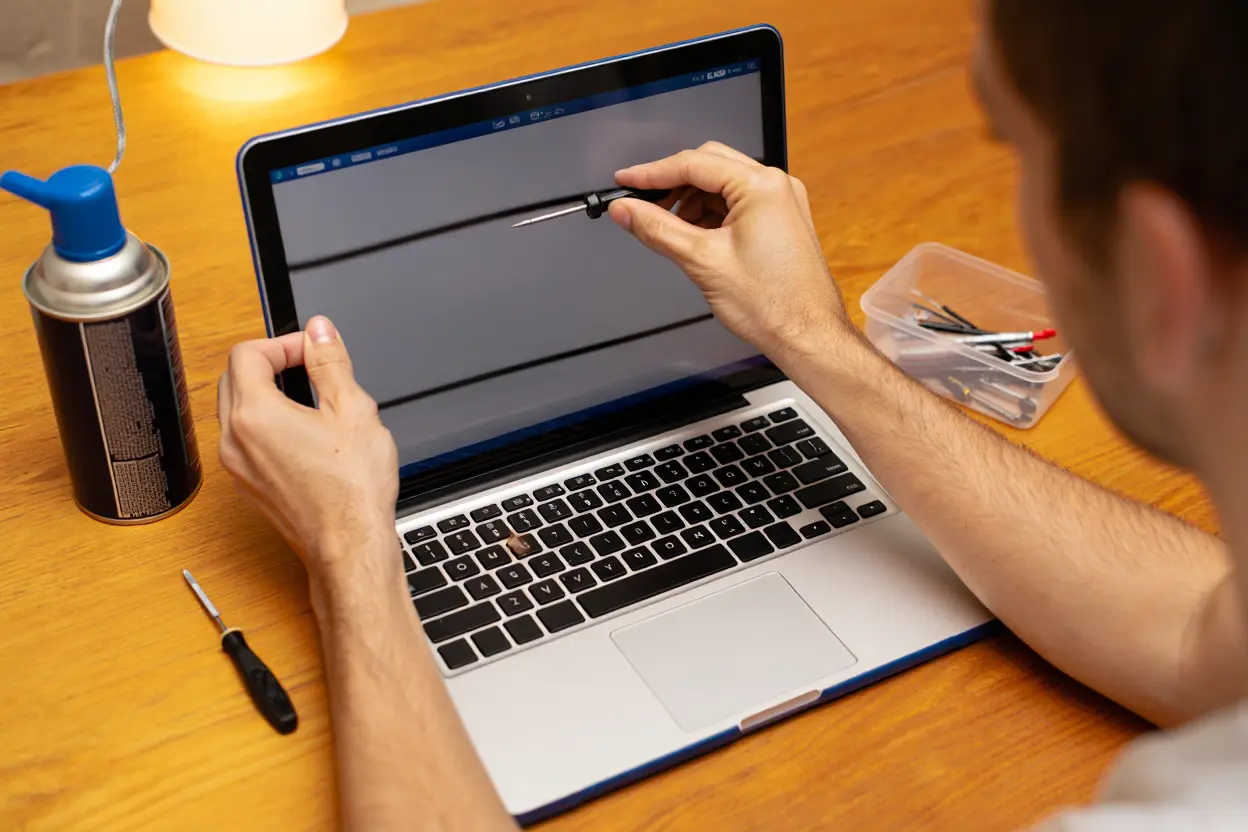
Check the vents for dust buildup. Bedding sheds fibers that accumulate in vents and on fans over time, compounding the airflow problem. With the laptop off and unplugged, use short bursts of compressed air to clear visible dust from intake and exhaust grilles. Hold fans still with a toothpick if accessible, since spinning them with air can damage bearings.
Monitor temperatures for a few days of normal desk use. Free hardware monitoring tools show CPU and GPU temperatures in real time. If temperatures stay high even with clear vents on a hard surface, the internal thermal paste may need replacement, which is a job for a service technician.
Longer-Term Fixes
Clean the internals if you are comfortable opening the machine, or have a technician do it annually if you use the laptop heavily. Dust inside the chassis insulates components just as effectively as a blanket outside it.
Consider replacing thermal paste on older laptops. This material transfers heat from the processor to the cooling system and dries out over two to three years. Fresh paste can drop temperatures significantly. This requires disassembly, so weigh your comfort level against the cost of professional service.
Evaluate the battery if you notice swelling, rapid draining, or the laptop only working when plugged in. HP provides battery diagnostics in its support software. A failing battery generates extra heat and poses safety risks, making replacement worthwhile rather than optional.
Safe Ways to Use a Laptop in Bed
You do not have to give up bed computing entirely. The goal is airflow, and several practical solutions provide it.
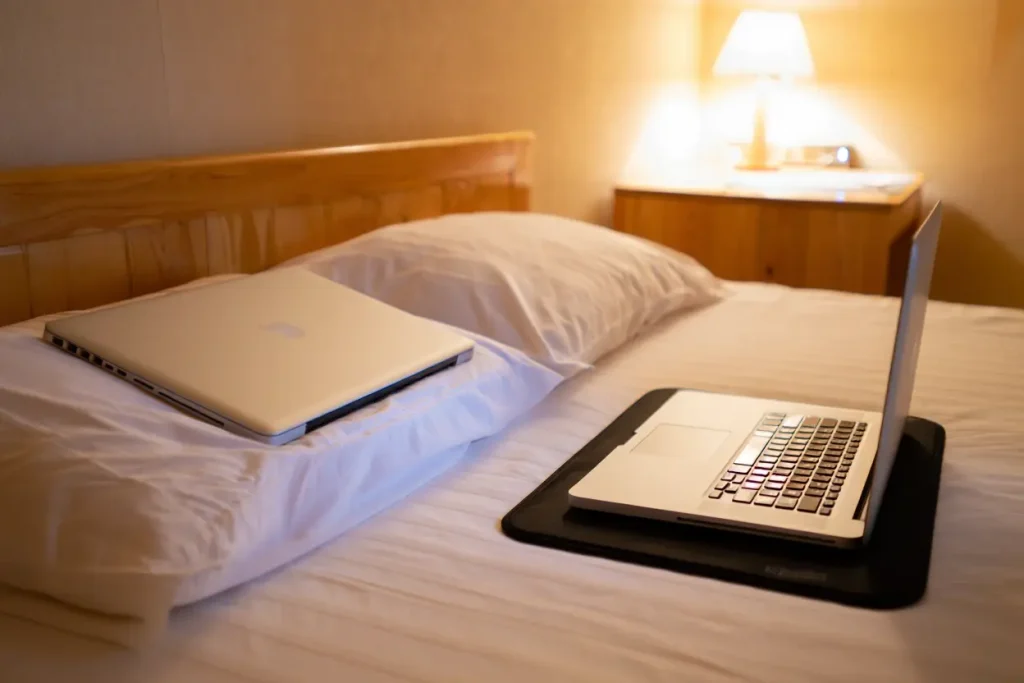
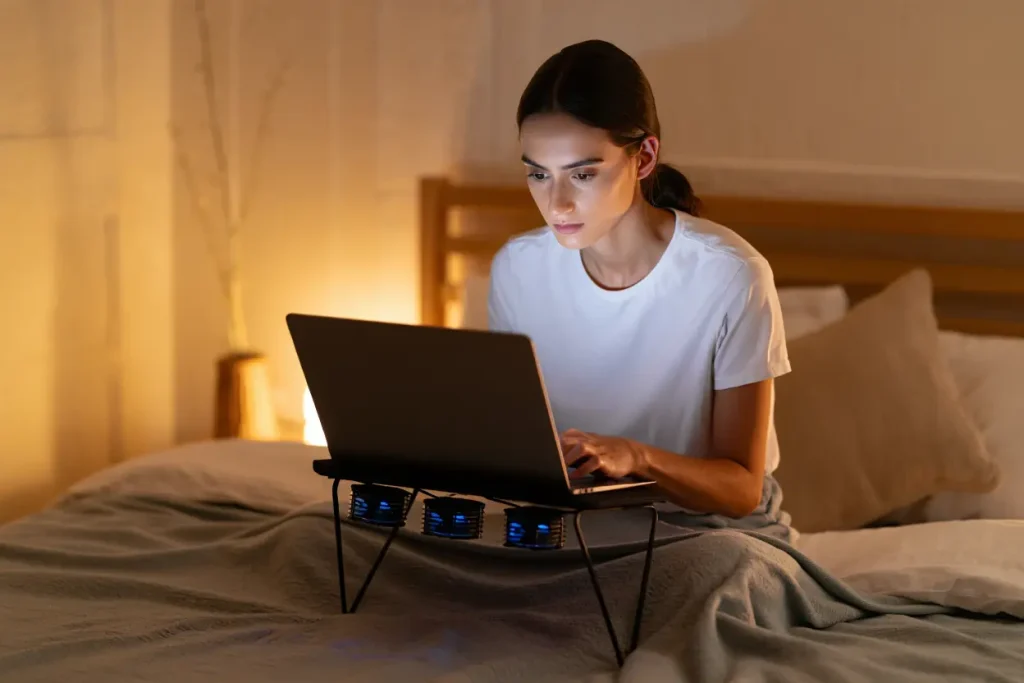
A lap desk or bed tray is the simplest fix. These flat, rigid platforms sit on your lap or the mattress and give the laptop the hard surface its cooling design expects. Many include built-in cushions underneath for comfort and raised edges to prevent sliding. This single purchase eliminates the core problem.
Cooling pads with built-in fans go a step further, actively pushing air into the intake vents. They are inexpensive, powered by USB, and noticeably effective for laptops that run hot. Choose one sized for your laptop with fan positions that align with your model’s intake locations.
Even without accessories, small habits help. Keep blankets away from the sides and rear where exhaust vents sit. Avoid using the laptop on a pillow, which conforms to the base and seals vents completely. If you must use it directly on bedding briefly, keep sessions short and watch for fan noise.
Never leave a running laptop unattended on a bed, especially under covers. This combines every risk factor: blocked vents, insulating fabric, no one present to notice warning signs. Shut it down or put it to sleep if you walk away. Similarly, avoid charging on soft surfaces overnight, since charging generates additional heat.
What HP Officially Recommends
HP’s user manuals and support documentation consistently advise using laptops on hard, flat surfaces with unobstructed ventilation. This is not legal boilerplate; it reflects the thermal engineering assumptions built into every model. The warranty may not cover heat damage resulting from blocked vents, which gives the guidance practical weight.
HP’s built-in diagnostics include thermal and fan tests accessible through the BIOS or support assistant software. Running these periodically, especially if you notice heat issues, helps distinguish between environmental causes like bedding and genuine hardware faults. If diagnostics report fan failures or sensor problems, that is a service matter regardless of where you use the machine.
For users who frequently work in bed, HP and other manufacturers effectively endorse the lap desk approach: any rigid platform that keeps vents clear satisfies the requirement. The brand of accessory matters far less than the principle of unobstructed airflow.
Frequently Asked Questions
Can using my HP laptop on bed void the warranty?
Heat damage caused by blocked ventilation can be classified as misuse, which warranties typically exclude. In practice, HP would need to determine that improper ventilation caused the specific failure. Using a lap desk or cooling pad removes the ambiguity entirely and keeps you clearly within recommended use.
How hot is too hot for a laptop?
Most laptop processors are designed to operate up to around 90 to 100 degrees Celsius under load before throttling, with ideal sustained temperatures well below that. If your monitoring software regularly shows temperatures above 90 during light tasks, cooling is inadequate. Comfort is also a guide: if the chassis is painful to touch, it is too hot regardless of what sensors say.
Does a cooling pad really make a difference?
Yes, measurably. By forcing air into intake vents, a decent cooling pad can reduce internal temperatures by a meaningful margin, particularly for laptops with bottom intakes. It does not fix internal dust or dried thermal paste, but as a preventive measure during bed use, it is one of the most effective options available.
My laptop shut down on the bed. Is it damaged?
Probably not from a single event. Thermal shutdowns are a protective feature doing its job. Let the machine cool completely, then restart on a hard surface. If shutdowns recur during normal desk use, however, have the cooling system inspected, since repeated thermal emergencies stress components over time.
Are some HP models safer on beds than others?
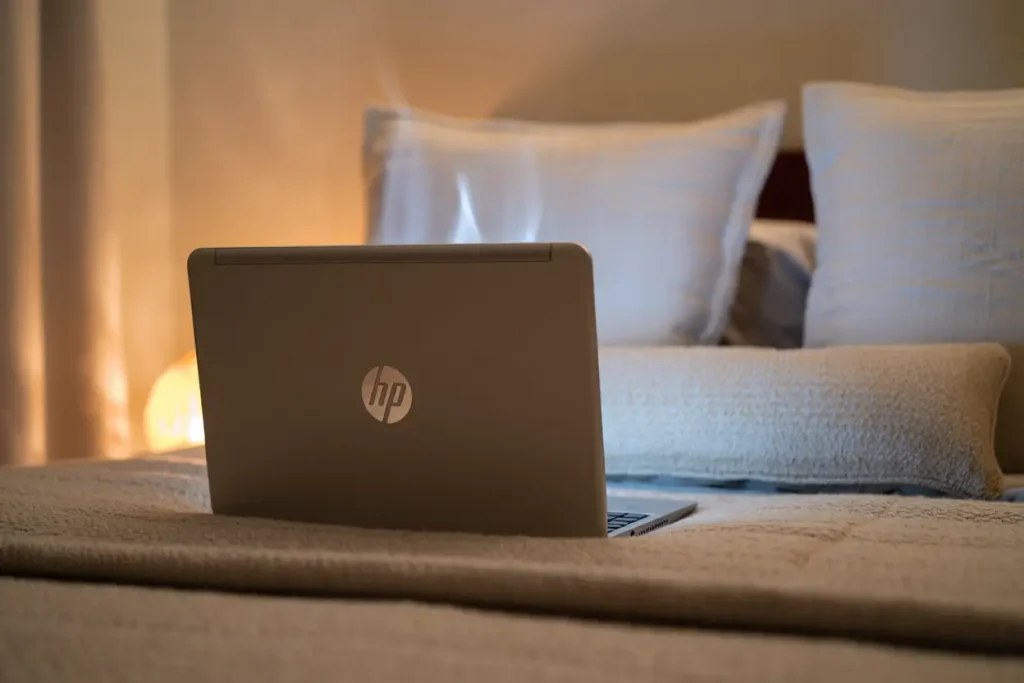
Models with side or rear exhaust and top intake designs tolerate soft surfaces slightly better, but no laptop is designed for blocked vents. Gaming and workstation models generate more heat and suffer faster. Rather than comparing models, assume every laptop needs clear airflow and choose accessories accordingly.
The habit of using an HP laptop on bed is understandable, and with a lap desk or cooling pad, it can be perfectly safe. What matters is respecting the simple physics of how your machine stays cool. Give the vents air, keep bedding away from exhausts, never leave it running unattended under covers, and watch for the warning signs. Those easy steps protect your laptop’s lifespan, its performance, and your peace of mind.
Choosing the Right Lap Desk and Cooling Accessories
Not all lap desks are equal, and picking the right one makes bed computing genuinely comfortable rather than merely tolerable. Look for a work surface at least as large as your laptop’s footprint, with a lip or rail at the front edge to stop the machine sliding toward you. The underside should have a comfortable cushion that distributes weight across your lap without creating pressure points during long sessions.
Ventilation features separate good lap desks from basic trays. Some include slots or mesh sections positioned to align with common vent layouts, allowing air to reach bottom intakes even through the desk itself. If your HP model draws air from underneath, this detail matters more than it might seem. A solid tray is still vastly better than bedding, but a ventilated one is better still.
For cooling pads, check fan placement against your laptop’s intake positions before buying. A pad whose fans blow at solid chassis areas while missing the actual intakes provides little benefit beyond elevation. Reviews from owners of your specific HP model are the most reliable guide here, since vent layouts vary between product lines.
Build quality affects daily experience more than specifications suggest. A wobbly tray or a pad with a whining fan becomes an annoyance you eventually abandon, returning you to the bare mattress and the original problem. Spending slightly more on a stable, quiet option pays off in consistent use, which is what actually protects your hardware.
Setting Up a Bed-Friendly Workspace
Beyond the laptop platform itself, a few ergonomic adjustments make bed use sustainable. Prop yourself with pillows so you sit upright rather than hunching over a laptop flat on the mattress. Neck and back strain from poor posture causes more daily discomfort than heat for most people, and it is entirely preventable.
Lighting deserves attention. Bedrooms are often dimmer than workspaces, which leads to eye strain during long sessions. A small clip-on light or repositioned lamp that illuminates your work without glare on the screen makes a noticeable difference to comfort.
Keep charging cables routed safely. A cable stretched across bedding is a snag hazard that can yank the laptop off its platform. Run the charger along the side of the bed with enough slack that normal movement does not tug the connector. This also reduces strain on the charging port, a common failure point on laptops used in casual positions.
Consider your session length honestly. Even with perfect accessories, a bed is not an ideal eight-hour workstation. For extended work, a proper desk remains better for both the machine and your body. Reserve bed computing for the relaxed evening sessions it suits, and give both yourself and your HP laptop on bed the right setup for those hours. A small investment in the right accessories turns a risky habit into a safe routine.
When you’re getting started with HP laptop on bed, the biggest mistake is trying to do everything at once. The people who get the best results from HP laptop on bed start small, focus on one specific goal, and build from there. Think of HP laptop on bed as a skill you develop over time, not a switch you flip. Each week you spend working with HP laptop on bed, you’ll notice patterns in what works and what doesn’t.
Not every approach to HP laptop on bed is right for every person. Your budget, your experience level, and your end goal all shape which HP laptop on bed strategy makes sense for you. Someone exploring HP laptop on bed for the first time needs different guidance than someone who’s been using HP laptop on bed for months. The advice below assumes you’re past the absolute basics but still figuring out the details.
The Bottom Line on Bed Use
Using your HP laptop on bed is not inherently reckless, but doing it without thinking about airflow invites problems that are easy to prevent. The physics is simple: blocked vents trap heat, and trapped heat shortens hardware life. A lap desk or cooling pad solves the core issue for very little money, and basic habits like keeping vents clear and never leaving the machine running under covers handle the rest. Treat your laptop’s cooling needs with the same casual respect you give any other tool, and it will return the favor with years of reliable service.