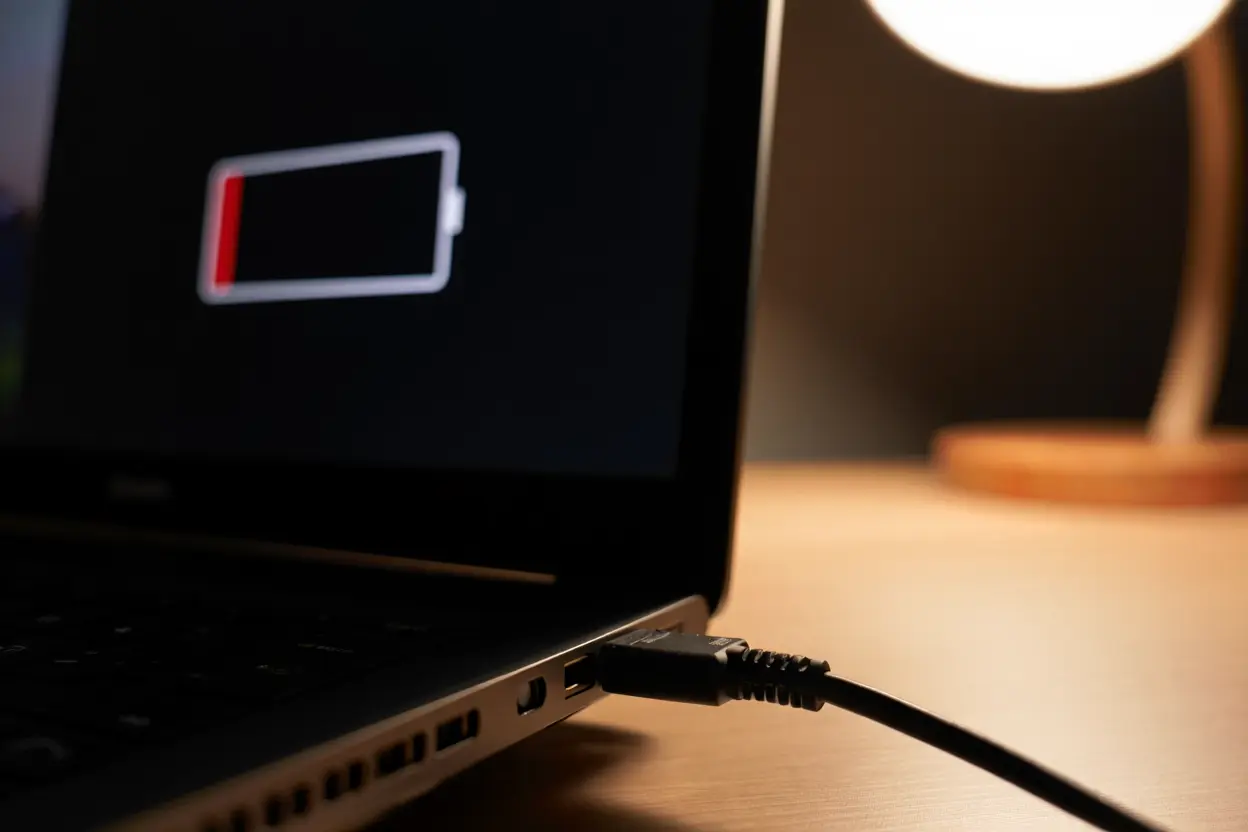
Seeing Laptop Battery Not Charging on your screen feels awful, especially when you’re in the middle of work or a deadline. The good news? Most of the time, the problem is something simple — a loose cable, a tired driver, or a setting you never knew existed. Before you panic about a dead battery or an expensive repair bill, run through this guide. I’ll walk you through the quick checks first, then the deeper causes, each with clear steps you can follow in order. Let’s fix this together.
Laptop Battery Not Charging: Do These Quick Checks First (2 Minutes)
Honestly, half the “Laptop Battery Not Charging” cases I’ve seen in my shop were solved right here, in the first two minutes. It feels silly, but that makes it worth ruling out first.

- Reseat every connection. Unplug the charger from the wall AND from the laptop, wait 10 seconds, then plug both ends back in firmly. Chargers with a two-piece cable (the brick in the middle) can loosen where the AC cord meets the brick.
- Try a different wall outlet. Power strips and extension cords fail quietly. Plug the charger directly into a wall socket you know works — test it with a phone charger first.
- Look at the charging light. Most laptops have a small LED near the charging port or on the keyboard. No light at all points to the charger or outlet. A blinking or orange/amber light often means the battery is being refused for another reason.
- Check for damage. Run your fingers along the whole cable. Fraying, kinks, a hot brick, or a loose connector at the laptop end are all classic culprits. A charger that only works at a certain angle is telling you its cable is failing inside.
- Reboot the laptop. It sounds basic, but Windows and macOS sometimes lose track of the battery state. A full shutdown (not sleep), wait 30 seconds, then power back on while plugged in.
If any of those fixed it, you’re done — go enjoy your working laptop. If not, keep going. The next sections cover each major cause one by one.
Laptop Battery Not Charging: Cause 1: The Charger or Cable Is Failing
This is the single most common reason for a Laptop Battery Not Charging message. Chargers die gradually — they don’t always just stop working one day. The output weakens over time, and eventually it can’t push enough power to charge.
Laptop Battery Not Charging: How to test your charger
- Borrow a compatible charger. The fastest test. Use the exact same wattage or higher — a 45W charger on a laptop that wants 90W will power it but charge slowly or not at all.
- Check the wattage printed on the brick. It says something like “Output: 20V 4.5A” — that equals 90W. If you bought a cheap replacement charger online, it may be underpowered even if the plug fits.
- Feel for heat. A charging brick gets warm, that’s normal. A brick that’s cold while plugged in is likely dead. A brick that’s painfully hot and smells like burning plastic should be replaced immediately.
- Test the USB-C port if you have one. Many modern laptops charge over USB-C. If your barrel charger seems dead, try a USB-C charger rated for your laptop’s wattage — it bypasses a lot of potential cable issues.
For USB-C laptops, the cable itself matters more than people think. A cheap data-only USB-C cable won’t carry charging current. Look for cables explicitly rated for power delivery (PD) at your laptop’s wattage.
Cause 2: The Charging Port Is Damaged or Dirty
A laptop that only charges when you hold the cable at a specific angle almost always has a port problem. The port takes mechanical stress every time you plug in, and over years it loosens.
- Inspect with a flashlight. Shine light into the charging port. Lint, dust, and debris build up in there, especially in bags and backpacks. Use a wooden toothpick or a blast of compressed air to clean it out — never a metal pin.
- Wiggle test (gently). With the charger plugged in, gently move the connector up and down. If the charging light flickers on and off, the port or connector is loose.
- Check for bent pins. On barrel-style ports, a bent center pin means the laptop may need a professional repair. Don’t force it straight — you can snap it.
If the port is truly loose or damaged, this is a hardware repair. On many laptops the DC jack is soldered to the motherboard, which is a shop job. Some models use a separate DC-in cable that’s cheaper to replace. Either way, don’t keep forcing a bad connection — it can damage the motherboard.
Laptop Battery Not Charging on Windows? Check the Battery Driver
Windows manages your battery through a driver called the Microsoft ACPI-Compliant Control Method Battery. When this driver gets corrupted — often after a Windows update — you’ll see Laptop Battery Not Charging even though the hardware is perfectly fine. This is one of my favorite fixes because it takes about a minute and works surprisingly often.
Reinstall the battery driver
- Right-click the Start button and open Device Manager.
- Expand Batteries. You’ll usually see two entries: “Microsoft AC Adapter” and “Microsoft ACPI-Compliant Control Method Battery”.
- Right-click the ACPI battery entry and choose Uninstall device. Confirm.
- Shut down the laptop completely (don’t restart — do a full shutdown).
- Unplug the charger, wait 30 seconds, then plug it back in.
- Power on. Windows will reinstall the driver automatically, and in many cases the battery starts charging again.
If there are two ACPI battery entries, uninstall both. Don’t worry about breaking anything — Windows rebuilds these drivers on the next boot.
Cause 4: Outdated or Glitchy BIOS / Firmware
Your BIOS (or UEFI firmware) controls how the laptop talks to the battery at the lowest level. Manufacturers regularly release BIOS updates that fix charging bugs. If your Laptop Battery Not Charging problem started after a system update, or appeared out of nowhere on a machine that charged fine before, the BIOS is worth a look.
- Check your current BIOS version. Press Win + R, type
msinfo32, and look at “BIOS Version/Date”. - Visit your laptop maker’s support page. Search for your exact model, go to the drivers section, and compare the latest BIOS version to yours.
- Follow their update instructions exactly. A BIOS update is the one thing you don’t want to improvise on. Keep the charger plugged in the whole time and don’t touch anything until it’s finished.
- Reset BIOS to defaults if you’re nervous. Entering the BIOS setup (usually F2 or Del at boot) and choosing “Load Optimized Defaults” can clear bad power settings without a full update.
Some manufacturers also ship a battery firmware update separately from the BIOS — HP and Lenovo do this for certain models. Worth checking the support page for anything with “battery” or “power” in the name.
Cause 5: Battery Health Has Degraded
Lithium-ion batteries wear out. Every charge cycle shaves a little capacity off, and after 300–500 cycles most batteries hold noticeably less charge. A battery that’s badly degraded can refuse to charge at all, or charge to a low percentage and stop. The Laptop Battery Not Charging message sometimes shows up right at the end of a battery’s life.
Check your battery health on Windows
- Open Command Prompt as administrator.
- Type
powercfg /batteryreportand press Enter. - Open the HTML report it generates (usually in C:UsersYourNamebattery-report.html).
- Compare Design Capacity to Full Charge Capacity. If full charge capacity is under 50–60% of design capacity, the battery is heavily worn.
Check your battery health on a Mac
- Hold Option and click the Apple menu, then choose System Information.
- Go to Power in the sidebar and look at “Cycle Count” and “Condition”.
- A condition of “Service Battery” or “Replace Soon” means the battery needs replacing. “Normal” with a very high cycle count (over 1000) can also cause charging quirks.
On Macs with Apple silicon, you can also run Apple Diagnostics by holding the power button at startup — it will flag a failing battery directly.
Cause 6: Charge Limits and Battery Care Settings
Here’s a sneaky one. Many manufacturers now ship battery-care features that intentionally stop charging before 100% to extend battery life. Lenovo calls it Conservation Mode, ASUS calls it Battery Health Charging, Dell has Battery Charge Configuration, and Windows laptops often bury it in the manufacturer’s app. If your laptop sits at 60% or 80% and says “plugged in, not charging,” this is probably why — and it’s working as designed.
- Lenovo: Open Lenovo Vantage → Device → Power → turn off Conservation Mode.
- ASUS: Open MyASUS → Battery Health Charging → set to “Full capacity mode”.
- Dell: Open Dell Power Manager → Battery Settings → choose “Standard” charge profile.
- HP: Check HP Support Assistant or the BIOS under Advanced → Power Management for a battery care threshold.
- Microsoft Surface: Open the Surface app → Battery & charging → disable any smart charging limit.
On macOS, the equivalent is Optimized battery charging in System Settings → Battery. It holds the charge at 80% based on your routine. Turn it off temporarily to confirm the battery can still charge past 80%. If it can, nothing is broken — the setting was doing its job.
My honest advice: once you’re done troubleshooting, consider turning the limit back on. Keeping a lithium battery at 100% all day on a desk shortens its life. An 80% cap is genuinely one of the best things you can do for long-term battery health.
Cause 7: Overheating Protection
Laptops refuse to charge when they get too hot — it’s a safety feature, not a bug. Charging a hot lithium battery is genuinely dangerous, so the system pauses charging until things cool down. This hits hardest if you use the laptop on a bed or couch where the vents are blocked, or in a warm room during summer.
- Let it cool down. Shut the laptop off, unplug it, and leave it for 20–30 minutes. Then plug in and try again.
- Clear the vents. Dust-clogged fans make everything hotter. A blast of compressed air through the exhaust vents helps, but hold the fan still with a toothpick first so it doesn’t overspin.
- Use it on a hard, flat surface. Beds, couches, and laps block intake vents. A cheap cooling stand or even two bottle caps under the back corners improves airflow a lot.
- Check temperatures. On Windows, a free tool like HWMonitor shows CPU and battery temps. Charging usually pauses above roughly 45–50°C internal temperature.
If the laptop charges fine when cold but stops every time it warms up during use, the cooling system — not the battery — is the real problem. Repasting the CPU and cleaning the fans is a shop job for most people, but it transforms an overheating machine.
Cause 8: Malware or Runaway Software Draining Power
Sometimes the battery IS charging, but something is draining it faster than the charger can fill it. The result looks exactly like a Laptop Battery Not Charging problem. Crypto miners, runaway background processes, and buggy software updates can all peg the CPU at 100% and out-consume even a healthy charger.
- Open Task Manager (Windows) or Activity Monitor (Mac). Sort by CPU usage. Anything sitting at high CPU for no reason is suspect.
- Check battery usage history. On Windows: Settings → System → Power & battery → Battery usage. It shows which apps drained the most power over the last week.
- Run a malware scan. Use Windows Defender’s full scan, or Malwarebytes for a second opinion. Miners are specifically designed to hide, so a quick scan isn’t always enough.
- Test in Safe Mode. Boot into Safe Mode with the charger plugged in. If it charges there, a third-party program is the culprit — uninstall recent software one by one.
Also check for Windows updates stuck in a loop. I’ve seen machines where a failed update kept retrying in the background for days, maxing out the CPU and making charging impossible.
Laptop Battery Not Charging After All Else? Deeper Fixes
If you’ve worked through the quick checks and all eight causes, these are the next-level steps. They’re a bit more involved, but they catch the stubborn cases.
Power drain / hard reset
- Shut down the laptop completely and unplug the charger.
- If the battery is removable, take it out. If it’s internal, that’s fine — just leave it.
- Press and hold the power button for 30–60 seconds. This drains residual power from the capacitors and resets the embedded controller that manages charging.
- Plug the charger back in (battery still out, if removable), wait a minute, then reinsert the battery and power on.
This sounds like voodoo, but the embedded controller genuinely gets stuck sometimes, and this is the only way to reset it on many models.
Try a different battery (if removable)
On laptops with removable batteries — increasingly rare, but they exist — swap in a known-good battery. If it charges, your battery is the problem. If it doesn’t, the charging circuit on the motherboard is suspect.
Check for swollen battery
Power the laptop off and look carefully: is the trackpad lifting, the bottom case bulging, or the keyboard uneven? A swollen lithium battery is a fire hazard. Stop using the laptop, don’t puncture it, don’t try to charge it, and take it to a professional for safe removal. This is the one battery problem that’s genuinely dangerous.
Clean install as a last resort
If you’ve ruled out hardware and the battery still won’t charge, a corrupted OS install is possible. Back up your files, do a clean Windows/macOS install, and test charging before reinstalling your programs. It’s drastic, but it definitively separates software from hardware problems.
Laptop Battery Not Charging Still? Replace the Battery or Repair the Laptop
Knowing when to stop troubleshooting saves you money. Here’s how I think about it.
Replace just the battery when: the battery report shows under 60% of design capacity, the cycle count is very high, the laptop charges fine with the battery removed (runs on AC power), or a borrowed battery works. Replacement batteries for most laptops cost between $30 and $80 for third-party, more for OEM. Always buy from a reputable seller — cheap counterfeit batteries are a real fire risk.
Consider professional repair when: the charging port is loose or damaged, the laptop won’t run on AC power even with the battery removed, or you’ve tried a known-good charger and battery and it still won’t charge. That points to the charging circuit on the motherboard, which needs board-level repair. Get a quote first — on older budget laptops, a motherboard repair can cost more than the machine is worth.
Replace the laptop when: it’s over 6–7 years old, needs both a battery and a board repair, and the total quote approaches half the price of a new machine. At that point you’re paying to keep old hardware alive.
When you’re getting started with Laptop Battery Not Charging, the biggest mistake is trying to do everything at once. The people who get the best results from Laptop Battery Not Charging start small, focus on one specific goal, and build from there. Think of Laptop Battery Not Charging as a skill you develop over time, not a switch you flip. Each week you spend working with Laptop Battery Not Charging, you’ll notice patterns in what works and what doesn’t.
Not every approach to Laptop Battery Not Charging is right for every person. Your budget, your experience level, and your end goal all shape which Laptop Battery Not Charging strategy makes sense for you. Someone exploring Laptop Battery Not Charging for the first time needs different guidance than someone who’s been using Laptop Battery Not Charging for months. The advice below assumes you’re past the absolute basics but still figuring out the details.
How to Make Your Next Battery Last Longer
Once you’ve fixed the Laptop Battery Not Charging issue, a few habits will keep the new battery — or the one you saved — healthy for years.
- Keep the charge between 20% and 80% for daily use. Deep discharges and constant 100% both accelerate wear. Use the manufacturer’s charge-limit feature if you’re mostly on a desk.
- Avoid heat. Heat kills lithium batteries faster than anything else. Don’t leave the laptop in a hot car, and keep vents clear.
- Don’t store it dead or full. If you’re not using the laptop for weeks, leave it around 50% charge.
- Calibrate occasionally. Every few months, charge to 100%, then use it down to about 10% before charging again. This doesn’t extend the battery’s life, but it keeps the battery gauge accurate so Windows and macOS report the charge correctly.
- Use the right charger. Underpowered third-party chargers stress both the charger and the charging circuit. Match your laptop’s wattage.
Battery problems are frustrating because they always show up at the worst moment. But now you know the full playbook: quick checks first, then charger, port, drivers, BIOS, health, charge limits, heat, and software drain — in that order. Most Laptop Battery Not Charging cases are solved in the first three sections, and the rest are at least diagnosable. Work through it methodically, replace the battery when the numbers say so, and don’t keep forcing a bad charger or a swollen pack. Your laptop — and your data — will thank you.