
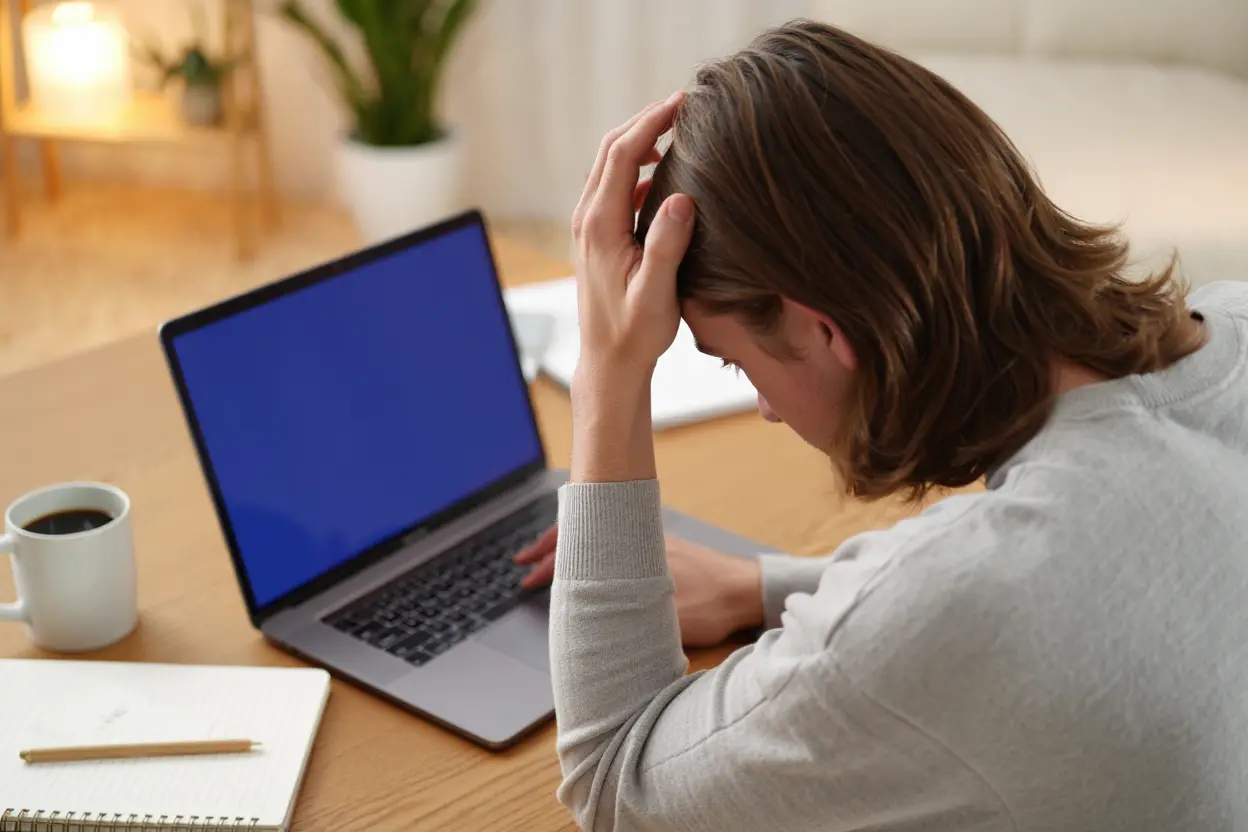
Every laptop owner eventually faces the same frustrating moment: the screen goes black, the fan sounds like a jet engine, or the Wi-Fi refuses to connect five minutes before an important meeting. Knowing the most common laptop problems and solutions can save you hundreds of dollars in repair bills and hours of stress. Most laptop issues are not mysterious hardware failures. They are familiar, well-understood problems with straightforward fixes you can handle at home. In this guide, we will walk through the issues technicians see every day, explain what causes them in plain language, and give you step-by-step solutions that actually work. Keep this page bookmarked, because sooner or later, you will need it.
Common Laptop Problems and Solutions: Why Laptops Develop Problems Over Time
Before diving into specific fixes, it helps to understand why laptops are so prone to trouble. A laptop packs a powerful computer into a thin, hot, portable package. Heat is the enemy of electronics, and laptops generate a lot of it in a small space. Dust accumulates in vents, thermal paste dries out, and fans wear down. Meanwhile, the machine gets carried, bumped, and occasionally dropped, stressing hinges, ports, and internal connectors.

Software adds its own layer of decay. Operating systems accumulate updates, drivers conflict, startup programs multiply, and storage fills up. A laptop that felt fast two years ago can feel sluggish today without any single thing breaking. The good news is that most of this decline is reversible with the right maintenance, and the common laptop problems and solutions in this guide will show you exactly how.
Understanding these root causes changes how you approach every entry in this list of common laptop problems and solutions. You stop treating symptoms randomly and start addressing the underlying conditions: heat, dust, software bloat, and physical wear.
Common Laptop Problems and Solutions: Laptop Won’t Turn On
A completely dead laptop is alarming, but the cause is often simple. Start with the power supply. Check that the charger is firmly plugged into both the wall and the laptop, and look for the charging indicator light. Try a different outlet to rule out a dead socket. If you have access to another compatible charger, test with it, because adapters fail more often than laptops do.
If the charger seems fine, try a hard reset. Disconnect the charger, and if your battery is removable, take it out. Hold the power button down for 30 seconds to drain residual charge, then reconnect everything and try again. For sealed batteries, holding the power button for 30 seconds with everything disconnected often achieves the same reset.
Listen and look for signs of life. Fans spinning or lights blinking with no display points to a screen issue rather than a power issue, which we will cover separately. Complete silence with a known-good charger suggests a deeper hardware problem, possibly the motherboard or the charging circuit, and that is the point to consider professional repair.
Common Laptop Problems and Solutions: Laptop Is Extremely Slow
Slowness is the most complained-about laptop problem, and also one of the most fixable. Start with the simplest check: restart the laptop. Many people go weeks between restarts, and a fresh boot clears memory leaks and stuck processes that accumulate over time.
Next, look at what launches at startup. On Windows, the Task Manager’s Startup tab shows every program that runs at boot, and disabling the ones you do not need can cut boot time dramatically. On a Mac, check Login Items in the system settings. Cloud storage sync tools, chat apps, and update utilities are common culprits that add minutes to every startup.
Storage space matters more than most people realize. When a drive gets above 85 to 90 percent full, the operating system struggles to manage temporary files and virtual memory. Free up space by removing large unused applications, clearing downloads, and moving photos and videos to external storage. If you still have a spinning hard drive rather than an SSD, upgrading to a solid-state drive is the single most transformative upgrade available for an old laptop.
Malware is another possibility, especially on Windows. Run a full scan with a reputable antivirus tool. Browser hijackers and cryptocurrency miners are common infections that consume resources invisibly while producing no obvious symptoms besides slowness.
Finally, check your RAM usage. If the system constantly uses nearly all available memory, adding more RAM, where the laptop allows it, can help. Many thin laptops have soldered memory that cannot be upgraded, so check your model’s specifications before buying anything.
Common Laptop Problems and Solutions: Overheating and Loud Fans
A laptop that runs hot and sounds like it is preparing for takeoff is telling you its cooling system is struggling. The most common cause is dust. Over months and years, dust blankets the internal heatsinks and clogs the vents, insulating the components that need to shed heat. Compressed air blown through the vents, with the laptop off, can make a remarkable difference.
Where and how you use the laptop matters enormously. Using it on a bed, couch, or your lap blocks the intake vents on the bottom. A hard, flat surface allows proper airflow. A simple laptop stand that lifts the rear of the machine can drop temperatures by several degrees with zero effort.
Check what is actually generating the heat. Open the task manager and sort by CPU usage. A single runaway process, a browser tab mining cryptocurrency, or a stuck update can pin the processor at 100 percent indefinitely. Ending the offending process often silences the fans within a minute.
For older laptops, dried thermal paste is a likely culprit. The paste between the processor and heatsink degrades over three to five years, and replacing it can restore like-new cooling. This requires opening the laptop, so it is a moderate-difficulty job, but countless guides exist for popular models, and the materials cost very little.
Take overheating seriously. Sustained high temperatures shorten the life of every component and can cause sudden shutdowns that risk data loss. If cleaning and better habits do not help, professional servicing is cheaper than a replacement laptop.
Common Laptop Problems and Solutions: Battery Drains Too Fast or Won’t Charge
Battery complaints are among the most common laptop problems and solutions requests, and they have several distinct causes. First, calibrate your expectations: a battery that lasted six hours when new may only last three after three years. Lithium batteries degrade with every charge cycle, and this is normal chemistry, not a defect.
Check the battery’s health report before assuming the worst. Windows can generate a detailed battery report showing design capacity versus current capacity. If the battery holds less than 70 percent of its original charge, replacement is the honest fix. Most laptop batteries are replaceable, though some ultrabooks require professional service.
Software settings make a real difference. Reduce screen brightness, which is often the biggest single power draw. Enable the operating system’s battery saver mode. Turn off keyboard backlighting when you do not need it. Close unused browser tabs, because each one consumes memory and processor cycles.
If the battery will not charge at all, the issue may be the charger, the charging port, or the battery itself. Wiggle the connector gently: if charging cuts in and out, the port may be damaged. Try a different charger to isolate the adapter. And check for swollen batteries, which are a safety hazard. A battery that has puffed up should be replaced immediately and handled carefully, never punctured or thrown in the trash.
Common Laptop Problems and Solutions: Screen Problems: Flickering, Black, or Lines
Display issues range from trivial to terminal, and telling the difference saves a lot of worry. If the screen is completely black but the laptop is clearly running, connect an external monitor. If the external display works, your laptop’s screen, backlight, or display cable is the problem, but the computer itself is fine. This simple test immediately narrows the diagnosis.
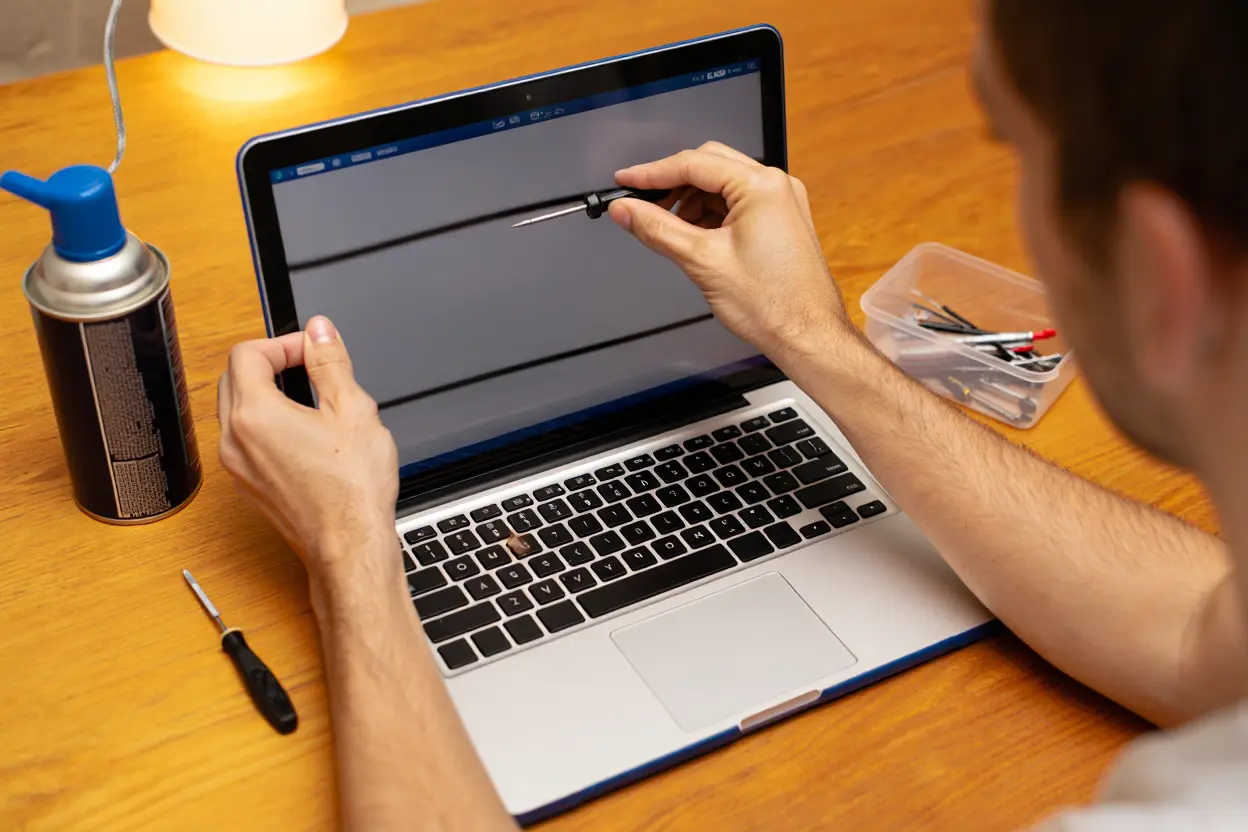
Flickering often comes from the display cable that runs through the hinge. Open and close the lid slowly while watching the screen: if flickering correlates with movement, the cable is likely worn or loose. This is a common wear item and usually an inexpensive repair.
Horizontal or vertical lines can indicate a failing panel or a loose connection. Try gently flexing the screen bezel. If the lines change, reseating the cable may fix it. Persistent lines in the same place usually mean the panel itself needs replacement.
Before assuming hardware failure, update your graphics drivers. Corrupted or outdated drivers cause a surprising share of display glitches, including flicker and wrong resolutions. A clean driver reinstall resolves many cases that look like broken hardware.
Keyboard and Touchpad Not Working
When keys stop responding, start with the simple explanations. Debris under the keys is remarkably common, especially for people who eat near their laptops. Turn the laptop off, hold it upside down, and shake gently. Compressed air between the keys dislodges most crumbs.
For Windows laptops, a corrupted keyboard driver can disable input entirely. An external USB keyboard lets you navigate to the device manager and reinstall the driver. On any system, booting into the BIOS or recovery mode tests whether the problem is hardware or software: if the keyboard works there, your operating system is the culprit.
Liquid spills are the serious case. If you spill on the keyboard, power off immediately, disconnect everything, and turn the laptop upside down to drain. Do not try to turn it on for at least 48 hours. Rice is a myth; airflow and patience are the real remedy. Even if it seems to work afterward, corrosion can cause delayed failures, so back up your data promptly.
Touchpad issues are usually settings rather than hardware. Accidental palm detection settings, disabled touchpads toggled by a function key, and outdated drivers account for most complaints. Check the function keys first: many laptops have a dedicated key that toggles the touchpad, and it gets pressed by accident more often than anyone admits.
Wi-Fi Keeps Disconnecting
Wireless problems are maddening because they feel random, but they usually have identifiable causes. Start by determining whether the problem is your laptop or your network. If other devices stay connected while your laptop drops, the laptop is the suspect. If everything drops together, look at the router.
On the laptop side, outdated Wi-Fi drivers are the leading cause. Visit the laptop manufacturer’s support page and install the latest wireless driver rather than relying on generic Windows updates. Power management settings are the second suspect: some laptops aggressively power down the Wi-Fi adapter to save battery, causing disconnections. Disabling this power-saving feature for the wireless adapter resolves many cases.
Router-side fixes include restarting the router, which resolves a surprising share of issues, and switching Wi-Fi bands. The 5 GHz band is faster but shorter range; the 2.4 GHz band reaches farther through walls. If your laptop struggles at distance, forcing the 2.4 GHz connection can stabilize it.
Interference is the hidden culprit in apartments and offices. Microwaves, baby monitors, and neighboring networks all compete for the same airwaves. A Wi-Fi analyzer app shows which channels are congested, and switching your router to a clearer channel often helps dramatically.
No Sound or Audio Problems
Audio failures are common laptop problems with solutions that are usually quick. First, check the obvious: volume level, mute status, and the correct output device. Bluetooth headphones that auto-connected can silently steal audio output, leaving the laptop speakers seemingly dead. This accounts for a large share of “no sound” complaints.
If the basics check out, the audio driver is the next suspect. In the device manager, uninstall the audio device and restart; the system will reinstall a fresh driver automatically. For persistent issues, download the specific audio driver from the laptop manufacturer’s site rather than using the generic one Windows provides.
Crackling or distorted sound can indicate a failing speaker, but it can also come from audio enhancements. Disabling all sound enhancements in the audio settings resolves many distortion complaints instantly. If only one speaker crackles, the speaker itself is likely damaged, though USB or Bluetooth speakers make fine workarounds.
Blue Screen Errors and Random Crashes
Blue screens on Windows, kernel panics on Mac, are the operating system’s way of saying something went seriously wrong. The most common triggers are faulty drivers, bad RAM, overheating, and corrupted system files. The error code on the screen is genuinely useful: write it down or photograph it before restarting, because it narrows the diagnosis enormously.
Start with the least invasive fixes. Update all drivers, especially graphics and chipset drivers. Run the built-in memory diagnostic to test your RAM; bad memory causes exactly these random crashes. Check temperatures, because overheating processors trigger protective shutdowns that look like random failures.
If crashes started after a specific change, a new program, a driver update, a Windows update, undo that change first. System restore points exist for exactly this situation. When crashes persist across a clean operating system reinstall, the cause is almost certainly hardware, most often RAM or storage, and replacement is the fix.
Laptop Is Stuck in a Boot Loop
A laptop that starts, fails, and restarts endlessly is usually suffering from corrupted system files or a failed update. The fix path depends on reaching the recovery environment. Interrupting the boot process three times in a row typically forces Windows into automatic repair mode, from which you can access startup repair, system restore, and safe mode.
Safe mode is your diagnostic friend. If the laptop boots fine in safe mode, a driver or startup program is the culprit, and you can disable suspects one by one. If it cannot boot even in safe mode, the problem is deeper: corrupted system files or failing storage.
For corrupted files, the built-in system file checker can repair many issues without reinstalling anything. As a last resort, a clean operating system install resolves virtually all software-caused boot loops, though it erases your programs and settings. This is why regular backups matter: they turn a disaster into an inconvenience.
USB Ports and Other Connections Not Working
When USB ports stop responding, the cause is often power management rather than broken hardware, one of the more confusing common laptop problems and solutions to diagnose. The operating system may be suspending the USB controllers to save power. Disabling USB selective suspend in the power settings resolves many cases immediately.
Test methodically. Try the device in a different port, try a different device in the same port, and try the device on another computer. This three-way test tells you whether the problem is the port, the device, or the driver. A single dead port with others working usually indicates hardware failure of that port, while all ports failing together points to drivers or chipset issues.
Physical damage is common with frequently used ports. Look inside with a flashlight for bent pins or debris. A can of compressed air clears out pocket lint that prevents proper contact. For loose ports that only work when the cable is held at an angle, the solder joints have likely cracked, and professional repair is the durable fix.
Common Laptop Problems and Solutions: Prevention Tips That Actually Work
The best entry in any list of common laptop problems and solutions is the one you never need because prevention worked. A few habits dramatically extend laptop life. Clean the vents with compressed air every few months. Keep the operating system and drivers updated, but wait a week or two after major updates to avoid launch-day bugs.
Back up your data automatically. An external drive or cloud service running in the background means that when, not if, something fails, you lose hours instead of years. This single habit transforms every hardware failure from a catastrophe into a repair bill.
Use a surge protector, not just a power strip. Power fluctuations damage charging circuits over time. Avoid extreme temperatures: do not leave a laptop in a hot car or use it in freezing conditions if you can help it. And treat the machine gently. Hinges, ports, and screens fail from cumulative stress, and every careful handling adds up.
Finally, know when to let go. A laptop that needs a new battery, more RAM, and a screen repair may cost more to fix than to replace. As a rule of thumb, if repairs exceed half the cost of an equivalent new machine, replacement is usually the smarter choice. Keeping a machine alive past its economic life just postpones the inevitable while degrading your daily experience.
When to Call a Professional
DIY fixes cover most of the common laptop problems and solutions in this guide, but some situations call for expert help. Any sign of a swollen battery is an immediate professional matter because of fire risk. Motherboard-level failures, liquid damage that has had time to corrode, and soldered-component replacements all require specialized tools and skills.
Choose repair shops carefully. Look for clear pricing, good reviews, and a warranty on the work. Ask whether they use original or third-party parts and what the turnaround time is. For laptops still under warranty, always go through the manufacturer first, since unauthorized repairs can void coverage.
Before handing over your laptop, back up your data and sign out of personal accounts. Reputable shops respect your privacy, but minimizing exposure is simple prudence. Remove any sensitive files you would not want a stranger to see.
Frequently Asked Questions
How long should a laptop last?
Most laptops remain useful for four to six years with reasonable care. Business-grade machines often last longer thanks to better build quality. After that point, software demands usually outpace the hardware even if nothing has broken. Regular maintenance throughout its life maximizes the years you get.
Is it worth repairing a five-year-old laptop?
It depends on the repair cost and the machine’s specifications. A battery replacement or SSD upgrade on an otherwise solid laptop is usually worthwhile. A motherboard replacement on an outdated machine rarely is. Compare the repair quote against the price of a new laptop with similar or better performance.
Why does my laptop get slower over time?
Accumulated startup programs, fuller storage, background updates, and newer software demanding more resources all contribute. Heat-related wear plays a role too. Most slowdown is reversible with cleanup, and an SSD upgrade transforms older machines dramatically.
Can I fix a cracked laptop screen myself?
Yes, screen replacement is one of the more accessible DIY repairs, with parts and video guides available for most popular models. The difficulty varies: some laptops open easily, others require careful prying. If you are not comfortable with delicate connectors, professional replacement typically costs a moderate fee plus the part.
How do I know if my laptop has a virus?
Warning signs include sudden slowness, unexpected pop-ups, new toolbars or programs you did not install, and high network activity when idle. Run a full scan with reputable antivirus software. If infections persist, a clean operating system reinstall is the most reliable cure.
When you’re getting started with Common Laptop Problems and Solutions, the biggest mistake is trying to do everything at once. The people who get the best results from Common Laptop Problems and Solutions start small, focus on one specific goal, and build from there. Think of Common Laptop Problems and Solutions as a skill you develop over time, not a switch you flip. Each week you spend working with Common Laptop Problems and Solutions, you’ll notice patterns in what works and what doesn’t.
Not every approach to Common Laptop Problems and Solutions is right for every person. Your budget, your experience level, and your end goal all shape which Common Laptop Problems and Solutions strategy makes sense for you. Someone exploring Common Laptop Problems and Solutions for the first time needs different guidance than someone who’s been using Common Laptop Problems and Solutions for months. The advice below assumes you’re past the absolute basics but still figuring out the details.
When you’re getting started with Common Laptop Problems and Solutions, the biggest mistake is trying to do everything at once. The people who get the best results from Common Laptop Problems and Solutions start small, focus on one specific goal, and build from there. Think of Common Laptop Problems and Solutions as a skill you develop over time, not a switch you flip. Each week you spend working with Common Laptop Problems and Solutions, you’ll notice patterns in what works and what doesn’t.
Not every approach to Common Laptop Problems and Solutions is right for every person. Your budget, your experience level, and your end goal all shape which Common Laptop Problems and Solutions strategy makes sense for you. Someone exploring Common Laptop Problems and Solutions for the first time needs different guidance than someone who’s been using Common Laptop Problems and Solutions for months. The advice below assumes you’re past the absolute basics but still figuring out the details.
Final Thoughts on Common Laptop Problems and Solutions
The most common laptop problems and solutions are rarely as scary as they first appear. A dead laptop is often a dead charger. A slow laptop usually needs cleanup, not replacement. Overheating yields to dust removal and better habits. Working through problems methodically, from simplest cause to most complex, resolves the vast majority of issues without professional help.
Keep this guide handy, maintain your machine with the preventive habits described above, and back up your data before trouble strikes. A little knowledge turns laptop emergencies into minor inconveniences, and that confidence is worth more than any single fix.


One thought on “Common Laptop Problems and Solutions- Fixes & Tips”