Pressed the power key on your Asus laptop and nothing happened? Or maybe you just unboxed a new machine and cannot figure out where the Asus laptop on button even is. You are not alone. Asus hides this button in different spots depending on the model, and when it stops responding, the panic is real. This guide walks you through exactly where to find the Asus laptop on button, how to use it correctly, and what to do when it refuses to cooperate. Everything here comes from hands-on repair experience, not a manual.
Where Is the Asus Laptop On Button Located?
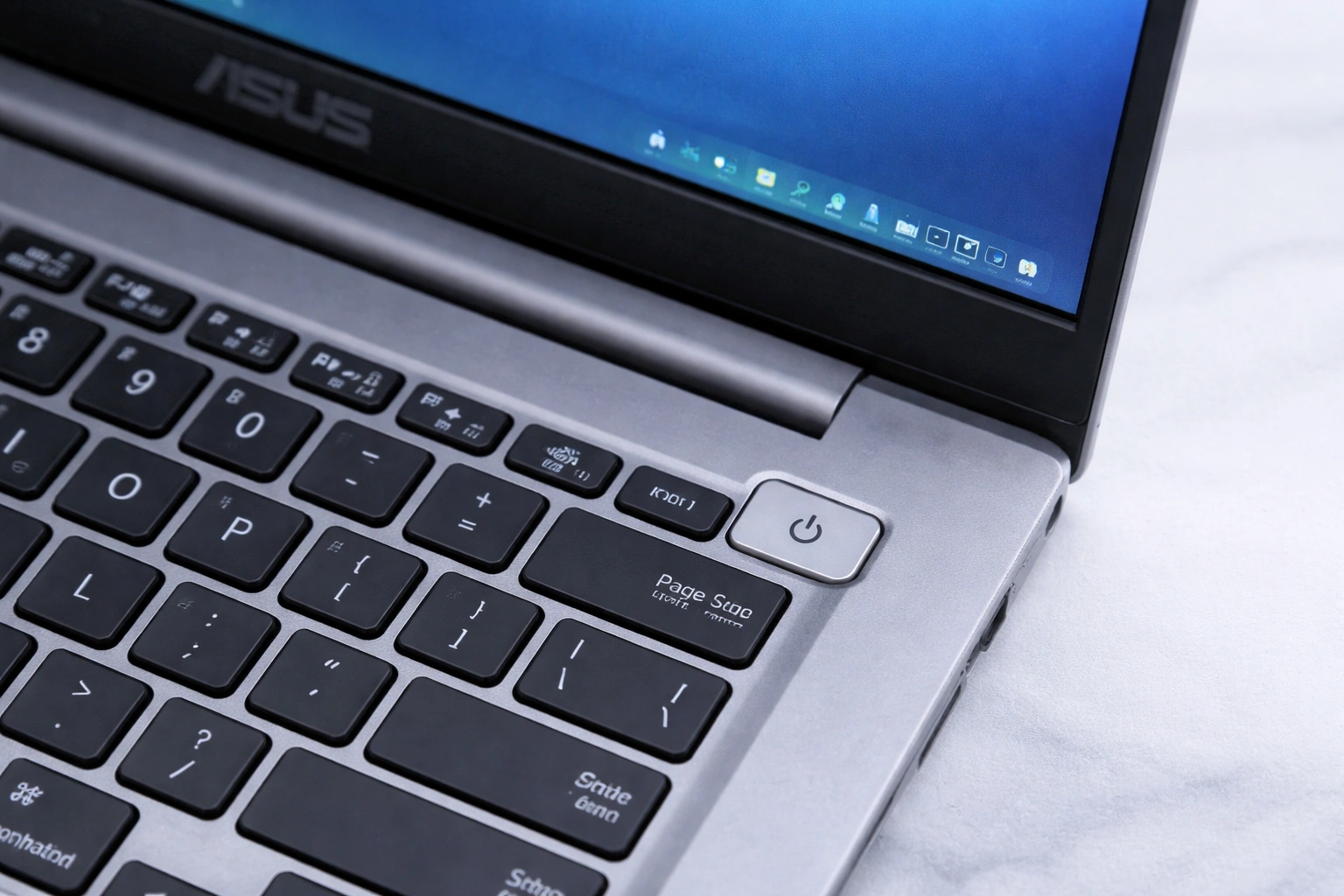
The location of the Asus laptop on button changes from one series to another, which is why so many people get confused. On most modern Asus laptops, including the Vivobook and Zenbook lines, the power button sits at the top-right corner of the keyboard deck. It is usually a small circular or rectangular key, sometimes with a fingerprint sensor built right into it. If your laptop has a fingerprint reader, that is almost certainly your power button too.

On older Asus models, especially the X series and some ROG gaming laptops, the button might be above the keyboard, near the hinge. A few models place it on the side edge of the chassis, which catches people off guard. I once spent ten minutes helping a friend who swore her new Asus had no power button at all. It was on the right side edge, flush with the body, nearly invisible. So if you cannot spot it on the keyboard, run your finger along the sides.
Some Asus 2-in-1 convertibles put the power button on the top edge of the tablet portion. Detachable models like the ExpertBook series sometimes integrate it into the side of the screen unit. The key thing to look for is the universal power symbol, a circle with a vertical line through the top. That symbol is your target no matter where Asus decided to hide it on your specific model.
If you have the box or documentation that came with your laptop, the quick-start guide has a diagram. But honestly, most people throw that away. A faster trick is to search your exact model number plus the words power button location. Asus model numbers look like X515EA or UX425, printed on a sticker underneath the laptop. Type that into a search engine and you will usually find a photo pointing right at it.
How to Use the Asus Laptop On Button the Right Way
Using the power button seems obvious, but there are a few things most people get wrong. A quick press, about half a second, is all it takes to power on the machine. You do not need to hold it down. Holding it for four seconds or longer forces a hard shutdown, which you only want in emergencies when the system is completely frozen.
When the laptop is already running, a single short press usually puts it to sleep instead of turning it off. This is the default Windows behavior, and you can change it in the power settings if you prefer the button to shut down or do nothing. To adjust this, open Control Panel, go to Power Options, and click Choose what the power buttons do. Pick the action you want for both battery and plugged-in states.
One habit worth building is waiting a few seconds between pressing the button and expecting a response. Asus laptops with fast startup enabled can take a moment to wake the display even though the machine is already booting. If you mash the power button repeatedly, you can accidentally trigger a forced shutdown mid-boot, which sometimes leads to startup repair screens. One calm press, then wait.
For laptops with a fingerprint sensor in the power button, you can often press and hold your finger on it to both power on and log in with Windows Hello in one motion. This works on many Zenbook and Vivobook models. You need to set up the fingerprint in Windows Settings under Accounts and Sign-in options first. Once configured, it is genuinely convenient.
Asus Laptop On Button Not Working? Start With These Checks
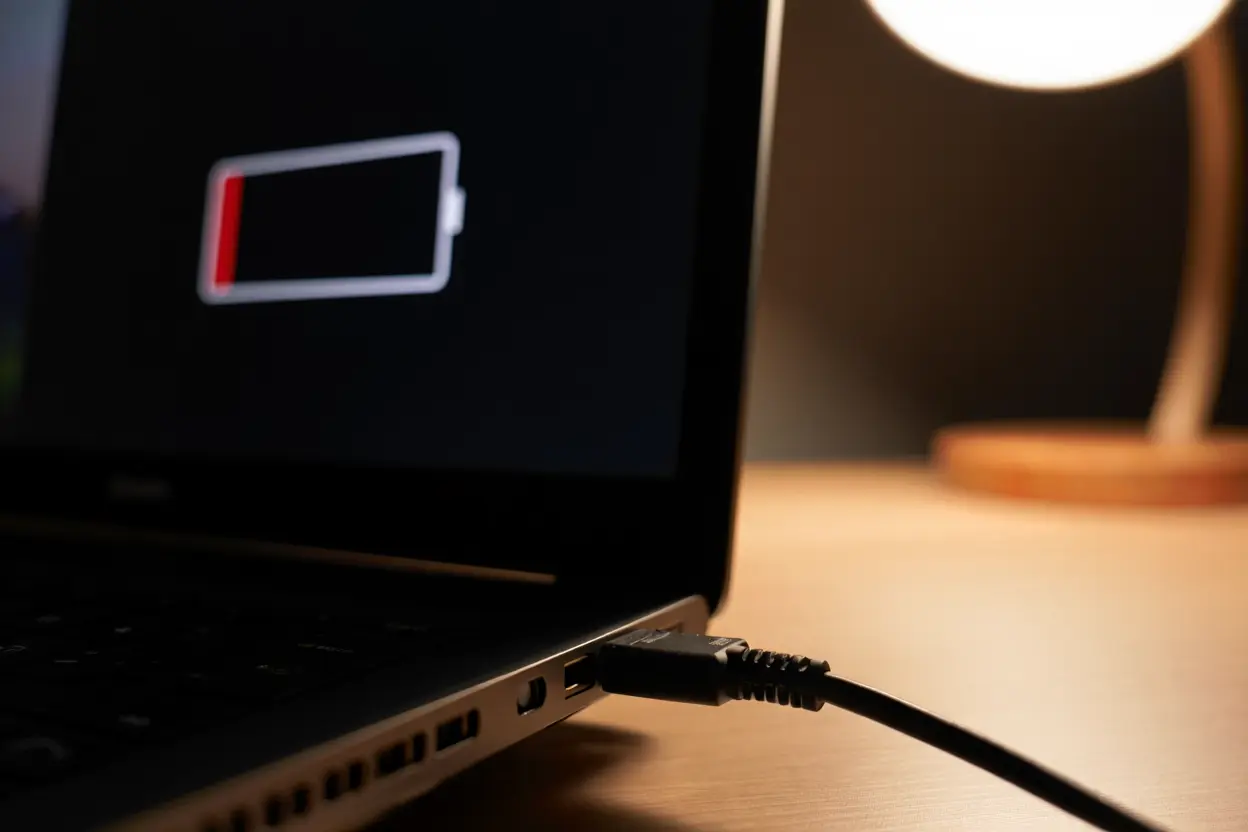
When the power button does nothing, take a breath before assuming the worst. Start with the simplest explanation. Is the battery dead? Plug in the charger and look for the charging indicator light. On most Asus laptops, an orange or amber light means it is charging, while white or green means full. If no light appears at all after plugging in, try a different wall outlet. Chargers and outlets fail more often than power buttons do.
Next, check whether the laptop is actually off or just has a black screen. Sometimes the machine is running but the display is not waking up. Press the Caps Lock key and see if its indicator light toggles. If it does, the laptop is on and the problem is the screen, not the Asus laptop on button. Connect an external monitor to confirm. This distinction saves a lot of unnecessary panic.
Static electricity buildup is a surprisingly common culprit. Laptops accumulate residual charge that can prevent them from powering on. The fix is simple. Unplug the charger, and if your battery is removable, take it out. Then press and hold the power button for a full 30 seconds. This drains the residual charge. Reconnect the charger, without the battery if you removed it, and try powering on again. This single trick resolves a huge number of no-power complaints.
Also inspect the charger itself. Look at the cable for fraying or kinks, especially near the plug ends. Check that the connector seats firmly in the laptop’s charging port. A loose connection can deliver intermittent power that confuses the system. If you have access to another compatible Asus charger, try it. Chargers die quietly, and the laptop cannot tell you the charger is the problem.
Step-by-Step Troubleshooting for a Dead Asus Laptop On Button
If the basic checks did not help, work through these steps in order. Each one targets a specific failure point between the power button and a successful boot.
Asus Laptop On Button: Step 1: Perform a Hard Reset
Disconnect every peripheral. That means USB drives, external monitors, mice, docks, everything. Unplug the charger. If the battery comes out, remove it. Press and hold the power button for 40 seconds. Yes, a full 40. Then plug only the charger back in and press the button once. If it boots, one of the peripherals or the residual charge was the issue. Reconnect devices one at a time to find the troublemaker.
Asus Laptop On Button: Step 2: Test With the Battery Removed
A failed battery can block the power-on sequence entirely. With the charger unplugged, remove the battery if your model allows it. Many newer Asus laptops have sealed batteries, so skip this if there is no removable panel. With the battery out, plug in the charger and press the Asus laptop on button. If the laptop powers on, the battery is dead or shorted and needs replacement. You can run the laptop on charger power alone while you order a new one.
Asus Laptop On Button: Step 3: Check the RAM
Loose or faulty RAM prevents booting, and the symptom looks exactly like a dead power button. You press it, maybe a light flashes, then nothing. If you are comfortable opening the bottom panel, reseat the memory modules. Remove each stick, blow out any dust, and click it firmly back into place. If your laptop has two sticks, try booting with just one, then swap. This isolates a bad module. Do this on a static-free surface and power everything off first.
Step 4: Listen and Watch for Signs of Life
Press the power button and pay close attention. Do any lights come on, even briefly? Do you hear the fan spin or the hard drive click? A light that flashes once and dies points to a power delivery problem, possibly the motherboard or the charging circuit. Complete silence with no lights at all suggests the button itself, the charger, or the mainboard. These observations matter if you end up taking it to a repair shop, because they narrow down the diagnosis and save you money.
Step 5: Try the Novo-Style Recovery Key Combination
Some Asus models respond to holding the F2 key while pressing the power button, which should take you into the BIOS setup. If the BIOS screen appears, your power button works fine and the problem is with Windows or the boot drive. From there, you can check whether the hard drive is detected. If the drive is missing from the BIOS, it may have failed or come loose. If the drive shows up, the issue is likely corrupted Windows files, which a startup repair or reinstall can fix.
What Blinking Lights on the Asus Laptop On Button Mean
Many Asus laptops communicate through the power button light, and learning this language helps a lot. A solid white light usually means the laptop is on and running normally. An orange or amber light often means the battery is charging. If the light blinks slowly, the laptop is probably in sleep mode, and a quick press of the power button should wake it.
Rapid blinking is where things get interesting. On some models, a fast-blinking power light indicates a hardware problem detected during the power-on self-test. The blink pattern sometimes corresponds to a specific fault. Three blinks might mean a memory issue, for example, though the exact codes vary by model. Check your model’s manual online for the blink code chart. It is one of the few genuinely useful things in those manuals.
If the power button light blinks when you press it but the machine never boots, the battery might be too depleted to complete startup even while plugged in. Leave the charger connected for at least 30 minutes without touching anything, then try again. Deeply discharged batteries need time before they can support a boot. This happens a lot with laptops that sat unused for months.
A power button that lights up but the screen stays black deserves its own mention. Try the display toggle key, usually Fn plus one of the F keys with a monitor icon. The laptop might be sending video to a nonexistent external display. Also try a hard reset as described earlier. If an external monitor works but the built-in screen does not, you are looking at a display cable, backlight, or panel issue rather than a power problem.
Keeping Your Asus Laptop On Button Working Reliably
A little prevention goes a long way with the power button. Avoid pressing it with excessive force. It is a small electronic switch, not a stapler. If you find yourself jabbing it hard to get a response, that is an early warning sign worth investigating before it fails completely.
Keep liquids away from the keyboard deck. Spills are the number one killer of power buttons. Even a small splash of coffee can corrode the contacts underneath. If a spill happens, power off immediately, unplug everything, and let the laptop dry upside down in a tent position for at least 48 hours. Do not try to power it on to check. Patience here saves motherboards.
Update your BIOS occasionally. Asus releases BIOS updates that fix power management bugs, including issues where the Asus laptop on button behaves erratically or the laptop will not wake from sleep properly. You can check for updates through the MyASUS app that comes preinstalled, or download them from the Asus support site using your exact model number. Only update the BIOS with the charger plugged in and the battery reasonably charged.
Finally, know when to stop troubleshooting and get help. If you have worked through every step here and the power button still does nothing, with no lights and no sounds, the fault is likely on the motherboard or the power circuitry. That is board-level repair territory. A reputable local shop can diagnose it, and if the laptop is still under warranty, contact Asus support before opening anything, since breaking the warranty seal can void your coverage. Most power button problems turn out to be simple, but there is no shame in handing the hard ones to a professional.
When you’re getting started with Asus Laptop On Button, the biggest mistake is trying to do everything at once. The people who get the best results from Asus Laptop On Button start small, focus on one specific goal, and build from there. Think of Asus Laptop On Button as a skill you develop over time, not a switch you flip. Each week you spend working with Asus Laptop On Button, you’ll notice patterns in what works and what doesn’t.
Not every approach to Asus Laptop On Button is right for every person. Your budget, your experience level, and your end goal all shape which Asus Laptop On Button strategy makes sense for you. Someone exploring Asus Laptop On Button for the first time needs different guidance than someone who’s been using Asus Laptop On Button for months. The advice below assumes you’re past the absolute basics but still figuring out the details.
Fingerprint Power Buttons and Model-Specific Quirks
Many newer Asus laptops combine the fingerprint reader with the power button, and this creates its own set of quirks. If your Asus laptop on button has a fingerprint sensor, a dirty or wet finger can cause confusing behavior. The laptop might power on but fail to log you in, leaving you staring at the login screen wondering what went wrong. Wipe the sensor with a dry microfiber cloth and try again with a clean, dry finger. It sounds trivial, but this fixes the issue more often than you would expect.
Sometimes the fingerprint function stops working after a Windows update. The power button itself still turns the machine on and off, but the biometric login fails. When this happens, open Device Settings, remove the existing fingerprint, and enroll it again from scratch. Also check the MyASUS app for driver updates, because Asus frequently ships fixed biometric drivers after major Windows releases. Do not ignore the driver angle. Most fingerprint problems are software, not hardware.
Certain ROG gaming laptops have an additional quirk worth knowing. Some models feature a dedicated ROG key near the power button that launches Armoury Crate. In dim lighting, it is easy to press the wrong one. If you hit the ROG key expecting the laptop to power on, nothing obvious happens, or the software opens instead. Take a second to confirm you are pressing the button with the power symbol, not the ROG eye logo.
Asus Vivobook models with the ErgoLift hinge design tilt the keyboard slightly when opened. This is normal and does not affect the power button, but some users worry the raised angle means something is broken. It is intentional. The tilt improves typing comfort and airflow. Your power button works exactly the same regardless of the hinge angle.
One more model-specific note. A handful of Asus Chromebooks and education-focused models require you to hold the power button slightly longer, closer to a full second, before they respond. If you are used to the instant response of a Zenbook and switch to one of these, the brief delay can feel like a malfunction. It is not. Give it that extra half second and the machine will come to life.
When the Button Feels Physically Wrong
Pay attention to how the button feels under your finger. A healthy power button has a subtle, crisp click. If yours feels mushy, sticks down, or requires noticeably more force than it used to, the internal switch is wearing out. This tends to happen after years of use, especially on laptops that get powered on and off many times a day. You can sometimes extend its life by pressing gently and deliberately rather than jabbing at it.
If the button has become completely unresponsive to touch but the laptop still powers on when you press very firmly, the tactile dome inside has likely collapsed. This is a hardware failure that will only get worse. Back up your data while the machine still boots, because one day that firm press will stop working too. Replacement involves disassembling the top case, which is doable for experienced DIYers but risky for beginners. The part itself is cheap. The labor is the expensive part.
For anyone still under warranty, a failing power button is absolutely a valid warranty claim. Contact Asus support and describe the symptoms clearly. They may ask you to run through basic troubleshooting first, which you have already done if you followed this guide. Having notes about what you tried speeds up the process. Out-of-warranty repairs for power buttons typically cost far less than motherboard work, so do not assume the worst until you have a real diagnosis.