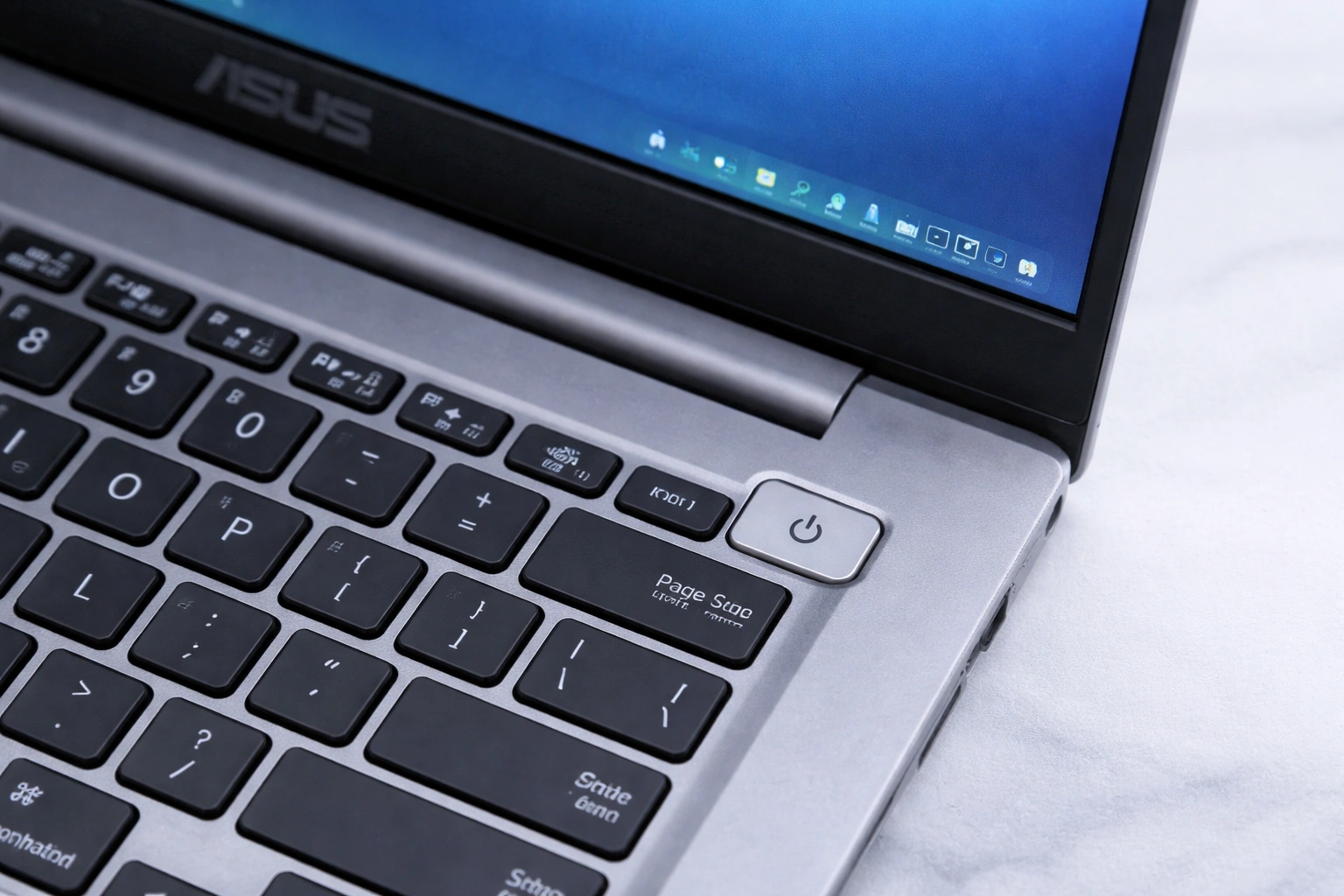
The Asus laptop on button seems like the simplest part of your computer — you press it, the laptop turns on. But when it does not respond, or when you cannot even find it on a new model, that tiny button suddenly becomes the most important thing in the room. This guide covers everything about the Asus power button: where to find it on different Asus models, how to use it properly, and exactly what to do when pressing it does nothing.
Asus makes dozens of laptop lines — VivoBook, ZenBook, ROG, TUF Gaming, ExpertBook, Chromebook — and the power button is not in the same place on all of them. Knowing your specific layout saves a lot of fumbling, especially when you are troubleshooting a machine that will not start.
Where Is the Asus Laptop On Button on Different Models?
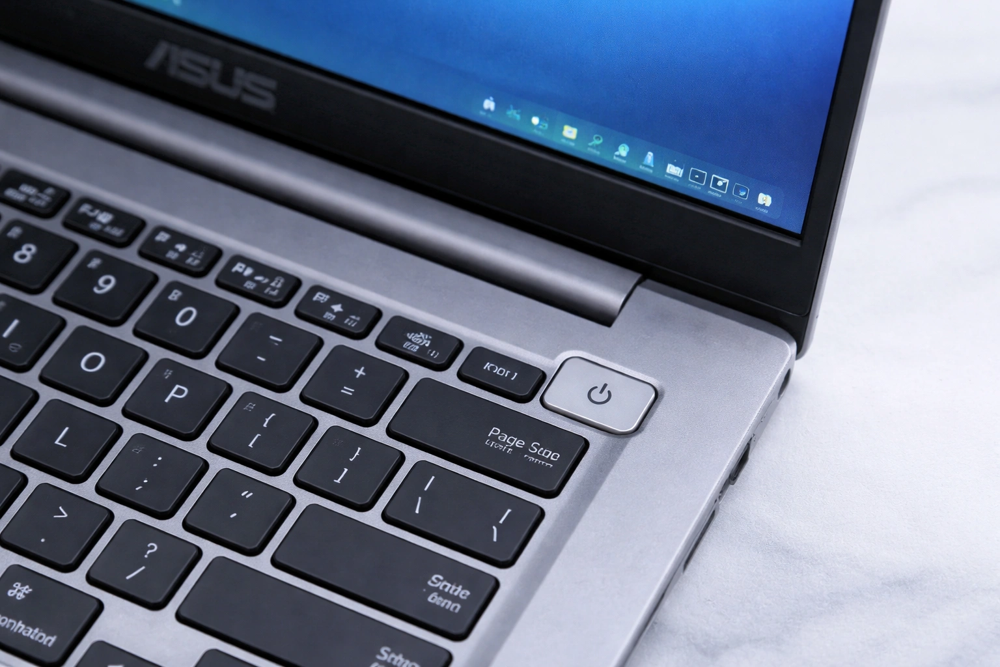
On most Asus VivoBook and ZenBook models, the Asus laptop on button sits at the top-right corner of the keyboard deck, just above the keyboard and separate from the keys. On many recent ZenBooks it is a small circular button integrated into the corner, sometimes doubling as a fingerprint reader. If your button has a fingerprint icon on it, that is both your power button and your biometric login.
On ROG and TUF gaming laptops, the power button is usually centered at the top of the keyboard area, often with a backlit ROG logo or a distinctive design that matches the gaming aesthetic. These buttons tend to be larger and easier to find by touch. Some ROG models place it slightly to the right of center, above the function keys.
On Asus ExpertBook business laptops, you will typically find the power button on the top edge or the side of the chassis rather than on the keyboard deck. This side placement is common on thinner business models where every millimeter of the keyboard area is used for keys. Check the right or left edge near the front corner.
Asus Chromebooks vary: some have the power button on the keyboard deck like the VivoBook, while others put it on the side edge. If you have just unboxed an Asus laptop and cannot find the button, check three places in order: the top-right of the keyboard area, the top edge of the chassis, and the side edges. One of those will have it.
A quick tip: on models where the power button looks like just another key in the top-right corner of the keyboard, it usually has a slightly different feel or a power symbol printed on it. Press it deliberately rather than tapping — a firm press of about one second is what the hardware expects.
How the Asus Laptop On Button Actually Works
Understanding what happens when you press the power button helps you diagnose problems. A short press sends a signal to the embedded controller, which checks battery and adapter status, then powers up the motherboard. The Asus logo appears, the system runs a quick self-test, and the operating system loads.
A long press — holding the button for 5 to 10 seconds — forces a hard shutdown. This cuts power regardless of what the software is doing. It is the emergency brake of laptop operation: useful when the system is completely frozen, but not something to use routinely, since it does not let programs or the operating system shut down cleanly.
On modern Asus laptops with Windows, a short press while the laptop is running usually puts it to sleep rather than shutting it down. You can change this behavior in Windows power settings if you prefer the button to shut down, hibernate, or do nothing. Many users do not realize this is configurable, and confusion about “I pressed the button but it didn’t turn off” usually comes down to this setting.
Asus Laptop On Button Not Responding: First Checks
When the power button does nothing at all, work through these checks in order. First, verify power is actually reaching the machine. Plug in the original Asus charger, confirm the wall outlet works, and look for the charging indicator light. On most Asus models this is a small LED near the charging port — white or orange when charging. No light at all suggests the problem is power delivery, not the button.
Give a depleted battery time. If the battery is completely flat, some Asus models need several minutes of charging before they will respond to the power button. Plug it in, wait ten minutes, then try again. This resolves a surprising number of “dead laptop” scares.
Try the press properly. It sounds basic, but a surprising number of support cases come down to technique: press the button firmly and hold it for a full two seconds, then release. A very quick tap sometimes does not register, especially on buttons with stiffer travel.
Disconnect everything external. Unplug USB drives, external monitors, docks, and peripherals, then try the power button again. A faulty external device can occasionally prevent the boot sequence from starting. If the laptop powers on with everything disconnected, reconnect devices one at a time to find the culprit.
Asus laptop on button: The Hard Reset: Your Best Friend When the Button Seems Dead
If the button still does nothing, perform a hard reset — also called a power drain or EC reset. This clears stuck electrical states in the embedded controller, which is a common reason a healthy laptop refuses to start.
Here is the procedure: disconnect the charger and all peripherals. If your Asus model has a removable battery, remove it. Press and hold the power button for a full 60 seconds — yes, a whole minute; this drains residual charge from the capacitors. Release, reconnect only the charger (leave the battery out for now if it was removable), and press the power button normally.
Many Asus laptops also have a tiny pinhole reset button on the bottom panel. If yours does, straighten a paperclip, press it gently into the hole for about 15 seconds with the charger disconnected, then reconnect power and try the main button. Check your model’s manual for the exact pinhole location — it is usually near the vents on the underside.
If the hard reset brings the laptop back to life, the underlying cause was a stuck power state, not a hardware failure. These can be triggered by static buildup, interrupted updates, or deep battery discharge. It is worth updating your BIOS afterward through the MyASUS app, since newer firmware often improves power management behavior.
Asus laptop on button: Power Light On but Screen Stays Black
This is a distinct problem from a dead button: you press the power button, the power LED lights up, you might hear the fan, but the display shows nothing. Do not assume the worst yet — this is frequently a display issue rather than a boot failure.
First, check brightness. It happens more often than people admit: the brightness got turned all the way down, or the display was toggled off with a function key. Press Fn plus the brightness-up key several times. On many Asus models, Fn + F7 toggles the display output, so try that too.
Next, test with an external monitor. Connect a TV or monitor via HDMI and press the display toggle key. If the external screen shows your Windows desktop, your laptop is booting fine — the internal display, its cable, or the backlight is the problem. That narrows things down enormously for any technician you might consult.
Try a display driver reset: with the laptop on, press Windows + Ctrl + Shift + B. You will hear a beep and the screen may flicker — this restarts the graphics driver without rebooting. It fixes a black screen caused by a crashed display driver, which commonly happens after Windows updates.
If none of this helps, the RAM may need reseating. On Asus models with an accessible bottom panel, power off, disconnect the charger, remove the panel, take the RAM stick out, and firmly reinsert it. Poorly seated memory is a classic cause of “power but no display.” On ultrabooks with soldered RAM this is not possible, and the machine needs professional diagnosis.
Asus laptop on button: When the Power Button Feels Stuck or Damaged
A power button that feels mushy, sticks down, or has visibly shifted is a mechanical problem. First, check for debris — crumbs or grit around the button can prevent it from depressing fully. With the laptop off, use compressed air around the button edges and gently work the button to free it.
Do not pry at the button with tools. Asus power buttons sit above a delicate micro-switch on the motherboard, and aggressive prying can break the switch or damage the surrounding chassis. If cleaning does not restore normal feel and function, this is a repair-shop job — but it is usually an inexpensive one, since it rarely requires a full motherboard replacement.
As a workaround while you arrange repair, many Asus laptops can be set to power on when the charger is connected, or to wake from sleep with the keyboard. Check the BIOS settings (accessible by the method in the next section) for “Power on with AC” options. This is not a permanent fix, but it keeps you working.
Asus laptop on button: Using the Power Button to Access BIOS and Recovery
The power button is also your gateway to the BIOS/UEFI settings and Windows recovery tools. To enter BIOS on most Asus laptops, press the power button and then immediately start tapping the F2 key repeatedly until the BIOS screen appears. Timing matters — begin tapping the moment you press power, not after the logo appears.
For the boot menu (to boot from USB), use the Esc key instead of F2 with the same timing. This is how you start Windows installation media or diagnostic tools from a flash drive.
If Windows will not start normally, you can reach the recovery environment through the power button: turn the laptop on, and as soon as the Asus logo appears, hold the power button to force it off. Repeat this three times. On the fourth boot, Windows will enter Automatic Repair mode, giving you access to Startup Repair, System Restore, and Safe Mode options.
In the BIOS, the settings most relevant to power-button behavior are under the Advanced or Boot sections. “Fast Boot” can make it harder to catch the F2 timing — disabling it gives you a longer window. Some models also offer “Power on lid open,” which starts the laptop automatically when you lift the screen, reducing your dependence on the button entirely.
Battery and Charger Issues That Mimic a Broken Button
Many “power button not working” cases are really battery or charger failures. If your power button works only when the charger is plugged in, the battery is dead or deeply discharged. Check the battery health in the MyASUS app under Battery Health — it shows the battery’s current capacity relative to new.
Use only the original Asus charger or a certified replacement with matching voltage and wattage. Underpowered third-party chargers can fail to charge the battery while appearing to work, leading to confusing symptoms where the laptop dies despite being “plugged in.” Check that the charger’s LED (if it has one) is lit and the brick gets slightly warm during use.
Inspect the charging port for damage or debris. A loose port that only charges at certain cable angles will eventually leave you with a dead battery and an apparently unresponsive power button. Wiggle the connector gently — if charging cuts in and out, the port needs professional repair before it fails completely.
Asus batteries have a safety feature: if the battery detects a fault, it can disconnect itself entirely, making the laptop behave as if the power button is dead. In this case the laptop will usually run fine on charger power alone. The MyASUS battery diagnostics can confirm this, and battery replacement on models with removable batteries is a quick fix.
MyASUS App: Power Settings Worth Knowing
Asus ships the MyASUS app on its laptops, and it contains several power-related settings that affect how the power button and the overall power system behave. It is worth opening at least once to configure these.

Under Battery Health, you can set a maximum charge limit — 80 percent or 60 percent — instead of charging to 100 every time. This dramatically extends battery lifespan if you mostly use the laptop plugged in. The tradeoff is less runtime on battery, but for desk-bound users it is an easy win.
The app also offers fan profiles and performance modes. If your laptop runs hot or the fan is loud, switching from Turbo to Balanced or Silent mode reduces heat and noise at the cost of some performance. For troubleshooting overheating-related shutdowns, this is a useful first step before assuming hardware failure.
MyASUS also handles driver and BIOS updates. Keeping these current fixes a wide range of power quirks, including laptops that will not wake from sleep, buttons that need multiple presses, and charging that stops at a certain percentage. Run the update check monthly.
When to Contact Asus Support
You have done your due diligence when the button still does nothing after a hard reset, a known-good charger, and the pinhole reset. At that point the likely causes are a failed power button switch, a damaged power circuit, or a motherboard fault — all of which need professional tools.
Before contacting support, gather three pieces of information: your exact model number (on the sticker underneath), the serial number, and a clear description of the symptoms and what you already tried. Support can move much faster when you can say “hard reset done, charger verified, no response” instead of “it won’t turn on.”
Check your warranty status on the Asus support website using the serial number. If the laptop is under warranty, do not open it yourself — use the official repair channel. Out-of-warranty power button repairs are typically inexpensive, since the switch itself is a cheap part and the labor is usually under an hour.
When you’re getting started with Asus laptop on button, the biggest mistake is trying to do everything at once. The people who get the best results from Asus laptop on button start small, focus on one specific goal, and build from there. Think of Asus laptop on button as a skill you develop over time, not a switch you flip. Each week you spend working with Asus laptop on button, you’ll notice patterns in what works and what doesn’t.
Not every approach to Asus laptop on button is right for every person. Your budget, your experience level, and your end goal all shape which Asus laptop on button strategy makes sense for you. Someone exploring Asus laptop on button for the first time needs different guidance than someone who’s been using Asus laptop on button for months. The advice below assumes you’re past the absolute basics but still figuring out the details.
Frequently Asked Questions
Where is the Asus laptop on button on a ZenBook?
On most ZenBook models, the Asus laptop on button is in the top-right corner of the keyboard deck, often combined with a fingerprint reader. On the very thinnest models, check the side edge of the chassis near the front-right corner.
How long should I hold the Asus laptop on button to force shutdown?
Hold it for 5 to 10 seconds until the laptop powers off completely. Use this only when the system is frozen and unresponsive — for normal shutdowns, use the Start menu so programs and Windows can close properly.
Why does my Asus laptop turn on but immediately turn off?
Immediate shutdown after pressing the power button usually means overheating protection (blocked vents or failed fan), a critically low battery with a faulty charger, or a hardware fault detected during the self-test. Try the hard reset procedure, ensure the vents are clear, and test with the charger connected.
Can I change what the Asus laptop on button does?
Yes. In Windows, go to Settings, then System, then Power and battery, and look for the power button action settings. You can set a short press to sleep, hibernate, shut down, or do nothing — for both battery and plugged-in states independently.
My Asus laptop on button needs several presses to work. Is it failing?
Not necessarily. First update the BIOS and chipset drivers through MyASUS, since power-management firmware bugs cause exactly this symptom. If it persists after updates, the button’s micro-switch may be wearing out — usable for a while, but plan for a repair before it fails completely.