April 16, 2026 by TechUpdateLab Team
✔ Updated for 2026 | ✔ Beginner-Friendly | ✔ Works on Windows & Mac
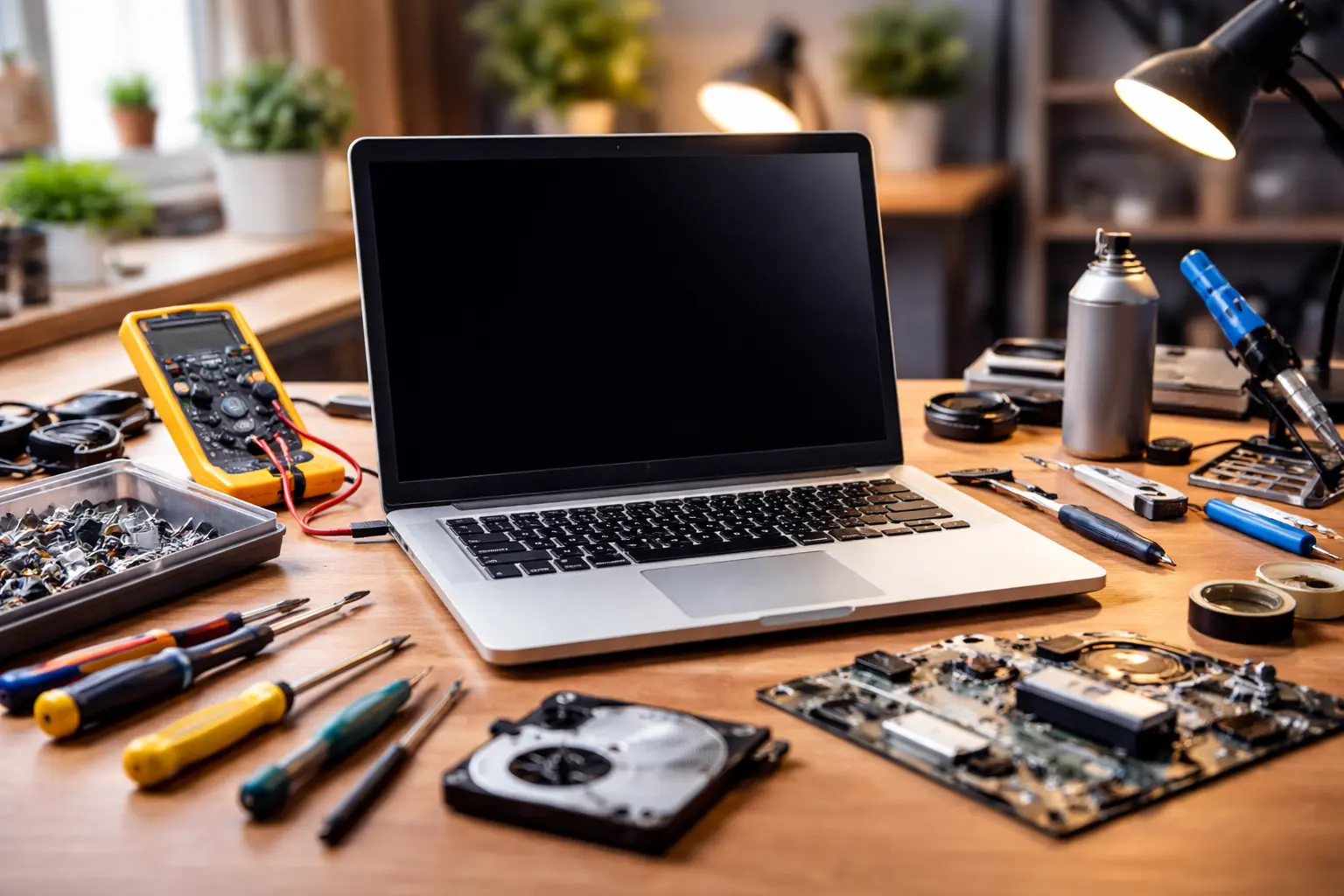
A laptop on a desk, symbolizing fixing lag on a laptop and boosting speed.
Is your computer feeling sluggish, freezing during simple tasks, or taking forever to open apps? A lagging laptop can be incredibly frustrating, slowing your workflow and testing your patience. In this guide, we’ll show you how to fix lag on laptop step by step. You’ll learn quick, practical tweaks—ranging from software adjustments to hardware upgrades—to boost your laptop’s speed, fix slow laptop issues, and improve laptop performance. These solutions work whether you use Windows or macOS, and most can be done without any special tech skills.
You can also read our detailed guide on how to improve laptop performance to get advanced optimization tips.
Quick Answer: To fix lag on a laptop, try these steps:
- Restart your laptop to clear memory and stop runaway processes.
- Free up disk space by deleting junk files and uninstalling unused programs.
- Disable unnecessary startup apps so fewer programs run in the background.
- Update your operating system and drivers to ensure everything is optimized.
- Scan for malware and viruses that may be hogging resources.
- Add more RAM or switch to an SSD if your hardware is outdated.
- Clean your laptop’s vents and adjust settings (disable visual effects, use a high-performance power plan).
These simple fixes can instantly improve laptop speed. Let’s dive into each solution in detail.
Table of Contents
Why Is My Laptop Lagging?
If your laptop is lagging, it’s usually due to common issues like low storage space, too many background programs, outdated drivers, or malware infections. Overheating and insufficient RAM can also slow down your system. In many cases, a slow laptop happens when multiple problems combine, such as running heavy apps on outdated hardware or having too many startup programs enabled.
If you want a deeper breakdown, check our full article on why laptop lagging and how to fix it.
How to Fix Lag on Laptop – Step-by-Step Guide
If you’re wondering how to fix lag on laptop, you’re not alone. A slow or lagging laptop can reduce productivity and make even simple tasks frustrating. In this step-by-step guide, you’ll learn how to fix lag on laptop using proven methods like freeing up storage, disabling startup programs, updating drivers, and removing malware. Whether you’re using Windows or macOS, these practical tips will help improve laptop performance, reduce lag, and make your device run faster and smoother in 2026.
1. Restart and Refresh Your System
A fresh restart is the simplest first step to fixing a lagging laptop. Rebooting clears temporary data, stops unnecessary processes, and frees up memory. If you haven’t restarted in days (or weeks), your system memory may be clogged with leftover tasks. Here’s how to refresh your system effectively:
- Reboot regularly: Aim to restart your laptop at least once a week. A reboot clears out cached files and resets background services that can slow performance over time. If your device has been on for a long time, start by shutting it down and powering it up again.
- Close unused apps: After restarting, only open the programs you need. Each open app or browser tab uses memory and CPU. Even on modern machines, having dozens of apps running can choke performance. Close any programs (or browser tabs) you aren’t actively using.
- Use High-Performance mode: On Windows, switch your power plan to “High performance” (Control Panel > Power Options > select High performance). This prevents the OS from throttling your CPU to save energy. On a Mac, go to System Settings > Battery and choose a performance profile if available. High-performance mode keeps your CPU and GPU running at full speed, reducing lag during demanding tasks (though it may use more battery).
- Clear temporary caches: Many programs and web browsers accumulate cached data. Use built-in tools to clean these up. In Windows, run “Disk Cleanup” or enable Storage Sense (Settings > System > Storage) to automatically delete temp files. On macOS, open Apple menu > About This Mac > Storage and click Manage to remove unnecessary files. Clearing caches and temp files frees space and often speeds up the system.
- Pause cloud sync services: If you use cloud services (OneDrive, Dropbox, Google Drive) that auto-sync files, consider pausing them when not needed. Continuous syncing can consume CPU and disk I/O, making your laptop feel sluggish. Temporarily turn off or pause these services if you notice performance issues.
A clean reboot alone often resolves many laptop lag issues. If apps still feel slow, move on to the next fixes.
2. Free Up Disk Space and Defragment (Storage Optimization)
A nearly full hard drive makes any computer sluggish. When disk space is low, your laptop cannot write new temporary files or increase its virtual memory (paging file), causing slowdowns. Follow these steps to free up disk space and optimize storage:
- Run disk cleanup tools: Use Windows’ Disk Cleanup (Start > Disk Cleanup) or Storage Sense to delete temporary files, recycle bin contents, and system caches. On a Mac, use the Storage Management tool (Apple menu > About This Mac > Storage > Manage) to remove unneeded files, empty Trash, and delete large items. Freeing up space (aim to keep at least 15–20% of your drive empty) lets your OS work efficiently.
- Uninstall unused programs: Go through your installed applications and uninstall anything you don’t use. In Windows, open Settings > Apps > Installed apps and remove software or games you no longer need. On Mac, drag unneeded apps from the Applications folder to the Trash. Every app takes up space and may run background services; removing them recovers space and system resources.
- Delete large files or move them: Look in folders like Documents, Downloads, Pictures, and Videos for large files (HD movies, disk images, backups, etc.). Move these to an external drive or cloud storage if you still need them, or delete them if not. Even a few large files (several GB each) can hog space. Deleting or relocating such files can dramatically improve disk performance.
- Defragment your drive (HDD only): If your laptop has a traditional hard disk drive (HDD), run the built-in Defragment and Optimize Drives tool (Windows: Start > type “defrag” > select your drive > Optimize). Defragmentation reorders fragmented files so the disk head can read data more quickly. Note: Do not defrag a solid-state drive (SSD). Instead, ensure Windows’ TRIM feature is enabled (it usually is by default), which keeps SSDs fast by cleaning up unused data blocks.
- Use cloud storage wisely: Leverage cloud services to offload bulk files. For instance, use Google Drive, Dropbox, or iCloud to store photos, videos, and documents, and enable selective sync so only essential items stay local. Offloading media can free gigabytes of space.
- Keep at least 15–20% free: As a rule of thumb, don’t let your main drive fill above 85%. Operating systems need room for virtual memory and temporary files. Dell and other experts note that performance drops sharply when a drive is nearly full, because the system can’t swap or cache data efficiently.
Efficient storage management is key to reduce lag on laptop. A tidy drive lets the OS boot faster and launch programs without delay. If you used an HDD, this step alone can eliminate a lot of lag.
3. Disable Unnecessary Startup Programs
When too many apps launch at boot, your laptop can take ages to start and feel sluggish even after logging in. Each startup program uses CPU and memory in the background. Reducing startup items speeds up both boot time and overall performance:
- Use Task Manager (Windows): Press Ctrl+Shift+Esc to open Task Manager and go to the Startup tab. Here you’ll see a list of programs that run on startup. Right-click and Disable any non-essential items (cloud services, update schedulers, gaming apps, etc.). Keep only critical ones like your antivirus or drivers. Disabling these will drastically cut down background load.
- Manage Login Items (Mac): On macOS, go to Apple menu > System Settings > Users & Groups > Login Items. Uncheck or remove programs you don’t need right after boot. Fewer login items mean a faster login process and more free RAM.
- Remove bloatware: Some laptops come pre-loaded with manufacturer software that can auto-start (tools branded for system updates, demo apps, etc.). If you don’t use these, uninstall them via Settings > Apps (Windows) or Applications folder (Mac). Fewer unnecessary apps at all means less chance one sneaks into startup.
- Use lean background settings: On Windows, consider disabling unneeded Background Apps in Settings > Privacy & Security > Background apps – turn off apps you seldom use. On both Windows and Mac, close apps fully instead of just minimizing; many stay resident unless explicitly closed.
- Review system tray icons: Some programs minimize to the system tray (Windows) or menu bar (Mac) and run silently. Check these icons at boot; if any utility is constantly running (cloud sync, updaters, music services), quit them if not needed.
According to Microsoft, keeping your system updated and storage optimized is essential for maintaining performance.
Optimizing startup programs ensures your laptop isn’t working overtime right from the start. Fewer apps consuming resources in the background means snappier performance. It’s one of the quickest ways to improve laptop speed without any cost.
4. Update Your Operating System and Drivers
Outdated system software can slow down your laptop. Developers regularly release patches and drivers that improve speed and stability. Keeping Windows, macOS, and hardware drivers up to date is essential:
- Check for OS updates: On Windows, go to Settings > Windows Update and click Check for updates. Install any pending Windows updates. On macOS, open System Settings > General > Software Update and install updates. These may include performance improvements, security patches, and optimizations. For example, Windows updates often fix memory leaks or storage inefficiencies that could slow a PC.
- Update drivers: Drivers control your hardware (graphics card, chipset, network, etc.). Outdated drivers, especially for graphics or storage, can bottleneck performance. In Windows, you can update drivers via Device Manager or use the manufacturer’s tools (Dell SupportAssist, Intel Driver & Support Assistant, etc.). Alternatively, visit the laptop maker’s website (HP, Dell, Lenovo, etc.) to download the latest drivers for your model. On a Mac, most drivers update automatically with macOS, but you can run Software Update to get the latest firmware and driver fixes.
- Upgrade BIOS/UEFI (advanced): The motherboard’s firmware (BIOS or UEFI) can impact stability and performance. Check your laptop manufacturer’s support site for firmware updates. Be cautious: this is an advanced step. If you do it, follow the instructions exactly. Updated firmware can improve CPU/GPU performance or fix system bugs that cause lag.
- Use built-in tools: Some laptops come with system utilities. For example, Dell’s SupportAssist can automatically detect and install driver and BIOS updates. On Windows 11, Microsoft provides a PC Manager app that can find optional driver and firmware updates for you. Even non-Dell PCs can use tools like NVIDIA GeForce Experience or AMD Radeon Software to update graphics drivers. Regularly installing these updates helps your laptop run at peak speed.
Keeping software up to date is a proven fix for sluggish computers. Microsoft’s own support documentation lists “outdated software and drivers” among the top reasons a PC slows down[1]. By applying the latest patches and drivers, you ensure that your laptop has all the optimizations and bug fixes it needs.
5. Scan for Malware and Viruses
Malware is a common culprit behind unexpected slowdowns. Viruses, spyware, and other malicious programs often run in the background and hog CPU, memory, or network. A clean, secure system will always perform better:
- Run a full antivirus scan: Use your preferred antivirus program (Windows Defender, Norton, Bitdefender, etc.) to run a thorough scan. In Windows 11/10, open Settings > Privacy & Security > Windows Security > Virus & threat protection and choose Scan options > Full scan. This can take some time, but it will detect spyware, viruses, ransomware, or any hidden threats. Remove or quarantine anything found.
- Use anti-malware tools: Sometimes antivirus misses “Potentially Unwanted Programs” (PUPs) or adware. Free tools like Malwarebytes (available for Windows and Mac) can find and remove bloatware, toolbars, or advertising software that slows your system. It’s worth doing a quick Malwarebytes scan every few months.
- Uninstall suspicious software: If you find something nasty, uninstall it immediately. Go to Settings > Apps (Windows) or Applications (Mac) and remove programs you don’t recognize. Reboot after removing malware to clear residual processes.
- Check browser extensions: Malicious or poorly-coded browser add-ons can significantly slow down web browsing and overall system performance. In your browser’s settings, review installed extensions and remove any that are unneeded or suspicious. Reset your browser to default settings if you suspect adware.
- Stay protected: Enable real-time protection in your security software and keep it updated. Good antivirus can catch threats before they slow you down. Regularly scan external drives and email attachments.
Microsoft explicitly notes that malware “can consume CPU and disk resources, which can reduce system performance”[2]. After cleaning your laptop of infections, you’ll often notice a big improvement. In many “laptop lagging fix” guides, removing viruses is the first step, since a clean system runs much faster.

6. Upgrade Hardware (Add RAM or Switch to SSD)
Software tweaks can only go so far. If your laptop is old or underpowered, a hardware upgrade may be the ultimate “laptop running slow fix.” Two of the most effective upgrades are adding more memory (RAM) and replacing an old hard drive with a solid-state drive (SSD). These changes can dramatically boost laptop speed:
- Add More RAM: If your laptop has less than 8 GB of RAM (or if you often multitask with many browser tabs and apps), installing more RAM can help. Additional memory means your laptop can handle more tasks at once without using slow disk swapping. Check your laptop’s documentation to see how much RAM it can support and whether it has free RAM slots. Many laptops allow you to slide off the back panel and plug in extra RAM sticks yourself. If unsure, search online for your model (for example, “upgrade RAM Lenovo ThinkPad T14”). Once installed, test with the Windows Task Manager Performance tab to see if overall memory use drops. More RAM is one of the best ways to improve laptop performance for demanding tasks (gaming, video editing, professional software).
- Switch to a Solid-State Drive (SSD): If your laptop still uses an older spinning hard disk drive (HDD), switching to an SSD will almost instantly speed up everything. SSDs are about 5–10 times faster at reading and writing data. You’ll see much faster boot times, quicker application launches, and snappier file access. SSDs have no moving parts, so your system will feel remarkably more responsive. To upgrade, clone your old drive to a new SSD (using tools like Macrium Reflect or Samsung Data Migration) and then swap the drives. Nowadays, 500 GB to 1 TB SSDs are affordable. After the switch, your laptop will operate like new. This is a classic laptop running slow fix – many tech sites say “upgrade to SSD” as the first advice for speed issues.
- Check for compatibility: Before buying, ensure your laptop can accept the upgrade. Some ultrabooks have RAM soldered on the board (so RAM upgrades aren’t possible) or only support M.2 SSDs (small sticks) instead of 2.5-inch drives. Manufacturers’ support pages usually list upgrade options. Upgrading RAM or adding an SSD typically comes with easy-to-follow online guides (often video tutorials on YouTube).
- Clean Install Option: If hardware upgrades aren’t feasible, consider reinstalling your OS. Back up data, wipe the drive, and do a fresh OS install. This removes all old clutter and bloatware. It’s a drastic step but can sometimes revive an old laptop by eliminating years of accumulated junk. (Remember to reinstall drivers after.)
Experts at Dell also note that low disk space and overheating are major causes of laptop lag.
Upgrading hardware costs a bit, but it offers the biggest performance boost. In fact, if you ever searched “improve laptop speed” or “laptop lagging fix,” you’ll see these two upgrades recommended repeatedly. Once you have more RAM and an SSD, you’ll likely notice that even demanding programs run smoothly and your laptop no longer feels obsolete.
Add More RAM (Memory)
If you frequently run out of memory (you can check under Task Manager > Performance > Memory on Windows, or use Activity Monitor on Mac), more RAM can solve slowdowns due to paging (swapping data to disk). For example, web browsers with many tabs can easily consume 8+ GB, causing older machines to page heavily. Simply installing an extra 8 GB stick (for a total of 16 GB or more) lets your computer keep more data in fast RAM. This greatly improves laptop performance when multitasking, editing large documents, or running memory-heavy apps.
Install an SSD (Storage)
The hard drive is often the bottleneck in an older laptop. An HDD can have very slow seek times, making data access a major source of lag. Replacing it with an SSD (SATA or NVMe) makes boot-up times drop from minutes to seconds. Applications launch instantly, and even file browsing feels snappy. In tests, laptops with SSDs boot Windows or macOS in under 30 seconds, whereas the same model with an HDD took two or three minutes. This speed boost is dramatic. Many users say that switching to an SSD is the single most effective upgrade for a slow laptop. For “laptop running slow fix,” investing in an SSD is often worth it.
7. Clean Internals and Optimize Settings
Physical maintenance and system tweaks can further reduce lag. Overheating or extreme settings can throttle your laptop’s speed. Do the following to squeeze out maximum performance:
- Clean internal dust: Power off and unplug your laptop. Use compressed air or a soft brush to blow out dust from vents and fans. Clogged vents make your CPU overheat and throttle (slow down to cool off). After cleaning, your fans can cool more efficiently, preventing heat-induced lag. If you’re comfortable, open the back panel to carefully clean fans and heat sinks. Overheating is a sneaky cause of lag: many laptops slow down automatically when they get too hot. Keeping hardware clean helps maintain speed.
- Use a laptop stand or cooling pad: Elevating the laptop improves airflow. If you notice performance drops after running intense tasks (like gaming or video editing), using a cooling pad can help dissipate heat. Lower operating temperatures allow your CPU/GPU to run at full clock speed consistently.
- Adjust visual effects: Fancy animations and transparency look nice but use CPU/GPU power. On Windows, press Windows+R, type sysdm.cpl, go to the Advanced tab, click Settings under Performance, and select Adjust for best performance. This disables most visual effects (animations, shadows, etc.), freeing up resources. On macOS, open System Settings > Accessibility > Display and reduce motion and transparency. For example, disabling “Reduce motion” and “Reduce transparency” can give your older Mac a small speed bump. Cutting visual fluff helps improve laptop performance for core tasks.
- Set the best power plan: We mentioned high-performance mode earlier. Double-check your power settings: On Windows, go to Settings > System > Power & sleep > Additional power settings and ensure High performance (or Ultimate performance on Windows 11 Pro) is selected. On macOS, connect to power and under Battery settings set Energy Mode to High Power if available. (This prevents the OS from under-clocking the CPU to save battery.)
- Disable background services: Some Windows services and apps run constantly. Open Task Manager and the Processes tab. Look for apps using lots of CPU, Memory, or Disk. End tasks for ones you recognize as unnecessary (like old update managers). Be careful not to close anything you need. On Mac, use Activity Monitor (found in Utilities) to spot resource hogs; quit apps that shouldn’t be running.
- Check for malware one more time: Some malware, like crypto-miners, can resume running if they weren’t fully removed. As a last safety measure, run a quick malware scan (maybe in Safe Mode) after all changes, ensuring no lingering threats.
By optimizing both the hardware environment (keeping it cool and clean) and software settings, you tackle the last common causes of lag. Many guides note that ambient heat and unneeded visual features can make laptops feel slow – so cleaning vents and using simpler graphics settings can be just as important as managing apps.
Common Reasons Why Laptop Lags
There are several common reasons why a laptop becomes slow over time:
- Low disk space (almost full storage)
- Too many startup programs
- Running heavy software on low RAM
- Outdated operating system or drivers
- Malware or virus infections
- Overheating due to dust buildup
- Background apps consuming CPU and memory
Understanding these issues helps you apply the right solution and fix lag on laptop more effectively.
Before vs After Performance Improvement
After applying the fixes mentioned above, you can expect noticeable improvements in your laptop’s performance:
| Before Fix | After Fix |
|---|---|
| Slow startup time | Faster boot (under 30 seconds) |
| Apps take long to open | Apps open instantly |
| Frequent freezing | Smooth performance |
| High CPU usage | Optimized system usage |
| Lag while multitasking | Better multitasking |
These improvements show how simple optimizations can significantly improve laptop performance without buying a new device.
Best Free Tools to Fix Lag
Here are some of the best free tools you can use to fix a slow laptop:
- Disk Cleanup (Windows): Removes temporary files and junk data
- Malwarebytes: Detects and removes malware and adware
- CCleaner: Cleans cache, junk files, and optimizes performance
- Windows Task Manager: Helps identify resource-heavy apps
- Mac Activity Monitor: Monitors CPU, RAM, and system usage
Using these tools regularly can help maintain your system and prevent lag issues in the future.
FAQ
How can I fix laptop lag quickly at home?
You can quickly fix lag by restarting your laptop, clearing temporary files (Disk Cleanup or Storage Sense on Windows, or deleting caches on Mac), and closing unnecessary programs. Disabling startup apps and running a quick malware scan are also easy at-home fixes that often yield immediate speed improvements.
Why is my laptop suddenly lagging?
Sudden lag can be caused by issues like low disk space, too many background apps running, outdated drivers, or a virus. For example, running out of hard drive space can cause the system to constantly use virtual memory, slowing everything down. Regular maintenance (updates, cleanup, scans) usually prevents sudden performance drops.
Can I fix a slow laptop without upgrading hardware?
Yes. Before buying new parts, make sure to optimize your existing system: delete junk files, uninstall unused programs, disable unnecessary startup tasks, update your OS/drivers, and remove malware. Adjusting power and visual settings (as described above) can also yield big improvements. Only if these steps fail to speed up your laptop should you consider hardware upgrades.
Does adding more RAM help fix laptop lag?
Absolutely. Adding RAM can help fix lag, especially if you multitask or run memory-hungry applications. More RAM allows your system to keep more data readily accessible without resorting to slower disk swapping. Many users find that upgrading from 4–8 GB to 16 GB RAM makes their computer much snappier.
Do I need to reinstall Windows to speed up my laptop?
Reinstalling Windows is a last resort but can help if software issues are deeply embedded. Before doing that, try the steps above (cleanup, updates, scans). If all else fails, backing up your data and performing a clean Windows install will remove any hidden software problems. Remember to reinstall drivers and updates afterward. Often, simply doing the above maintenance steps is enough, and a full reinstall isn’t necessary.
Conclusion
A lagging laptop doesn’t always mean you need a new machine. In most cases, smart maintenance and tweaks can fix lag on laptop and restore responsiveness. To recap, the key steps are: restart and close programs, clean up disk space, disable unneeded startup apps, update your system software, scan for malware, and consider hardware upgrades (RAM/SSD). Additionally, keep your laptop cool and tweak performance settings (disable fancy animations, use high-performance power plans).
Whether you have a Windows notebook or a MacBook, following these steps will drastically improve laptop performance. For instance, freeing up storage and adding more RAM often solves the biggest slowdowns, while routine tasks like updates and antivirus scans keep things running smoothly. Try these fixes one by one, and you’ll likely reduce lag on laptop issues without much hassle.
If your device is still slow, check our complete guide on fix slow laptop permanently.
Give these solutions a try and reclaim your laptop’s speed – your productivity will thank you! If this guide helped you fix lag on laptop, share it with friends or colleagues who might benefit. Feel free to leave a comment with your own tips or questions below. For more tech how-tos and troubleshooting tips, keep visiting TechUpdateLab.
Editorial Note: This article was created by the TechUpdateLab editorial team in April 2026.
Author Credit: Shahed TechUpdateLab